
 Vitalii Holben
How to cache screenshots and stop paying for the same capture twice
About 30-40% of screenshot API requests are duplicates — same URL, same parameters, same result. Here's how I built caching into screenshotrun and three strategies you can use on your side to cut your API bill and speed up delivery: TTL-based cache, content hashing, and event-driven refresh via webhooks. Code examples in PHP/Laravel and Node.js included.
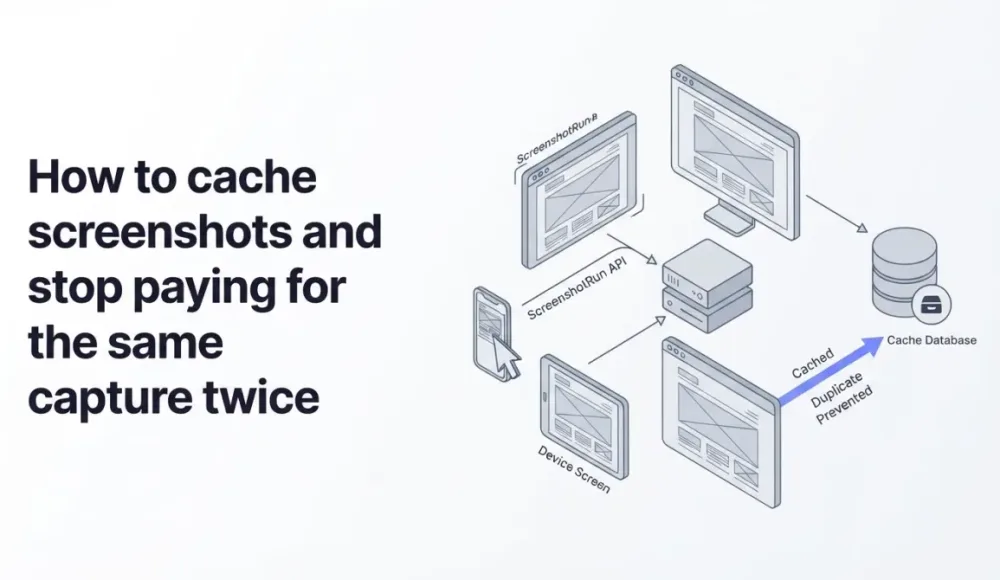
Every screenshot you take is expensive. Browser launch, page load, render, image encoding. It's easy money for a screenshot provider and a fast way to burn through credits if you don't pay attention. Looking at usage patterns for my own screenshot tool, roughly 30-40% of requests are repeated captures of exactly the same URL with the same parameters. Same site, same viewport, same result, and every one of them spins up a fresh render.
That's the case for caching. In this article I'll walk through the strategies that actually work (TTL, content hashing, and webhook-driven refresh) with code you can drop into a Laravel or Node.js project. I'll also cover where to store the files and a mistake I made early on that you shouldn't repeat.
Why caching matters when every screenshot costs a browser render
Taking a website screenshot isn't a cheap operation. Every request means launching a headless browser, loading the page, waiting for the render to finish, and converting the result to PNG or JPEG. That process takes anywhere from 2 to 10 seconds depending on the page complexity.
If your app shows website previews in a link directory or generates OG images, every visitor triggers that whole process from scratch. A hundred visitors per hour means a hundred identical renders. Your API bill goes up, response times get worse, and the output is exactly the same every time.
Caching fixes this. Your API bill drops, pages load faster (seconds to milliseconds if you serve from local storage), and you stop hammering the rendering pipeline for screenshots that look identical to what you captured yesterday.
Two layers of cache that work best together
I think of screenshot caching as two separate layers, and both are worth using at the same time.
Server-side caching means the screenshot service itself stores the result and returns it again if the parameters match. Most hosted screenshot APIs expose this as a cache_ttl-style parameter. You pass a number of seconds, and during that window any repeat request with the same parameters returns the cached file without triggering a new render. This protects against accidental duplicates, like two requests hitting the API at the same moment, without any code on your end.
Client-side caching means you save the screenshot yourself after the first request and stop calling the API entirely for that URL. This gives you full control over when to refresh, where to store the files, and how to serve them to your users.
Both layers complement each other well. Server-side cache handles accidental hits for free, while your own cache removes the API from the chain completely for screenshots you've already captured. The rest of this article focuses on client-side caching, since that's where you have the most control and the biggest savings.
Strategy 1: TTL cache, the simplest approach that covers most cases
TTL stands for time to live. Dead simple concept. A screenshot lives for N seconds. After that it's considered stale, and the next request triggers a fresh capture. For most use cases, this is enough.
I'd wire this up with a database in Laravel. The approach looks like this:
// Check if we have a fresh cache entry
$cached = ScreenshotCache::where('url', $url)
    ->where('params_hash', md5(json_encode($params)))
    ->where('expires_at', '>', now())
    ->first();

if ($cached) {
    return $cached->file_path; // serve from storage
}

// No cache or expired — make the API call
$response = Http::withToken(env('SCREENSHOT_API_KEY'))
    ->get(env('SCREENSHOT_API_ENDPOINT'), [
        'url' => $url,
        'format' => 'png',
        'width' => 1280,
        'response_type' => 'image',
    ]);

// Save the file
$path = "screenshots/" . md5($url . json_encode($params)) . ".png";
Storage::disk('s3')->put($path, $response->body());

// Write to the cache table
ScreenshotCache::updateOrCreate(
    ['url' => $url, 'params_hash' => md5(json_encode($params))],
    ['file_path' => $path, 'expires_at' => now()->addHours(24)]
);

return $path;
What matters here is params_hash. A screenshot of the same URL at width 1280 and width 1920 are two different screenshots. If you're using device emulation with different viewports, you don't want an iPhone capture hitting the cache for a desktop request. Hashing the parameters makes sure the cache only matches when everything is identical.
The migration for this table:
Schema::create('screenshot_caches', function (Blueprint $table) {
    $table->id();
    $table->string('url', 2048);
    $table->string('params_hash', 32)->index();
    $table->string('file_path');
    $table->timestamp('expires_at')->index();
    $table->timestamps();

    $table->unique(['url', 'params_hash']);
});
That index on expires_at comes in handy later when you need to clean up stale entries on a schedule.
Strategy 2: content hash, only re-capture when the site actually changes
TTL works well, but sometimes you want to be more precise. Why re-render a screenshot after 24 hours if the site hasn't changed in a week?
I tried a different approach. Seemed clever at the time. The idea: check whether the page content actually changed before triggering a new render. You hash the HTML and compare it against what you have stored.
// Get the current content hash
$html = Http::get($url)->body();
$contentHash = md5($html);

$cached = ScreenshotCache::where('url', $url)
    ->where('params_hash', md5(json_encode($params)))
    ->first();

// Content hasn't changed — cache is still good
if ($cached && $cached->content_hash === $contentHash) {
    return $cached->file_path;
}

// Content changed — take a new screenshot
$screenshot = $this->captureScreenshot($url, $params);

$cached?->update([
    'file_path' => $screenshot->path,
    'content_hash' => $contentHash,
]) ?? ScreenshotCache::create([
    'url' => $url,
    'params_hash' => md5(json_encode($params)),
    'file_path' => $screenshot->path,
    'content_hash' => $contentHash,
    'expires_at' => now()->addDays(30),
]);
Honestly, the weak spot here bugs me. Fetching the page via HTTP isn't a full browser render, but it's still a network call you're adding to every check. And HTML hashing doesn't always reflect visual changes. The CSS might update on a CDN, or a different banner could load via JavaScript. In those cases the HTML stays identical, but the screenshot would look different.
What I ended up doing is combining content hashing with TTL: I check the content hash no more than once per hour, and I set the TTL to 7 days as a safety net. That gives me a reasonable balance between freshness and savings.
Strategy 3: event-driven refresh via webhook
If you control the site you're screenshotting, there's an even cleaner option: refresh the screenshot when a specific event happens. You deploy a new version, fire a webhook, the screenshot gets re-captured. No polling, no TTL guessing.
// routes/api.php
Route::post('/webhooks/screenshot-refresh', function (Request $request) {
    $url = $request->input('url');

    // Invalidate the cache
    ScreenshotCache::where('url', $url)->delete();

    // Re-capture in the background
    CaptureScreenshotJob::dispatch($url);

    return response()->json(['status' => 'queued']);
});
On the CI/CD side, it's a single curl call after deploy:
# GitHub Actions
- name: Refresh screenshot
  run: |
    curl -X POST https://your-app.com/webhooks/screenshot-refresh \
      -H "Content-Type: application/json" \
      -d '{"url": "https://your-site.com"}'
This works great for OG images of your own site or for situations where you know exactly when content was updated. For directories full of third-party sites it isn't practical because you don't control their deploy schedule. In that case, TTL or content hashing from the previous strategies are your better options.
Where to store cached screenshots without overcomplicating things
Honestly? Start with the local filesystem. But once you need to scale or serve images to users directly, object storage is the better choice. I went with Hetzner Object Storage. It's S3-compatible, costs almost nothing, and the latency from Helsinki works well enough for my setup. Any S3-compatible provider works the same way.
// config/filesystems.php
'screenshot_cache' => [
    'driver' => 's3',
    'key' => env('HETZNER_S3_KEY'),
    'secret' => env('HETZNER_S3_SECRET'),
    'region' => 'eu-central',
    'bucket' => env('HETZNER_S3_BUCKET'),
    'endpoint' => env('HETZNER_S3_ENDPOINT'),
    'use_path_style_endpoint' => true,
],
If you're serving screenshots directly to users, put a CDN in front of your storage. Cloudflare caches static assets on edge servers for free, and that way even requests to your object storage drop to near zero.
The request chain goes: user hits CDN (Cloudflare), CDN misses and falls back to Object Storage (Hetzner), storage misses and the API gets called. Each layer only fires when the one before it comes up empty.
Cleaning up expired cache entries before they pile up
A cache without cleanup turns into dead weight. I run a simple artisan command on a cron schedule that deletes both the database entry and the stored file:
// app/Console/Commands/CleanExpiredScreenshots.php
class CleanExpiredScreenshots extends Command
{
    protected $signature = 'screenshots:clean';

    public function handle()
    {
        $expired = ScreenshotCache::where('expires_at', '<', now())->get();

        foreach ($expired as $cache) {
            Storage::disk('screenshot_cache')->delete($cache->file_path);
            $cache->delete();
        }

        $this->info("Cleaned {$expired->count()} expired screenshots.");
    }
}
# crontab
0 * * * * cd /var/www/app && php artisan screenshots:cleanOnce per hour is plenty for most projects. If you end up with millions of records, add chunk() processing and cap the number of deletions per run so you don't hammer the database during peak hours.
Same caching idea in Node.js with a file-based approach
If you're not on Laravel, below is a stripped-down cache in Node.js using the filesystem. Same idea underneath. Hash the URL and parameters, check when the file was last modified, and skip the API if it's still fresh.
import fs from 'fs/promises';
import crypto from 'crypto';
import path from 'path';

const CACHE_DIR = './screenshot-cache';
const CACHE_TTL = 24 * 60 * 60 * 1000; // 24 hours in ms

async function getScreenshot(url, params = {}) {
  const cacheKey = crypto
    .createHash('md5')
    .update(url + JSON.stringify(params))
    .digest('hex');
  const cachePath = path.join(CACHE_DIR, `${cacheKey}.png`);

  // Check cache
  try {
    const stat = await fs.stat(cachePath);
    if (Date.now() - stat.mtimeMs < CACHE_TTL) {
      return cachePath; // cache is fresh
    }
  } catch {
    // file doesn't exist — move on
  }

  // Request the screenshot
  const searchParams = new URLSearchParams({
    url,
    format: 'png',
    response_type: 'image',
    ...params,
  });

  const response = await fetch(
    `${process.env.SCREENSHOT_API_ENDPOINT}?${searchParams}`,
    { headers: { Authorization: `Bearer ${process.env.SCREENSHOT_API_KEY}` } }
  );

  // Save to cache
  await fs.mkdir(CACHE_DIR, { recursive: true });
  const buffer = Buffer.from(await response.arrayBuffer());
  await fs.writeFile(cachePath, buffer);

  return cachePath;
}
For production you'd want to swap local files for S3 or similar object storage, but the shape of the logic stays the same.
How to pick the right TTL for your specific use case
There's no universal answer, but here's what tends to work based on the kind of content you're capturing.
For dashboards and live data (stock tickers, real-time stats, live scores), something like 5-15 minutes makes sense for dashboards and pages with live data: stock tickers, real-time stats, live scores. Caching here just prevents the same screenshot from being rendered 50 times per minute when multiple users hit your app simultaneously.
News sites, feeds, and blogs that update a few times per day? 1-6 hours fits sites, feeds, and blogs that update a few times per day. Minute-level freshness doesn't matter for a screenshot preview, so there's no reason to re-render more often than this.
Most use cases land at 24 hours. Link directories, OG images, in-app previews: sites don't change their visual layout as often as you'd think, and a daily refresh keeps things current without wasting credits.
Stable pages like documentation, landing pages, and corporate sites can go as long as 7 days. This works for like documentation, landing pages, and corporate sites. If the content updates once a week at most, there's no point screenshotting more frequently than that.
If you have no idea where to start, 7 days is a reasonable default for anything that isn't explicitly live data. Most websites change their visually meaningful content roughly once a week, and you can always tighten the TTL later if you notice stale previews.
A mistake I made early on: caching error responses
One thing that tripped me up during the first few weeks: I accidentally cached error responses. A target site was down, the API returned an empty or broken response, and my code happily stored that in the cache for 24 hours. Every user who requested that screenshot for the next day got served a blank image.
Always check the response status and size before caching:
$response = Http::withToken(env('SCREENSHOT_API_KEY'))
    ->get(env('SCREENSHOT_API_ENDPOINT'), $params);

// Don't cache errors
if (!$response->successful()) {
    Log::warning("Screenshot failed for {$url}: {$response->status()}");
    return null;
}

// Make sure the file isn't suspiciously small
if (strlen($response->body()) < 1000) {
    Log::warning("Screenshot suspiciously small for {$url}");
    return null;
}

// Now it's safe to cache
Storage::disk('screenshot_cache')->put($path, $response->body());
That size check is a quick way to catch broken screenshots. A normal PNG screenshot of a website weighs at least a few tens of kilobytes. If the file is under a kilobyte, something went wrong during the render. This kind of defensive check takes two lines of code and saves you from serving broken previews to your users for hours on end.
Caching is one of those things that sounds boring until you look at your monthly bill. I put off building it for screenshotrun for way too long, and when I finally did, the credit usage dropped by about a third overnight. Two hours of work. Should have done it on day one.
Frequently Asked Questions
It depends on how often the target site changes. For dashboards with live data, 5-15 minutes works. For link directories and OG previews, 24 hours to 7 days covers most cases. When in doubt, start with 7 days and shorten if you notice stale previews.
Server-side caching is handled by the screenshot API provider. You pass a cache_ttl parameter and the API returns a cached result if the same URL was captured recently. Client-side caching means you store the screenshot file yourself (on disk or S3) and skip the API call entirely for URLs you already have.
Always check the HTTP status code and file size before saving a screenshot to cache. A valid screenshot is usually at least a few tens of kilobytes. If the response is under 1 KB or returns a non-200 status, skip the cache and log the error instead.
TTL is simpler and covers most scenarios. Content hashing adds precision by checking whether the page HTML changed before re-capturing, but it adds an extra HTTP request per check. A practical middle ground is combining both: check the content hash no more than once per hour, with a longer TTL as a safety net.
Local filesystem works for development and small projects. For production, use S3-compatible object storage (AWS S3, Hetzner, DigitalOcean Spaces) with a CDN like Cloudflare in front. This gives fast delivery and keeps storage costs minimal.
Fix "Could Not Find Expected Browser (Chrome) Locally" in Puppeteer
Puppeteer cannot find Chrome? Fix the "could not find expected browser locally" error in Docker, CI/CD, serverless, monorepos, and local development.
Read more →
Fix Puppeteer "Browser Has Disconnected" Error (All Causes)
Read more →
Why Instagram Breaks Your Screenshots (And How to Fix It with Playwright)
Instagram shows two login popups, triggers React re-renders when you hide them wrong, and locks scrollHeight to the viewport. Three problems, three fixes for Playwright and Puppeteer.
Read more →