
 Vitalii Holben
How to take screenshots of pages with infinite scroll feeds
Infinite scroll pages don't have a bottom — so "scroll to the end, then screenshot" doesn't work by definition. Five strategies for deciding when to stop, with code for Puppeteer and Playwright.
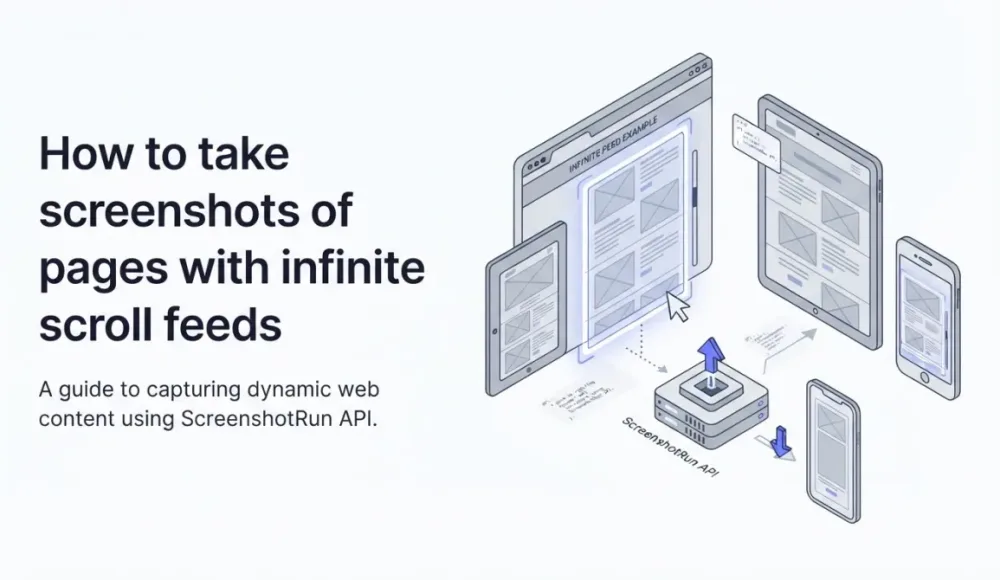
Taking a screenshot of a feed page (Twitter, Reddit, news streams, dashboards with activity logs) breaks regular screenshot tools for a fundamental reason: the page has no bottom. The standard "scroll to the bottom, then screenshot" trick doesn't work by definition, because the bottom keeps moving away every time you reach it.
That turns the problem from "how to scroll all the way down" into "how to know when to stop." The stopping criterion has to be set by you, and it depends on what exactly you're trying to capture in the screenshot. Below are five strategies for different goals, with examples in Puppeteer and Playwright.
How infinite scroll differs from lazy loading
These two cases get confused often, but they're fundamentally different. Lazy loading is about images: the <img> DOM node already exists on the page, but its source isn't loaded until the element enters the viewport. It's solved by scrolling to the bottom — or by using a full-page screenshot tool that handles scroll-triggered loading automatically. I covered that case in my separate post on lazy loading and blank images.
Infinite scroll is about DOM nodes: new elements (tweets, posts, cards) get added to the DOM whenever the user approaches the bottom. Each addition triggers an API request for the next page. And the site can keep doing this indefinitely. As long as there's data, as long as there's memory, as long as the user keeps scrolling, new content appears.
From a screenshot's perspective, that means you have to explicitly decide how much content you want to capture. The rest of the article is about the different ways to make that decision.
Strategy 1: a fixed number of items
The simplest one. Keep scrolling until the count of visible items reaches your target.
When to use this: product galleries, the first N search results, a feed preview for a card thumbnail. If you just need the visible portion, ScreenshotRun's wait_for_selector can wait for the feed items to render before capturing. It works well when you know up front that you want "the first 20 tweets" or "the first 50 posts."
// Puppeteer / Playwright (identical)
async function scrollUntilCount(page, selector, targetCount) {
  let lastCount = 0;
  let stableIterations = 0;

  while (stableIterations < 3) {
    const currentCount = await page.evaluate(
      (sel) => document.querySelectorAll(sel).length,
      selector
    );

    if (currentCount >= targetCount) break;

    if (currentCount === lastCount) {
      stableIterations++;
    } else {
      stableIterations = 0;
      lastCount = currentCount;
    }

    await page.evaluate(() => window.scrollTo(0, document.body.scrollHeight));
    await new Promise((r) => setTimeout(r, 1000));
  }
}

// Usage
await page.goto('https://example.com/feed');
await scrollUntilCount(page, '[data-testid="post"]', 20);
await page.evaluate(() => window.scrollTo(0, 0));
await page.screenshot({ fullPage: true });
I added a stableIterations counter as a safety net for the case where the feed actually runs out of content (older posts have ended). If the count doesn't grow three iterations in a row, we've hit a real bottom and need to break out of the loop.
Strategy 2: a fixed height or time
Keep scrolling while the page height is below N pixels, or while less than X seconds have passed. This is the most predictable strategy in terms of load and execution time.
When to use this: long-form previews, dashboards with trend charts, any situation where you need a predictable size for the resulting screenshot. The downside is that you can catch the last loaded element in a half-rendered state (image still downloading, text not yet painted).
async function scrollUntilHeightOrTime(page, maxHeight, maxTimeMs) {
  const startTime = Date.now();

  while (true) {
    const elapsed = Date.now() - startTime;
    const currentHeight = await page.evaluate(() => document.body.scrollHeight);

    if (currentHeight >= maxHeight || elapsed >= maxTimeMs) break;

    await page.evaluate(() => window.scrollTo(0, document.body.scrollHeight));
    await new Promise((r) => setTimeout(r, 800));
  }

  // Extra pause for the final repaint
  await new Promise((r) => setTimeout(r, 1500));
}

// Usage
await page.goto('https://example.com/feed');
await scrollUntilHeightOrTime(page, 10000, 30000);
await page.evaluate(() => window.scrollTo(0, 0));
await page.screenshot({ fullPage: true });
I usually set maxHeight around 10000-15000 pixels and maxTimeMs around 30 seconds as reasonable defaults. Scrolling further rarely yields content anyone will actually look at. If a person ends up reading the screenshot, they'll stop after a few scrolls anyway.
Strategy 3: a "no more content" detector
The most reliable strategy for cases where the feed actually has an end (think old archives or users with little activity). Compare scrollHeight before and after each load attempt. If three iterations in a row produce no change in height, you've reached the real bottom.
async function scrollUntilNoMoreContent(page) {
  let lastHeight = 0;
  let stableIterations = 0;
  const MAX_ATTEMPTS = 50;
  let attempts = 0;

  while (stableIterations < 3 && attempts < MAX_ATTEMPTS) {
    const currentHeight = await page.evaluate(() => document.body.scrollHeight);

    if (currentHeight === lastHeight) {
      stableIterations++;
    } else {
      stableIterations = 0;
      lastHeight = currentHeight;
    }

    await page.evaluate(() => window.scrollTo(0, document.body.scrollHeight));
    await new Promise((r) => setTimeout(r, 1500));
    attempts++;
  }
}
MAX_ATTEMPTS = 50 is a mandatory safety net for endlessly scrolling feeds. Without it, your script will hang indefinitely on fully infinite content. I usually combine this strategy with the maxTimeMs from Strategy 2. They complement each other: if the feed has an end, we'll find it; if not, we stop on a hard limit.
Strategy 4: virtual scrolling (TanStack Virtual, react-window)
A special case that breaks all the previous strategies. Modern React apps that handle large lists use virtualization: only the items currently in the viewport (plus a small buffer) get rendered into the DOM. Everything else simply doesn't exist as DOM nodes. There's just an empty container with the right height.
The symptom: you scroll all the way through the page, call page.screenshot({ fullPage: true }), and get a strange image showing only the last few elements at the top and bottom, with empty space in the middle.
A regular full-page screenshot doesn't work here. The solution is to take a tiled screenshot: scroll in viewport-sized chunks, capture each chunk, then stitch the results together:
async function tiledFeedScreenshot(page, maxHeight = 10000) {
  const viewportHeight = await page.evaluate(() => window.innerHeight);
  const tiles = [];
  let scrollY = 0;

  while (scrollY < maxHeight) {
    await page.evaluate((y) => window.scrollTo(0, y), scrollY);
    await new Promise((r) => setTimeout(r, 800));

    const buffer = await page.screenshot({
      clip: { x: 0, y: 0, width: 1280, height: viewportHeight },
    });
    tiles.push(buffer);

    scrollY += viewportHeight;
  }

  return tiles; // stitch them together later via sharp or ImageMagick
}
This is slower than a regular full-page screenshot and requires post-processing for stitching, but it's the only way to get a complete visual snapshot of a virtualized feed. I covered a similar tiled approach in the context of large pages in my post on Protocol error captureScreenshot. There, tiled screenshots solve a memory problem. Here, they solve a virtualization problem.
Strategy 5: feeds behind authentication
A lot of interesting infinite scroll feeds are behind authentication: a private dashboard inside a SaaS, a personal notifications stream, a team activity log. That adds another layer: you need to log in first, then scroll.
Conceptually, this is solved by setting cookies or localStorage before goto, and the topic overlaps with what I covered in my separate post on screenshots of password-protected pages and in the SPA screenshots guide. Once the auth is in place, any of strategies 1-4 applies as usual. For more on authenticated captures, see the screenshot behind login use case.
One important note about public social networks: even where it's technically possible to screenshot their feeds, doing so often violates their Terms of Service, and they actively detect headless browsers. If you're doing this for your own product or a public dashboard, no issue. If you're scraping someone else's content, that's a different conversation, and I'm not opening it here.
Which strategy to choose
When I approach a new feed-screenshot task, I ask myself one question: what am I trying to capture? That immediately points to the right strategy.
If the goal is "the first N items," go with Strategy 1, fixed count. If "roughly X pixels of decent content," that's Strategy 2, fixed height or time. If the feed might actually have an end and I want to capture everything that's there, Strategy 3 is the no-more-content detector. If the app uses virtual scrolling, there's no other option: you need Strategy 4. If the feed is auth-protected, Strategy 5 as the first step, then any of 1-4.
If you just need a quick preview of a feed without the full scroll, a website thumbnail of the first viewport might be enough. Most production scenarios end up combining strategies: Strategy 2 as a hard bound on infinity (max_height + max_time as safety limits), plus Strategy 3 for natural stopping when the content actually ends before the limits.
When scroll automation is more trouble than it's worth
All five strategies above require you to maintain scroll logic, handle edge cases, and update selectors when sites change their markup. That kind of code is fragile by nature. I built screenshotrun so the basic case disappears into a single API call. With full_page=true, the API handles scrolling and lazy-load triggering natively. You can set a custom viewport to control how much of the feed is visible, and pair it with change monitoring to track feed updates over time. This covers Strategy 3 on sites where the feed actually has an end:
const params = new URLSearchParams({
  url: 'https://example.com/feed',
  full_page: 'true',
  delay: '3',
});

const response = await fetch(
  `https://api.screenshotrun.com/v1/screenshots/capture?${params}`,
  { headers: { Authorization: 'Bearer YOUR_API_KEY' } }
);
const buffer = await response.arrayBuffer();
Honest disclaimer: for a bottomless feed (an active social network, a busy news portal), automatic scrolling through full_page=true will hit a timeout, and you'll get either an error or a partially scrolled result. For those cases, the five strategies above are still required on your own code's side. No API can guess for you how much content you want to capture.
Want to test feed screenshots without setting up Puppeteer? Sign up for ScreenshotRun and try full_page=true on your feed URLs. Pricing is low enough for experimentation.
Infinite scroll is a problem without a single right answer. The answer depends on what you consider "the right screenshot" in the context of a bottomless feed. Once you fix the stopping criterion up front, the task becomes mechanical, and the five strategies described above cover almost every scenario you'll run into.
Frequently Asked Questions
Set an explicit stopping criterion: a target item count, a maximum page height in pixels, or a time limit. Without a stop condition, the scroll loop runs indefinitely because the page keeps loading new content.
Lazy loading defers image downloads for existing DOM nodes until they enter the viewport. Infinite scroll adds entirely new DOM elements when the user reaches the bottom. Lazy loading is solved by a single scroll-to-bottom pass. Infinite scroll requires a stopping strategy because the bottom keeps moving.
Virtualized lists only render items currently in the viewport. A standard full-page screenshot shows empty space where off-screen items should be. Use tiled screenshots: scroll in viewport-sized chunks, capture each chunk separately, then stitch the images together.
Yes. Set cookies or localStorage tokens before page.goto so the app sees your session on initialization. Once authenticated, apply any of the scroll strategies (fixed count, fixed height, no-more-content detection) as normal.
Around 10,000 to 15,000 pixels with a 30-second time cap works well for most feeds. Content beyond that rarely gets viewed. Combine both limits as safety nets: whichever triggers first stops the scroll.
Fix "Could Not Find Expected Browser (Chrome) Locally" in Puppeteer
Puppeteer cannot find Chrome? Fix the "could not find expected browser locally" error in Docker, CI/CD, serverless, monorepos, and local development.
Read more →
Fix Puppeteer "Browser Has Disconnected" Error (All Causes)
Read more →
Why Instagram Breaks Your Screenshots (And How to Fix It with Playwright)
Instagram shows two login popups, triggers React re-renders when you hide them wrong, and locks scrollHeight to the viewport. Three problems, three fixes for Playwright and Puppeteer.
Read more →