
 Vitalii Holben
Headless Chrome "net::ERR_CONNECTION_REFUSED" in Docker: causes and fixes
ERR_CONNECTION_REFUSED in headless Chrome inside Docker isn't one error — it's five different network problems sharing the same message. Diagnose with one curl from inside the container, then fix per cause.
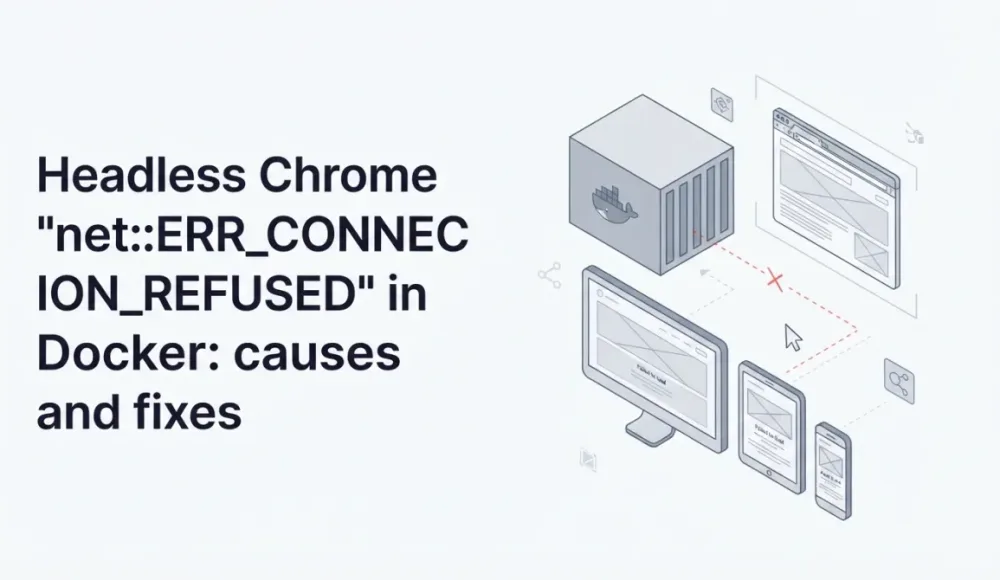
net::ERR_CONNECTION_REFUSED in headless Chrome inside Docker isn't one error. It's five different network problems sharing the same message. Which one you have depends on what Chrome is trying to reach: localhost on your dev machine, another container in the same network, an external public site, something behind a corporate proxy, or an internal domain with a misconfigured DNS.
That changes the approach to fixing it. Throwing --add-host at it or setting up a proxy without knowing which case you're in is like swapping out five symptoms hoping one of them sticks. The first step is figuring out at which stage of the network stack Chrome is being refused.
Why it's "Connection refused" and not a timeout
Before getting to causes, one technical detail that helps with diagnosis. ERR_CONNECTION_REFUSED is not a timeout. A timeout (ERR_TIMED_OUT) shows up when a TCP SYN packet goes out and there's no answer at all. Connection refused means something different: the TCP SYN reached the destination host, but it was answered with a RST, an active rejection.
In practice, that means the name resolves correctly, there's a route to the host, but the port is closed or the host is actively rejecting the connection. That narrows the diagnosis from the start: the problem isn't with DNS or routing in any general sense. It's with a specific service on a specific port.
Here are the five causes in order.
Cause 1: localhost inside the container is not the host machine
This is the most common dev problem. The setup looks like this: you started Next.js (or any dev server) on your machine on port 3000. Headless Chrome runs inside a Docker container, you call page.goto('http://localhost:3000'), and you get Connection refused.
This happens because localhost inside the container is the container itself, not your host machine. Network namespace isolation means the container can't see services running directly on the host.
Fix depends on the platform. On Mac and Windows, Docker Desktop ships with a special DNS alias host.docker.internal:
// Mac/Windows: through host.docker.internal
const browser = await puppeteer.launch({
  args: ['--no-sandbox', '--disable-setuid-sandbox'],
});
const page = await browser.newPage();
await page.goto('http://host.docker.internal:3000');
On Linux, that DNS alias doesn't exist by default. You have to add it explicitly through --add-host when launching the container:
docker run --add-host=host.docker.internal:host-gateway my-imagehost-gateway is a special value that Docker auto-resolves to the host machine's address from inside the container. After that, the same code works identically on Linux, Mac, and Windows.
An alternative on Linux is --network host, which makes the container share its network namespace with the host. It's simpler but less isolated. I don't recommend it for production. If you're just rolling out headless Chrome in Docker and running into other network issues like timeouts along the way, I have a post on the Puppeteer Navigation timeout error covering adjacent cases with slow sites and the wrong waitUntil.
Cause 2: containers in different Docker networks can't see each other
This is the production version. The setup: one container with headless Chrome (a browser worker), another container with your SaaS (a Laravel app, say), orchestration through Kubernetes or docker-compose. The browser container takes a screenshot of a target page inside the SaaS, and gets Connection refused.
The symptom is recognizable: locally (when both services are on the same machine through localhost) everything works, and in production it falls apart. The cause is that production containers are in different network namespaces, and without an explicit user-defined network, they don't see each other by service name.
Put both containers in one network. Through docker-compose:
services:
  app:
    image: my-saas:latest
    networks:
      - internal

  browser-worker:
    image: my-browser:latest
    networks:
      - internal
    environment:
      TARGET_URL: http://app:3000

networks:
  internal:
    driver: bridge
After that, the browser-worker code calls page.goto('http://app:3000'). app here is the service name from docker-compose, which resolves through Docker's built-in DNS inside the internal network. No host machines, no IPs, just declarative configuration.
In Kubernetes, the equivalent is Services and DNS. http://app.namespace.svc.cluster.local or just http://app if both pods are in the same namespace. Same principle: the name resolves through cluster DNS, no direct IP addresses.
By the way, in production Docker setups, ERR_CONNECTION_REFUSED often comes paired with other lifecycle errors: the browser dying on memory, page.screenshot() returning a Protocol error, Playwright contexts unexpectedly closing. I covered those cases separately in my post on Playwright Target closed and the post on Protocol error captureScreenshot. Both connect back to the same --disable-dev-shm-usage and container memory tuning.
Cause 3: the site blocks Docker or cloud IPs
Here, Connection refused doesn't come from your infrastructure. It comes from the target site. Cloudflare, Akamai, AWS WAF, PerimeterX. All of them keep databases of known cloud-provider IP ranges (DigitalOcean, Hetzner, AWS, GCP) and actively block them at the edge. When your headless Chrome runs in a container on one of those IPs and tries to reach a defended site, the edge closes the TCP connection before any HTTP exchange happens. Chrome reports it as Connection refused.
Symptom: the code works fine on your dev machine (your residential IP isn't on blocklists) and breaks on the production server in Hetzner or AWS. It's especially noticeable on sites with aggressive antibot defenses (banks, government sites, some e-commerce platforms).
The fix depends on which sites you're scripting. If they're public sites, the only reliable solution is a residential proxy service (Bright Data, Oxylabs, Smartproxy). Datacenter proxies don't help, because they're on the blocklists too. I covered the related topic, what you actually need to patch in a headless browser to pass fingerprint checks, in my post on stealth patches for headless Chromium.
const browser = await puppeteer.launch({
  args: [
    '--no-sandbox',
    '--proxy-server=http://user:[email protected]:8000',
  ],
});
If you own the target site, add your production server's IP to the Cloudflare WAF whitelist. That's not a workaround, it's the right configuration for your own systems.
Cause 4: a corporate proxy isn't being passed to Chromium
This case shows up more in enterprise environments. The setup: the entire organization's network goes through a corporate HTTP proxy, the server has HTTP_PROXY and HTTPS_PROXY environment variables set, regular curl and wget work. But headless Chrome inside the container returns Connection refused on every request.
Chromium doesn't read HTTP_PROXY env vars automatically. Unlike curl, axios, requests (Python), and most other HTTP clients, Chromium ignores those variables and goes direct. Direct connections from a corporate network aren't allowed out.
Pass --proxy-server explicitly through launch args:
const browser = await puppeteer.launch({
  args: [
    '--no-sandbox',
    `--proxy-server=${process.env.HTTPS_PROXY || process.env.HTTP_PROXY}`,
  ],
});
I usually read the proxy from a standard env variable, so the configuration is the same across all tools. If the proxy requires basic auth, it's better to pass credentials not via user:pass@host (which leaks into logs), but via page.authenticate() after launch:
const page = await browser.newPage();
await page.authenticate({ username: 'user', password: 'pass' });
await page.goto(url);
Cause 5: internal DNS resolves, but to the wrong IP
Rarest and trickiest case. The container is trying to reach an internal service, DNS resolves the name successfully, the TCP connection starts, and gets refused immediately. At first glance this looks like a typical Cause 1, but host.docker.internal doesn't help, the network is configured correctly, the proxy isn't involved.
This shows up when the DNS server inside the container is misconfigured and resolves internal names to default-gateway addresses, which respond TCP RST to any connection attempt. Most often it happens in custom setups with corporate DNS, in Kubernetes with the wrong dnsPolicy, or in containers with a manually overridden /etc/resolv.conf.
Diagnosis is a quick check inside the container: what exactly is the problem name resolving to:
# Get inside the container
docker exec -it browser-worker /bin/sh

# Check what it resolves to
nslookup my-internal-service.local

# Check TCP
curl -v http://my-internal-service.local
If nslookup returns a strange IP (like the network gateway 10.0.0.1 or 192.168.0.1) when it should return the actual service IP, this is your case. The fix is to specify the correct DNS through --dns when launching the container, or through dnsPolicy in Kubernetes.
If Chrome starts and connects but then dies during page loads, you're looking at a browser disconnected error instead — usually caused by Docker memory limits or the OOM killer.
A debugging checklist
When I hit ERR_CONNECTION_REFUSED in a new setup, I follow this order. First, I get inside the container and try to reach the target URL through curl:
docker exec -it browser-worker curl -v http://target-urlThat gives three signals immediately. If curl also fails with Connection refused, the problem isn't with Chromium, it's with the network configuration (Causes 1, 2, 4, or 5). If curl works but Chromium doesn't, the problem is specific to Chromium (Cause 4 with the proxy, for example). If curl returns a different error (Could not resolve host or a timeout), that's a different issue altogether, DNS or routing.
From there, the logic is simple. If the code works locally and breaks in production, almost always Cause 2 or 3. If it's a local dev scenario from the host machine, Cause 1. If it's a corporate network with a mandatory proxy, Cause 4. If none of those fit and nslookup shows a strange IP, Cause 5.
I rarely get to Cause 5 in practice. It shows up maybe one in ten times, and usually after the first four have been ruled out. That's the value of the checklist: it saves time on dismissing the obvious hypotheses.
When IP blocking and proxy setup become the bottleneck
I built screenshotrun so that Causes 3 and 4 get solved on the API side. Under the hood, requests rotate through an IP pool that doesn't have antibot blocking issues at the edge. I don't have to maintain residential proxy subscriptions for every project that needs screenshots:
const response = await fetch(
  'https://api.screenshotrun.com/v1/screenshots/capture?url=https://example.com',
  { headers: { Authorization: 'Bearer YOUR_API_KEY' } }
);
const buffer = await response.arrayBuffer();
Causes 1 and 2 are about your dev/production infrastructure, and the API can't help there by definition. But 3 and 4 are covered fully. That's typically 60-70% of real production problems with ERR_CONNECTION_REFUSED. On the broader question, when it makes sense to run your own Puppeteer server in containers with all this network complexity, and when a hosted API is the better choice, I went into more detail in my post on build vs buy.
net::ERR_CONNECTION_REFUSED is a deceptive error precisely because it sounds the same for five different network problems. One curl from inside the container narrows the diagnosis almost immediately, and the rest of the work becomes mechanical. Most projects that take screenshots in Docker hit either Cause 1 (the dev scenario with localhost) or Cause 2 (the production scenario with separate containers), and both have simple, time-tested fixes.
If you've already run into ERR_CONNECTION_REFUSED after everything looked correctly configured, almost always one of the other three causes has quietly slipped into your setup. The checklist above is built exactly for situations like that.
Fix "Could Not Find Expected Browser (Chrome) Locally" in Puppeteer
Puppeteer cannot find Chrome? Fix the "could not find expected browser locally" error in Docker, CI/CD, serverless, monorepos, and local development.
Read more →
Fix Puppeteer "Browser Has Disconnected" Error (All Causes)
Read more →
Why Instagram Breaks Your Screenshots (And How to Fix It with Playwright)
Instagram shows two login popups, triggers React re-renders when you hide them wrong, and locks scrollHeight to the viewport. Three problems, three fixes for Playwright and Puppeteer.
Read more →