
 Vitalii Holben
Debug Dark Mode Rendering in Playwright and Puppeteer
Most websites now support dark mode through prefers-color-scheme. Here's how to capture screenshots in dark mode using Playwright, Puppeteer, and a screenshot API — with code examples and edge cases I ran into along the way.
More than half of Chrome users have dark mode enabled at the system level. And if you're taking website screenshots for documentation, marketing materials, or link previews, you're most likely getting the light version only. The dark theme just doesn't show up.
Headless browsers default to prefers-color-scheme: light. The website has no idea you want to see its dark side. So you end up with a mismatch: your documentation shows a light screenshot, but the user staring at their screen sees a dark interface.
In this article I'll show you how to capture a website screenshot in dark mode, using Playwright, Puppeteer, and an API. Working code, notes on where things break, and a few edge cases I ran into along the way.
How dark mode works on websites, and why headless browsers miss it
Modern websites detect the user's theme preference through a CSS media query called prefers-color-scheme. It looks like this:
@media (prefers-color-scheme: dark) {
  body {
    background: #1a1a2e;
    color: #e0e0e0;
  }
}
When a regular user opens Chrome with the system-level dark theme turned on, the browser tells the website: "I prefer dark." The website switches its styles accordingly.
But headless Chromium launches without any connection to system settings. By default it reports light, and the website renders the light version. Similar to how viewport settings affect layout, the color scheme affects the entire visual output. That's why you need to explicitly tell the browser which color scheme to emulate.
Option 1: Playwright, the simplest way to capture dark mode screenshots
Playwright can emulate prefers-color-scheme at the context level or on individual pages. In practice it comes down to a single line.
First, install Playwright and Chromium:
npm install playwright
npx playwright install chromium
This script takes two screenshots of the same website, one in light mode and one in dark:
const { chromium } = require('playwright');

(async () => {
  const browser = await chromium.launch();

  // Light theme
  const lightContext = await browser.newContext({
    colorScheme: 'light',
    viewport: { width: 1280, height: 800 }
  });
  const lightPage = await lightContext.newPage();
  await lightPage.goto('https://tailwindcss.com', { waitUntil: 'networkidle' });
  await lightPage.screenshot({ path: 'tailwind-light.png', fullPage: true });

  // Dark theme
  const darkContext = await browser.newContext({
    colorScheme: 'dark',
    viewport: { width: 1280, height: 800 }
  });
  const darkPage = await darkContext.newPage();
  await darkPage.goto('https://tailwindcss.com', { waitUntil: 'networkidle' });
  await darkPage.screenshot({ path: 'tailwind-dark.png', fullPage: true });

  await browser.close();
})();
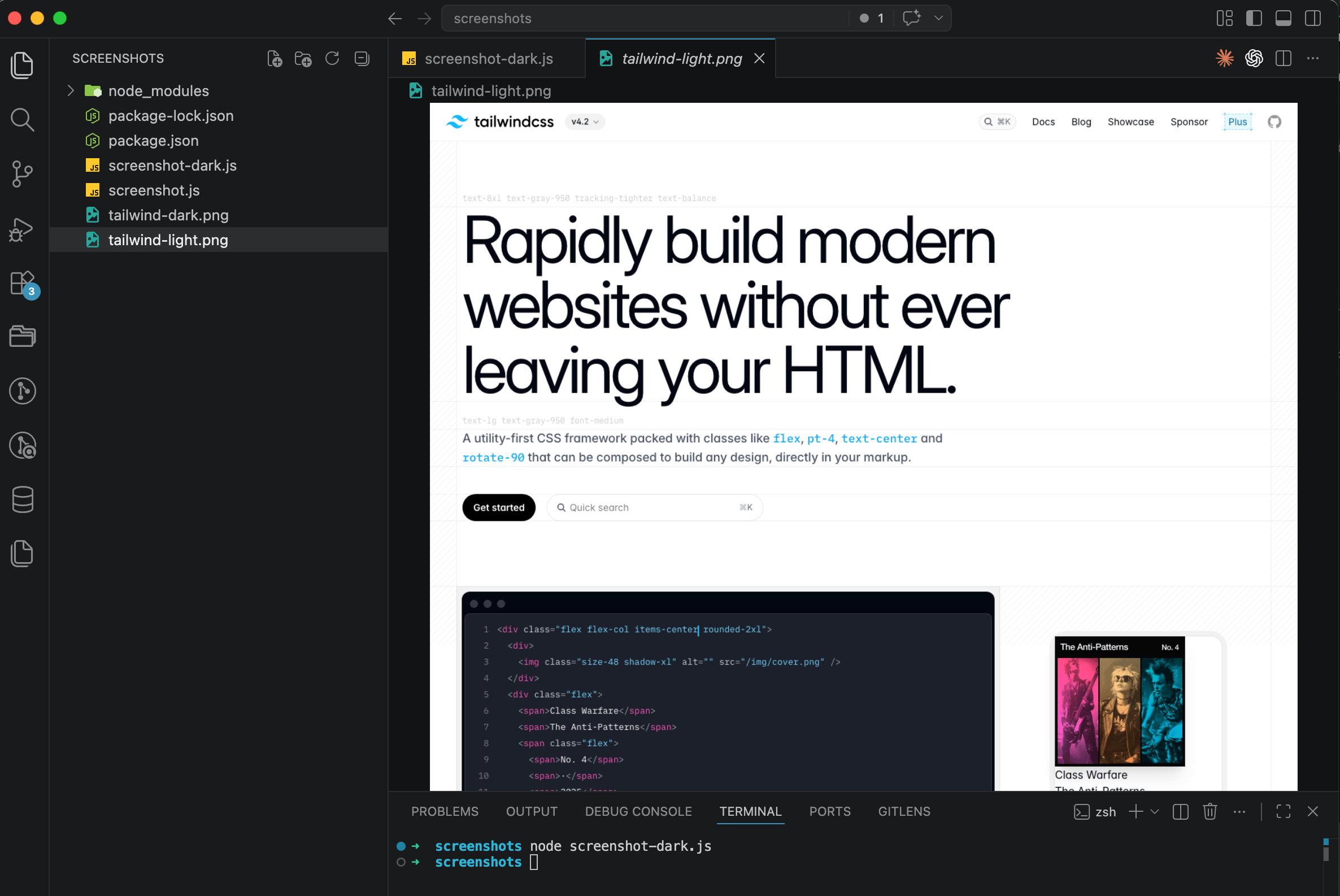
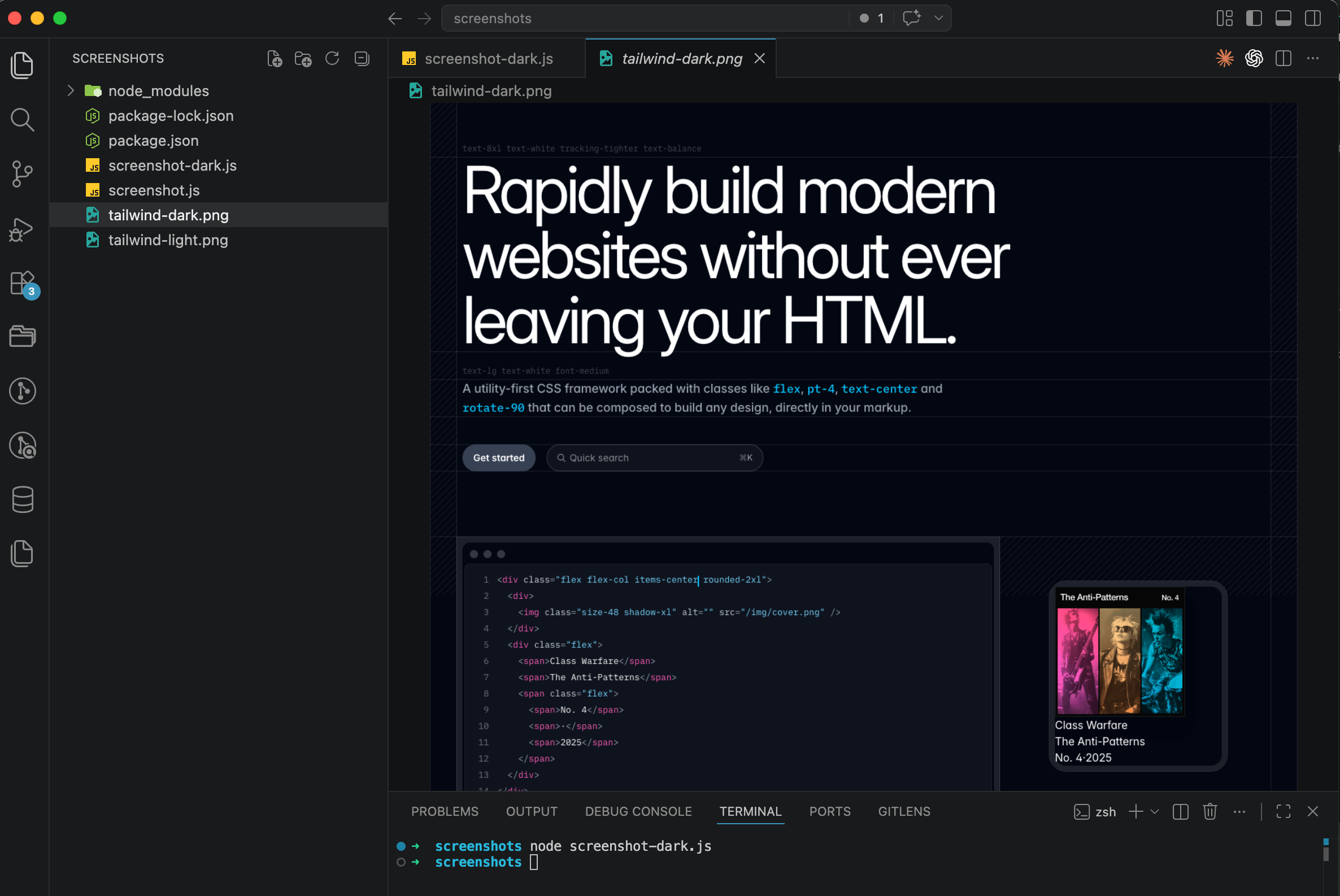
Run it with node screenshot-dark.js and two files appear in your folder. The difference is obvious right away. Tailwind CSS fully supports prefers-color-scheme, and the dark version renders correctly.
One thing to keep in mind: colorScheme is set when you create the context, not the page. If you need to switch the theme on a page that's already open, use page.emulateMedia():
await page.emulateMedia({ colorScheme: 'dark' });
// now reload or wait for styles to apply
await page.screenshot({ path: 'dark-after-switch.png' });
This approach is useful when you want both a light and a dark screenshot of the same page without navigating twice. Caveat: some websites only apply the theme during the initial page load, so calling emulateMedia without a reload might not do anything.
Option 2: Puppeteer, same idea but different API
Puppeteer also supports prefers-color-scheme emulation, just through a different method. Instead of passing the option into a context, you call page.emulateMediaFeatures().
npm install puppeteerconst puppeteer = require('puppeteer');
(async () => {
const browser = await puppeteer.launch();
const page = await browser.newPage();
await page.setViewport({ width: 1280, height: 800 });
// Emulate dark theme
await page.emulateMediaFeatures([
{ name: 'prefers-color-scheme', value: 'dark' }
]);
await page.goto('https://github.com', { waitUntil: 'networkidle0' });
await page.screenshot({ path: 'github-dark.png', fullPage: true });
await browser.close();
})();The key difference from Playwright: in Puppeteer you need to call emulateMediaFeatures before navigating to the page. If you open the site first and then switch the theme, there's a good chance the page's JavaScript already initialized with light styles and won't recalculate them. I ran into this on GitHub: the theme applied partially, with the header staying light while the content went dark.
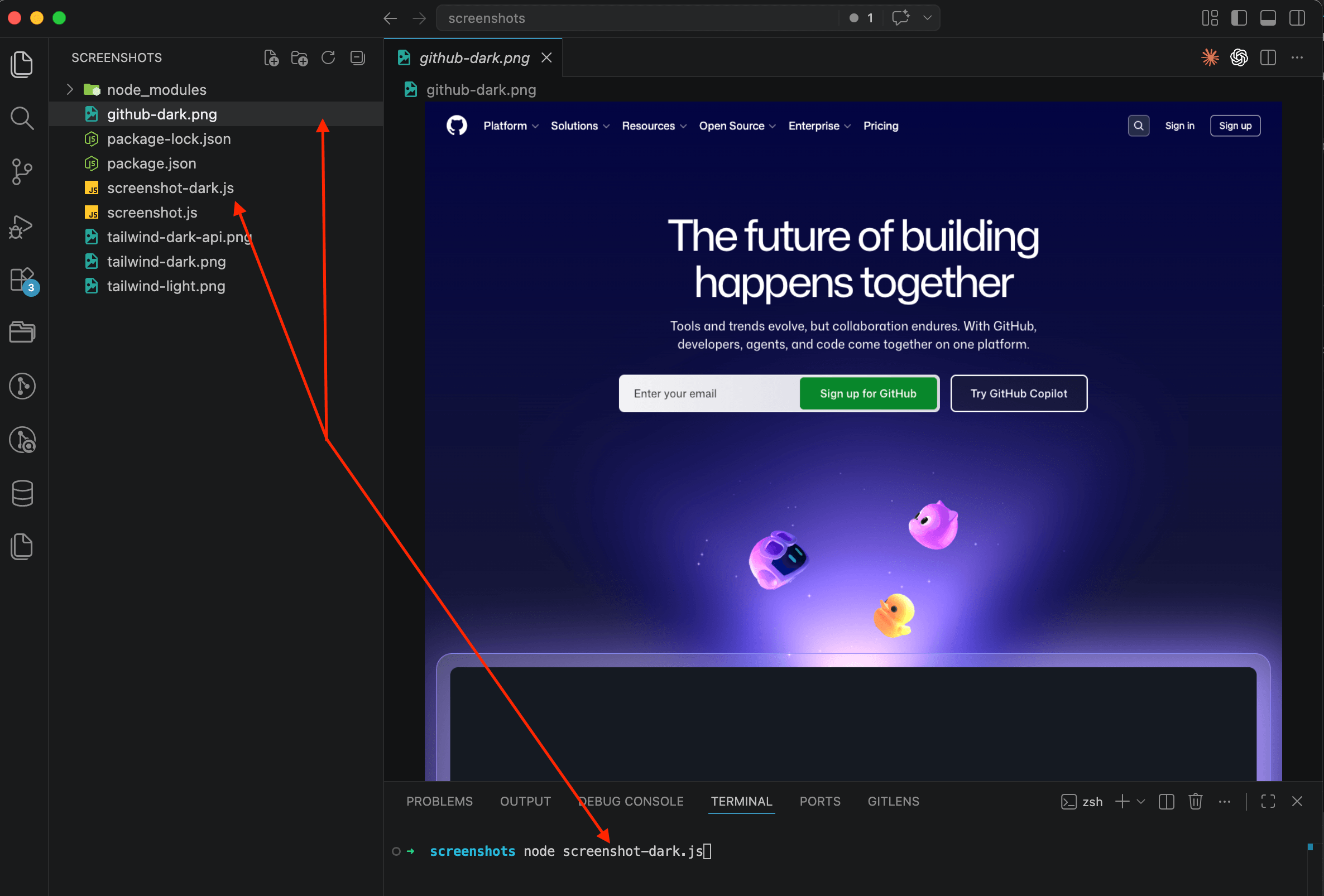
In practice the order goes like this: create the page, set media features, then navigate to the URL. That way the result is predictable.
When dark mode won't work, and what to do about it
Not every website responds to prefers-color-scheme. There are three common scenarios where emulation won't do anything.
First: the website uses a toggle switch instead of a media query. A lot of interfaces (documentation sites, dashboards, admin panels) store the theme choice in localStorage or a cookie. The CSS media query isn't involved at all. In that case the only way is to programmatically click the toggle before taking the screenshot.
// Playwright — click the theme toggle
await page.goto('https://some-docs-site.com');
await page.click('[data-theme-toggle]'); // selector depends on the site
await page.waitForTimeout(500); // give the animation time to finish
await page.screenshot({ path: 'docs-dark.png' });
The second scenario is when the website determines the theme from a server-side cookie or a URL parameter. Media query emulation is useless here too. You need to pass the right cookie through headers or append ?theme=dark to the URL.
And the third case: the website simply doesn't support dark mode at all. The screenshot will be light no matter what you emulate. You could try inverting colors through CSS injection, but the result will look odd. Images turn into negatives, icons become unreadable. I wouldn't use this approach in production.
Rough fallback: CSS injection to force a dark theme
If the website doesn't support prefers-color-scheme but you still need a dark background, CSS injection is worth a try. It's a rough method, but it sometimes works on simpler pages.
// Playwright — force dark styles via injection
await page.goto('https://example.com');

await page.addStyleTag({
  content: `
    html {
      filter: invert(1) hue-rotate(180deg);
    }
    img, video, svg, [style*="background-image"] {
      filter: invert(1) hue-rotate(180deg);
    }
  `
});

await page.screenshot({ path: 'example-forced-dark.png' });
The invert(1) hue-rotate(180deg) trick flips all colors and then compensates for the hue shift. The second rule reverses the inversion for images and video so they don't turn into negatives.
But this is a hack. On complex sites with gradients, custom color palettes, or SVG icons, the result can be unpredictable. For screenshots in documentation or marketing, I'd stick to websites that natively support dark mode.
Option 3: screenshot API, one parameter instead of all the above
If you don't want to install Playwright, worry about the order of calls, or figure out whether a specific site uses a media query or a toggle, an API handles all of that for you.
In ScreenshotRun, dark mode is enabled with a single parameter: dark_mode: true. Under the hood, the API emulates prefers-color-scheme: dark before navigation, handles the operation order correctly, and waits for the page to fully load.
curl -X POST https://api.screenshotrun.com/v1/screenshots \
  -H "Authorization: Bearer YOUR_API_KEY" \
  -H "Content-Type: application/json" \
  -d '{
    "url": "https://tailwindcss.com",
    "dark_mode": true,
    "full_page": true,
    "block_cookies": true,
    "format": "png"
  }'
And here's the same thing in Node.js:
const response = await fetch('https://api.screenshotrun.com/v1/screenshots', {
  method: 'POST',
  headers: {
    'Authorization': 'Bearer YOUR_API_KEY',
    'Content-Type': 'application/json',
  },
  body: JSON.stringify({
    url: 'https://tailwindcss.com',
    dark_mode: true,
    full_page: true,
    block_cookies: true,
  }),
});

const { data } = await response.json();
console.log(data.id); // then retrieve the result via GET /screenshots/:id
If you need the screenshot as a file right away (no async queue), add response_type=image to the GET endpoint:
curl "https://api.screenshotrun.com/v1/screenshots/capture?url=https://tailwindcss.com&dark_mode=true&full_page=true&response_type=image" \
  -H "Authorization: Bearer YOUR_API_KEY" \
  -o tailwind-dark.png
One request, one file on disk. No Chromium, no npm install, no debugging the call order.
How to check if a website supports dark mode before taking the screenshot
You don't want to waste an API call on a site that will just return the same light version. There's a straightforward way to check this programmatically with Playwright:
const { chromium } = require('playwright');

(async () => {
  const browser = await chromium.launch();
  const context = await browser.newContext({ colorScheme: 'light' });
  const page = await context.newPage();
  await page.goto('https://example.com', { waitUntil: 'networkidle' });

  const hasDarkMode = await page.evaluate(() => {
    for (const sheet of document.styleSheets) {
      try {
        for (const rule of sheet.cssRules) {
          if (rule.conditionText &&
              rule.conditionText.includes('prefers-color-scheme: dark')) {
            return true;
          }
        }
      } catch (e) {
        // cross-origin stylesheets — skip them
      }
    }
    return false;
  });

  console.log('Supports dark mode:', hasDarkMode);
  await browser.close();
})();
The script walks through every CSS rule on the page and looks for a media query with prefers-color-scheme: dark. If it finds one, the website supports dark mode natively. If not, you'll either need to click a toggle or accept the light version.
One limitation: the script can't read cross-origin stylesheets (external CSS files from a different domain). The try/catch handles that silently. In practice this rarely matters, since most websites implement theming through their own stylesheets.
Which option to pick
If you're already using Playwright for testing or automation, colorScheme: 'dark' in the context solves it in one line. For Puppeteer, it's emulateMediaFeatures before navigation.
Both approaches require a running Chromium instance, so everything I covered in my article on choosing between Puppeteer/Playwright and a screenshot API still applies here: memory management, job queues, fonts, browser updates. And if the website you're screenshotting blocks your headless browser, the stealth patches for Chromium I wrote about separately will come in handy.
If you need screenshots in production on an ongoing basis, an API removes that infrastructure layer. The dark_mode: true parameter works predictably, and you don't need to think about whether to call emulateMedia before or after goto. Caching the results is a separate topic I covered in my post on screenshot caching strategies.
For the full breakdown of how dark mode works in the ScreenshotRun API (including the edge cases above), see the dark mode screenshot feature page. Pick whichever fits your stack. I reach for the API when I need reliable dark captures across many sites, and Playwright when I want to inspect the render myself.
Frequently Asked Questions
Headless Chromium defaults to prefers-color-scheme: light. It launches without any connection to your system settings, so the website has no idea you want dark mode. You need to explicitly set the color scheme before loading the page — in Playwright it's the colorScheme context option, in Puppeteer it's page.emulateMediaFeatures().
prefers-color-scheme is a CSS media query that the browser reports based on system or emulated settings. A theme toggle is a JavaScript switch that stores the user's choice in localStorage or a cookie. Emulating the media query won't affect sites that use a toggle — for those, you need to click the toggle button or set the right cookie before taking the screenshot.
Walk through the page's CSS rules in a script and look for @media (prefers-color-scheme: dark). If any stylesheet contains that rule, the site responds to the media query. Cross-origin stylesheets can't be read this way due to browser security restrictions, but most sites implement theming through their own CSS files.
You can try CSS injection with filter: invert(1) hue-rotate(180deg) on the html element, then re-invert images and videos so they look normal. It works on simple pages, but on sites with gradients, custom color palettes, or SVG icons the result looks odd. I wouldn't use it for anything public-facing.
Yes, and it trips people up. Call emulateMediaFeatures before page.goto(). If you open the site first and switch the theme after, the page's JavaScript may have already initialized with light styles and won't recalculate. I saw this on GitHub — the header stayed light while the content switched to dark.
Fix "Could Not Find Expected Browser (Chrome) Locally" in Puppeteer
Puppeteer cannot find Chrome? Fix the "could not find expected browser locally" error in Docker, CI/CD, serverless, monorepos, and local development.
Read more →
Fix Puppeteer "Browser Has Disconnected" Error (All Causes)
Read more →
Why Instagram Breaks Your Screenshots (And How to Fix It with Playwright)
Instagram shows two login popups, triggers React re-renders when you hide them wrong, and locks scrollHeight to the viewport. Three problems, three fixes for Playwright and Puppeteer.
Read more →