
 Vitalii Holben
Generate PDF Invoices from HTML (Stripe + Paddle Webhooks)
Most SaaS apps eventually need to generate invoices programmatically, and most start with a PDF library that fights them on layout. Here's a simpler approach: build your invoice as plain HTML and CSS, then render it to PDF or PNG through Playwright or a screenshot API. Full template, code examples in Node.js, webhook automation with Stripe/Paddle, and tips on fonts, multi-currency formatting, and page breaks.
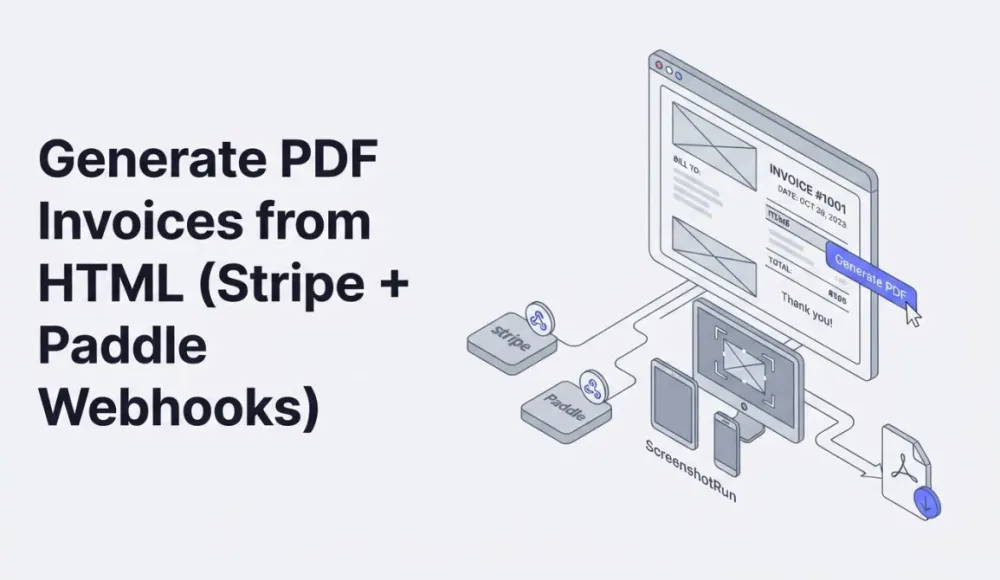
Most SaaS apps eventually hit the same problem: you need to generate invoices, receipts, or payment confirmations programmatically. And almost everyone starts the same way, with a PDF library. jsPDF, PDFKit, TCPDF, wkhtmltopdf. They all work, but each one breaks your layout in its own special way, ignores half of CSS, and turns a simple task into an absolute-positioning nightmare.
There's an easier approach: you build your invoice as plain HTML and CSS, then render it into a PDF or PNG through a headless browser or a screenshot API for PDF invoices. The browser understands all of CSS (Flexbox, Grid, web fonts), everything that PDF libraries typically ignore or only partially support.
In this article I'll walk through how these invoices get built, step by step. I'm using my own basic markup as a starting point; swap in your own design when you're ready. I'll cover three rendering options: Playwright with page.pdf(), the ScreenshotRun API for those who don't want to run Chromium, and a hybrid approach where the same template renders as both PNG (for embedding in emails) and PDF (for downloading).
Why HTML templates work better than PDF libraries for invoice generation
PDF libraries like jsPDF or PDFKit force you to describe the document programmatically: coordinates, fonts, sizes, all by hand. You end up with something like doc.text('Invoice #1042', 50, 60), and any design change means recalculating coordinates across the entire file.
With the HTML approach, an invoice is just a regular web page. A designer can open it in a browser and see the result instantly. CSS handles the styling, Flexbox or Grid handles the layout, and the data (client name, line items, total amount) gets injected through any templating engine: Handlebars, Blade, EJS, Twig, whatever you prefer. Once the template is ready, you pass it to headless Chrome and get a PDF that looks exactly like what you see in the browser.
There's also a side benefit: the same HTML can be rendered as a PNG or JPEG. That's useful when you want to embed an invoice preview directly in an email body (instead of an attachment that the recipient probably won't open) or post it to a Slack channel for a quick look.
The base HTML invoice template we'll be rendering
Before jumping into rendering, we need a working template. Nothing complicated here, just a simple invoice with company info, client details, a line items table, and a total. The entire design is pure CSS, no external frameworks. Here's the template:
<!DOCTYPE html>
<html lang="en">
<head>
<meta charset="UTF-8">
<meta name="viewport" content="width=device-width, initial-scale=1.0">
<title>Invoice #1042</title>
<style>
  * { margin: 0; padding: 0; box-sizing: border-box; }
  body {
    font-family: 'Segoe UI', system-ui, -apple-system, sans-serif;
    color: #1a1a2e;
    background: #fff;
    padding: 48px;
    width: 800px;
  }
  .header {
    display: flex;
    justify-content: space-between;
    align-items: flex-start;
    margin-bottom: 40px;
    padding-bottom: 24px;
    border-bottom: 2px solid #e2e8f0;
  }
  .company-name {
    font-size: 24px;
    font-weight: 700;
    color: #0f172a;
  }
  .company-details {
    font-size: 13px;
    color: #64748b;
    margin-top: 4px;
    line-height: 1.6;
  }
  .invoice-meta {
    text-align: right;
  }
  .invoice-number {
    font-size: 28px;
    font-weight: 700;
    color: #2563eb;
  }
  .invoice-date {
    font-size: 13px;
    color: #64748b;
    margin-top: 4px;
  }
  .billing-section {
    display: flex;
    justify-content: space-between;
    margin-bottom: 32px;
  }
  .billing-block h3 {
    font-size: 11px;
    text-transform: uppercase;
    letter-spacing: 1px;
    color: #94a3b8;
    margin-bottom: 8px;
  }
  .billing-block p {
    font-size: 14px;
    line-height: 1.6;
    color: #334155;
  }
  table {
    width: 100%;
    border-collapse: collapse;
    margin-bottom: 24px;
  }
  thead th {
    text-align: left;
    padding: 12px 16px;
    font-size: 11px;
    text-transform: uppercase;
    letter-spacing: 1px;
    color: #94a3b8;
    border-bottom: 2px solid #e2e8f0;
  }
  thead th:last-child,
  tbody td:last-child {
    text-align: right;
  }
  tbody td {
    padding: 14px 16px;
    font-size: 14px;
    border-bottom: 1px solid #f1f5f9;
  }
  .total-row {
    display: flex;
    justify-content: flex-end;
    padding: 16px 0;
    border-top: 2px solid #e2e8f0;
  }
  .total-label {
    font-size: 14px;
    color: #64748b;
    margin-right: 32px;
    padding-top: 2px;
  }
  .total-amount {
    font-size: 28px;
    font-weight: 700;
    color: #0f172a;
  }
  .footer {
    margin-top: 48px;
    padding-top: 24px;
    border-top: 1px solid #f1f5f9;
    font-size: 12px;
    color: #94a3b8;
    text-align: center;
  }
</style>
</head>
<body>
  <div class="header">
    <div>
      <div class="company-name">Acme Corp</div>
      <div class="company-details">
        123 Main Street, Suite 400<br>
        San Francisco, CA 94102<br>
        [email protected]
      </div>
    </div>
    <div class="invoice-meta">
      <div class="invoice-number">#1042</div>
      <div class="invoice-date">April 16, 2026</div>
      <div class="invoice-date">Due: May 16, 2026</div>
    </div>
  </div>

  <div class="billing-section">
    <div class="billing-block">
      <h3>Bill to</h3>
      <p>
        Jane Smith<br>
        Widgets Inc.<br>
        456 Market Street<br>
        New York, NY 10001
      </p>
    </div>
    <div class="billing-block">
      <h3>Payment method</h3>
      <p>
        Bank transfer<br>
        Net 30
      </p>
    </div>
  </div>

  <table>
    <thead>
      <tr>
        <th>Description</th>
        <th>Qty</th>
        <th>Rate</th>
        <th>Amount</th>
      </tr>
    </thead>
    <tbody>
      <tr>
        <td>Web Development - Landing Page</td>
        <td>40 hrs</td>
        <td>$150.00</td>
        <td>$6,000.00</td>
      </tr>
      <tr>
        <td>UI/UX Design Review</td>
        <td>8 hrs</td>
        <td>$150.00</td>
        <td>$1,200.00</td>
      </tr>
      <tr>
        <td>Screenshot API Integration</td>
        <td>12 hrs</td>
        <td>$150.00</td>
        <td>$1,800.00</td>
      </tr>
    </tbody>
  </table>

  <div class="total-row">
    <span class="total-label">Total</span>
    <span class="total-amount">$9,000.00</span>
  </div>

  <div class="footer">
    Thank you for your business. Payment is due within 30 days.
  </div>
</body>
</html>
I set width: 800px on the body on purpose. It keeps the template from stretching to fill the viewport when rendered through a headless browser, so the output always looks the same. I follow the same principle when capturing screenshots on mobile devices. A fixed viewport removes surprises. For PDF generation via page.pdf() the width matters less (paper dimensions take over), but for image rendering this value controls the final proportions.
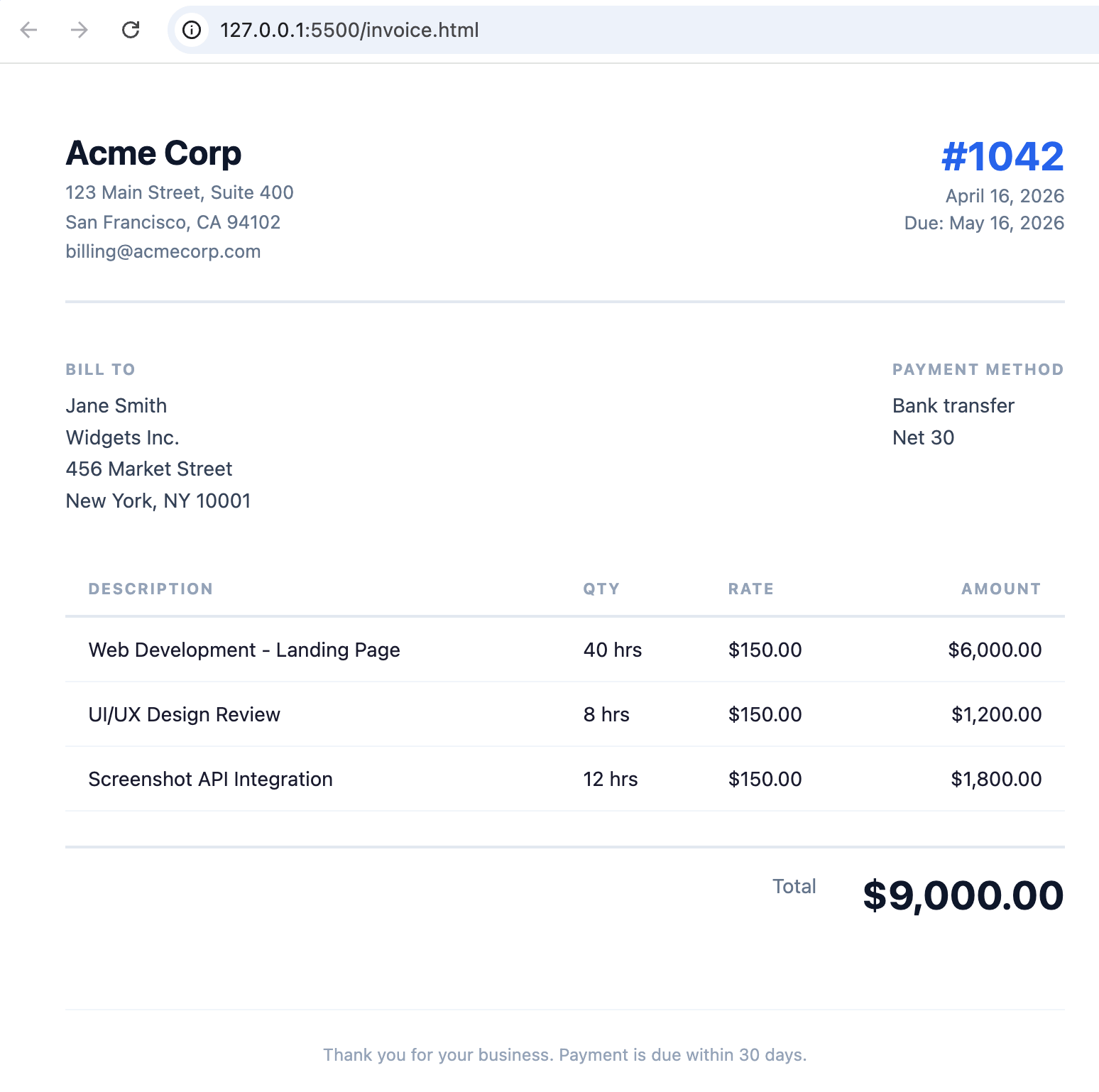
Rendering the invoice as PDF with Playwright and page.pdf()
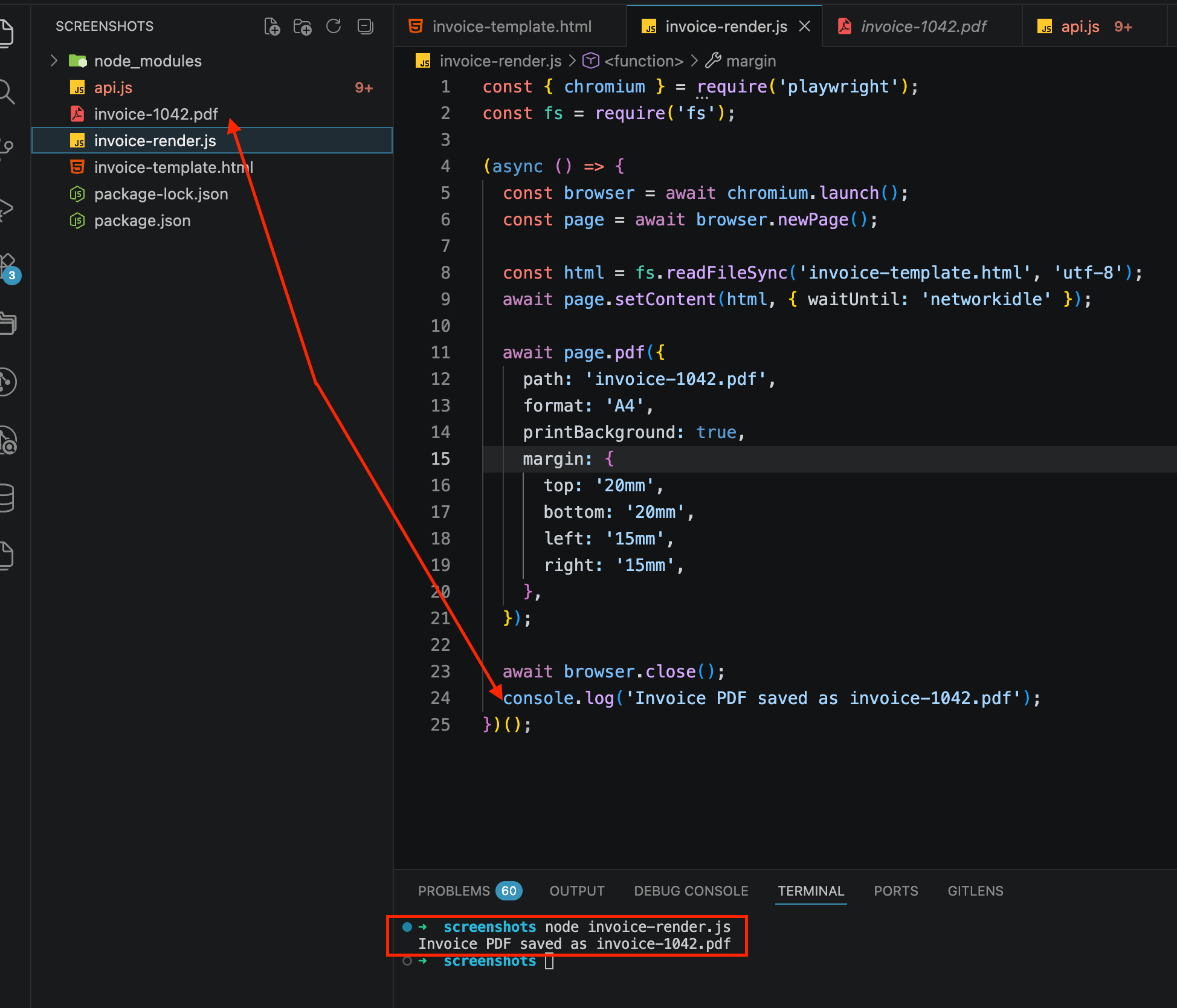
If you prefer to control the process and already have a server running Node.js, Playwright is the most straightforward option. I covered page.pdf() in detail in a separate article about converting web pages to PDF, but that one was about rendering existing URLs. Here the task is different: we have an HTML string and we want to turn it into a PDF document without hitting an external address. The key method is page.setContent(), which loads HTML directly into the page without making a network request:
const { chromium } = require('playwright');
const fs = require('fs');

(async () => {
  const browser = await chromium.launch();
  const page = await browser.newPage();

  const html = fs.readFileSync('invoice-template.html', 'utf-8');
  await page.setContent(html, { waitUntil: 'networkidle' });

  await page.pdf({
    path: 'invoice-1042.pdf',
    format: 'A4',
    printBackground: true,
    margin: {
      top: '20mm',
      bottom: '20mm',
      left: '15mm',
      right: '15mm',
    },
  });

  await browser.close();
  console.log('Invoice PDF saved as invoice-1042.pdf');
})();
A couple of things to watch out for. printBackground: true is required. Without it, all background colors and gradients will disappear because Chromium switches to print media by default and strips backgrounds. And waitUntil: 'networkidle' is needed if the template loads external fonts or images, like a company logo from a URL.
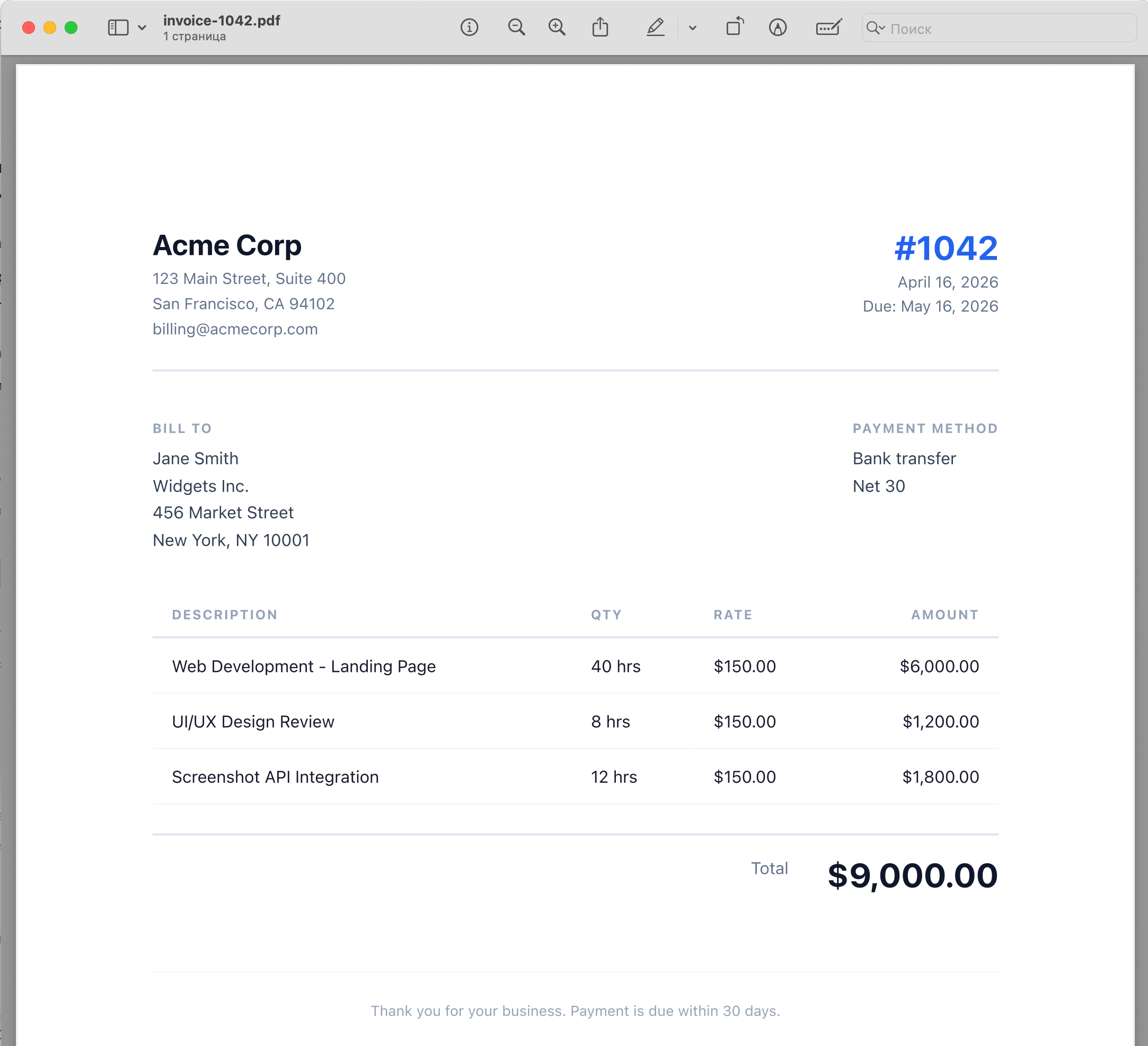
If you need to inject dynamic data (client name, line items, total), use any templating engine. Here's an example with Handlebars:
const Handlebars = require('handlebars');

const templateSource = fs.readFileSync('invoice-template.hbs', 'utf-8');
const template = Handlebars.compile(templateSource);

const html = template({
  invoiceNumber: '1042',
  date: 'April 16, 2026',
  dueDate: 'May 16, 2026',
  clientName: 'Jane Smith',
  clientCompany: 'Widgets Inc.',
  items: [
    { description: 'Web Development', qty: '40 hrs', rate: '$150.00', amount: '$6,000.00' },
    { description: 'Design Review', qty: '8 hrs', rate: '$150.00', amount: '$1,200.00' },
  ],
  total: '$7,200.00',
});
Plug your data into the template, get HTML back, render it to PDF. Three steps, no absolute positioning.
Generating invoices through the ScreenshotRun API without installing Chromium
Playwright works great when you have a server where you can run headless Chrome. But if you're deploying to a serverless platform like Vercel or AWS Lambda, getting Chromium to work there is its own headache: the binary is 400+ MB, Lambda has a deployment size limit, and every cold start turns into several seconds of waiting. In those cases it's easier to hand the rendering off to an API. ScreenshotRun supports rendering from an HTML string. You send the template, you get an image or PDF back. Check the API docs for all available parameters. Here's a curl example that renders our invoice template to PNG:
curl -X GET "https://api.screenshotrun.com/v1/screenshots/capture?\
html=<encoded_html>\
&format=png\
&width=800\
&response_type=image" \
  -H "Authorization: Bearer YOUR_API_KEY" \
  --output invoice-1042.png
And the same thing in Node.js:
const fs = require('fs');

const html = fs.readFileSync('invoice-template.html', 'utf-8');

const params = new URLSearchParams({
  html: html,
  format: 'png',
  width: '800',
  response_type: 'image',
});

(async () => {
  const response = await fetch(
    `https://api.screenshotrun.com/v1/screenshots/capture?${params}`,
    {
      headers: {
        'Authorization': 'Bearer YOUR_API_KEY',
      },
    }
  );

  const buffer = Buffer.from(await response.arrayBuffer());
  fs.writeFileSync('invoice-1042.png', buffer);
  console.log('Invoice image saved');
})();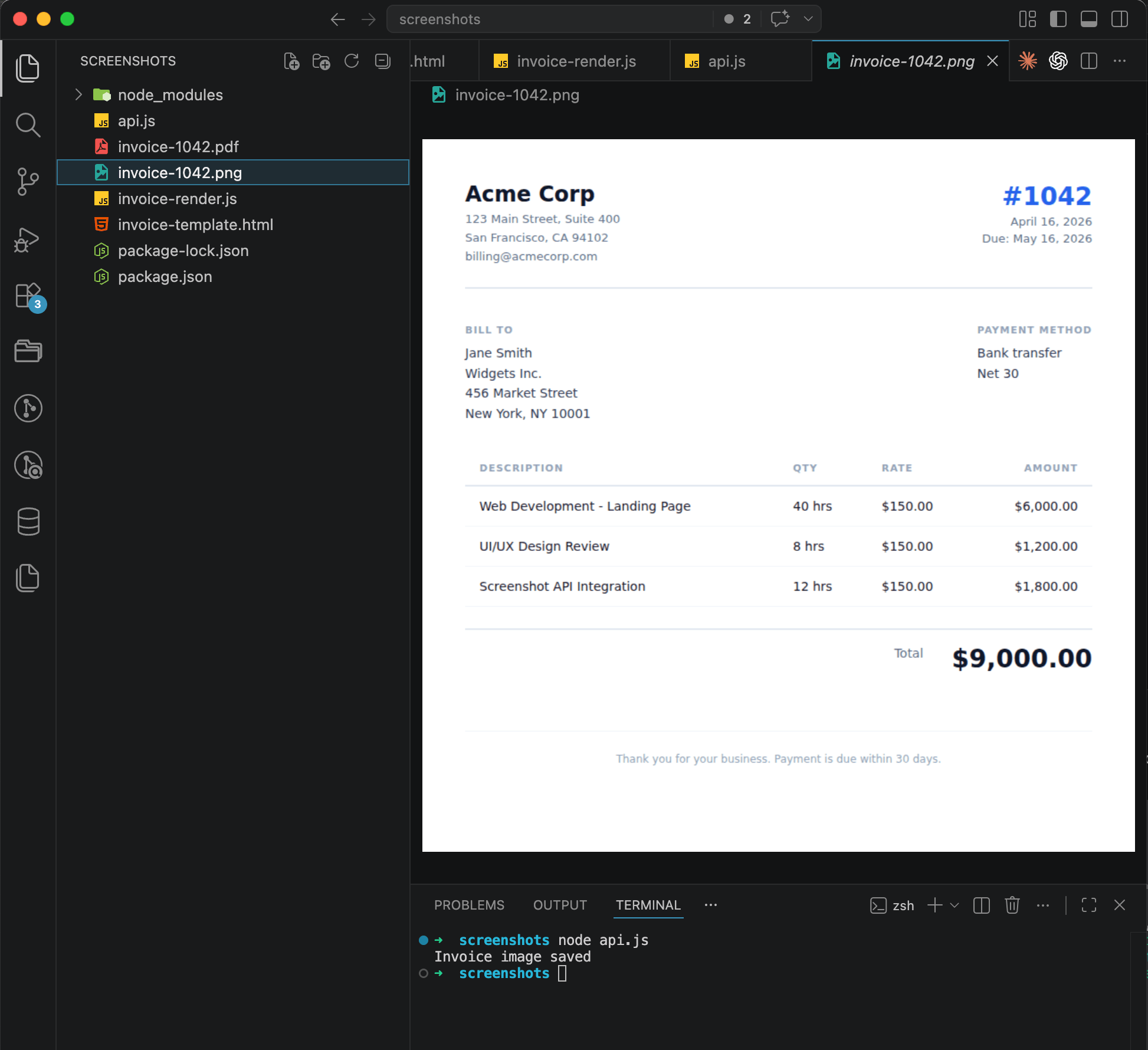
The main convenience is that there's no Chromium to install, no browser updates to track, and no worrying about how much memory headless Chrome will eat on your production server. One HTTP request, one file back. If you already use ScreenshotRun for website screenshots, you can use the same API key and the same credit budget for document generation.
Invoice as an image in email: when PNG beats a PDF attachment
The usual approach is to generate a PDF and attach it to the email. But not everyone opens attachments, especially on mobile. There's an extra tap to download, waiting for the file, then finding the right app to open the PDF. Some people just won't bother.
The alternative is to render the invoice as an image and embed it directly in the email body. The recipient sees the invoice right away, no extra steps. If they need an official PDF copy, there's a download link at the bottom. For this approach, the same HTML template gets rendered to PNG through the API, and the image is embedded via CID (Content-ID) or as a publicly accessible URL:
// Render the invoice as an image
const invoiceImage = await renderInvoice(invoiceData);

// Embed in email (nodemailer example)
const mailOptions = {
  from: '[email protected]',
  to: '[email protected]',
  subject: 'Invoice #1042 from Acme Corp',
  html: `
    <p>Hi Jane,</p>
    <p>Here's your invoice for April 2026:</p>
    <img src="cid:invoice-image" style="max-width: 100%; border: 1px solid #e2e8f0; border-radius: 8px;" />
    <p>
      <a href="https://billing.acmecorp.com/invoices/1042/download">
        Download PDF version
      </a>
    </p>
    <p>Payment is due by May 16, 2026.</p>
  `,
  attachments: [{
    filename: 'invoice-1042.png',
    content: invoiceImage,
    cid: 'invoice-image',
  }],
};
I've seen several SaaS platforms use this pattern. They send visual summaries right in the email body instead of plain-text tables. The difference in engagement is noticeable. It's essentially the same approach as generating Open Graph images, except you render an HTML template to an image for a different purpose.
Automation: generating invoices from a Stripe or Paddle webhook
In a real SaaS product, you don't create invoices by hand. The typical flow looks like this: your billing system (Stripe, Paddle, LemonSqueezy) sends a webhook after a successful payment, and you generate the invoice automatically. Here's the skeleton of a webhook handler in Express:
const express = require('express');
const app = express();

app.post('/webhooks/payment', express.json(), async (req, res) => {
  const event = req.body;

  if (event.event_type !== 'transaction.completed') {
    return res.sendStatus(200);
  }

  const transaction = event.data;

  const invoiceHtml = renderInvoiceTemplate({
    invoiceNumber: transaction.invoice_number,
    date: new Date().toLocaleDateString('en-US', {
      year: 'numeric', month: 'long', day: 'numeric'
    }),
    clientName: transaction.customer.name,
    clientEmail: transaction.customer.email,
    items: transaction.items.map(item => ({
      description: item.description,
      qty: item.quantity,
      rate: formatCurrency(item.unit_price),
      amount: formatCurrency(item.total),
    })),
    total: formatCurrency(transaction.total),
  });

  // Render PDF via API
  const pdfBuffer = await renderToPdf(invoiceHtml);

  // Save and send
  await saveInvoice(transaction.invoice_number, pdfBuffer);
  await sendInvoiceEmail(transaction.customer.email, pdfBuffer);

  res.sendStatus(200);
});
I use Paddle for billing across all my products, and this flow has been running without issues. If something does go wrong, proper error handling in your screenshot API calls will save you debugging time. The webhook comes in, the invoice renders, it goes out by email, all hands-free. If you're curious about setting up a Paddle integration specifically, that's a topic for a separate article, but the pattern itself (webhook, template, render, email) is the same regardless of which payment provider you use.
Things to watch for: fonts, multi-currency formatting, and page breaks
A few things worth knowing before you start.
Fonts are the most common issue. If your template uses Google Fonts or other web fonts, headless Chrome will download them during rendering, but only if you give it enough time. waitUntil: 'networkidle' usually handles it, but for heavier font files (Cyrillic, Arabic, CJK character sets) you sometimes need an explicit page.waitForTimeout(500). A more reliable option is to embed the font directly in the HTML as a base64-encoded @font-face declaration. That way there are no external downloads at all. A similar issue with waiting for content to load comes up when taking screenshots of pages with lazy loading, where you have to control the moment when the content has actually finished rendering.
Multi-currency formatting is something to keep in mind if you work with clients in different countries. $1,200.00 for a US client, 1.200,00 € for a German one, £1,200.00 for someone in the UK. JavaScript's Intl.NumberFormat handles this well, but your template needs to be ready for it.
Page breaks can bite you if the invoice is long (dozens of line items). When rendering to PDF, the content might split right in the middle of a table row. The CSS property break-inside: avoid on table rows prevents this:
tbody tr {
  break-inside: avoid;
}
It's one of those properties you never use in regular web development, but it saves the day in PDF generation.
Receipts vs. invoices: small template difference, big difference in business logic
An invoice is a request for payment. A receipt is confirmation that payment was received. The template difference is minimal: instead of "Due: May 16" you write "Paid: April 16", instead of "Bill to" it says "Receipt for", and you add a transaction number. But in business logic the difference is significant.
An invoice gets generated BEFORE payment (or at the same time as billing), while a receipt gets generated AFTER a successful charge. In the webhook flow these are different trigger points: with Paddle, for example, you'd generate an invoice on the transaction.created event and a receipt on transaction.completed. The same HTML template with minimal conditionals ({{#if isPaid}} in Handlebars or @if($isPaid) in Blade) covers both cases, so there's no need to duplicate the markup.
Why this approach beats a PDF library, every time
The "HTML to browser render to PDF/PNG" approach is simpler than any PDF library. You can debug the template right in the browser, a designer can change styles without involving a backend developer, and the same template renders both as a downloadable PDF and as a PNG for embedding in emails.
If you have a Node.js server, Playwright handles this well. I covered it in more detail in the guide on converting pages to PDF, which also shows how to add page numbers through headers and footers. For serverless deployments or if you want to skip running Chromium, the ScreenshotRun HTML-to-image API renders the same HTML with a single HTTP request. And for those who need screenshots of specific page elements (say, just the line items table), there's a separate guide on CSS selectors.
Frequently Asked Questions
Yes. You write the invoice as a regular HTML page with CSS styling, then render it to PDF through a headless browser (Playwright, Puppeteer) or a screenshot API. The browser handles all of CSS — Flexbox, Grid, web fonts — so you get pixel-perfect output without fighting coordinate-based layout systems.
Use page.setContent(html) to load the template into headless Chrome, then call page.pdf({ format: "A4", printBackground: true }) to save the result. Set printBackground: true so background colors and gradients are preserved, and use waitUntil: "networkidle" if the template loads external fonts or images.
Yes. The same HTML template can be rendered to PNG or JPEG through a screenshot API or Playwright's page.screenshot(). This is useful when you want to embed the invoice directly in an email body so the recipient sees it immediately, without downloading and opening a PDF attachment.
Add the CSS property break-inside: avoid to your table rows (tbody tr { break-inside: avoid; }). This prevents Chromium from splitting a row across two pages when generating PDF. For section breaks, use break-before: page on the element where you want a new page to start.
Listen for the payment completion webhook (e.g. transaction.completed in Paddle or invoice.payment_succeeded in Stripe). When the event arrives, inject the transaction data into your HTML template, render it to PDF through a headless browser or API, then save the file and email it to the customer — all automatically, no manual steps involved.

How to handle screenshot API responses in production
A 200 OK from a screenshot API doesn't mean you got a screenshot — the transport and render layers fail independently. Which status codes to retry and which not, backoff with jitter, respecting Retry-After, catching blank images that pass as a 200, and a circuit breaker. Node.js code throughout.
Read more →
Screenshot API rate limiting strategies in production
Most rate limiting guides only cover retry strategies. That's only half the problem. Five concrete strategies — proactive (token bucket, queue) and reactive (Retry-After, exponential backoff, circuit breaker) — with Node.js code.
Read more →
Headless Chrome "net::ERR_CONNECTION_REFUSED" in Docker: causes and fixes
ERR_CONNECTION_REFUSED in headless Chrome inside Docker isn't one error — it's five different network problems sharing the same message. Diagnose with one curl from inside the container, then fix per cause.
Read more →