Generating a PDF from a live web page sounds like a one-liner. And technically it is, if all you need is a basic dump of the page content with no regard for formatting. But the moment you start thinking about page sizes, margins, headers and footers, or background colors, things get complicated fast.
I went through this while building ScreenshotRun. The same rendering engine that takes pixel-perfect screenshots can also produce PDFs, but the behavior is different enough to warrant its own article. PDFs use print styles by default, which means the page can look completely different from what you see in the browser.
In this guide I'll walk through three approaches: Playwright's page.pdf(), its Puppeteer equivalent, and a screenshot API that handles everything with a single HTTP request. Working code for each, plus the pitfalls that caught me off guard.
Just need a ready-made solution? Check our URL to PDF API — one HTTP request, no browser infrastructure to manage.
Why the browser renders a PDF differently from a screenshot of the same page
When you call page.pdf() in Playwright or Puppeteer, the browser switches to print media mode. This is the same thing that happens when you hit Ctrl+P in Chrome. A lot changes at once: background colors disappear, the layout reshapes itself to fit paper dimensions, CSS rules inside @media print kick in, and @media screen rules get ignored.
That's why a PDF of the same URL can look nothing like a screenshot. The screenshot captures the screen render, while the PDF captures the print render. Two different outputs from the same page.
If you want the PDF to look closer to what you see in the browser, you need to explicitly tell the browser to use screen media instead of print. I'll show how to do that below.
Option 1: Playwright and page.pdf() with full formatting control
Playwright has built-in PDF generation through page.pdf(). It only works in headless Chromium, though. Neither Firefox nor WebKit support this feature.
First, install Playwright:
npm install playwright
npx playwright install chromium
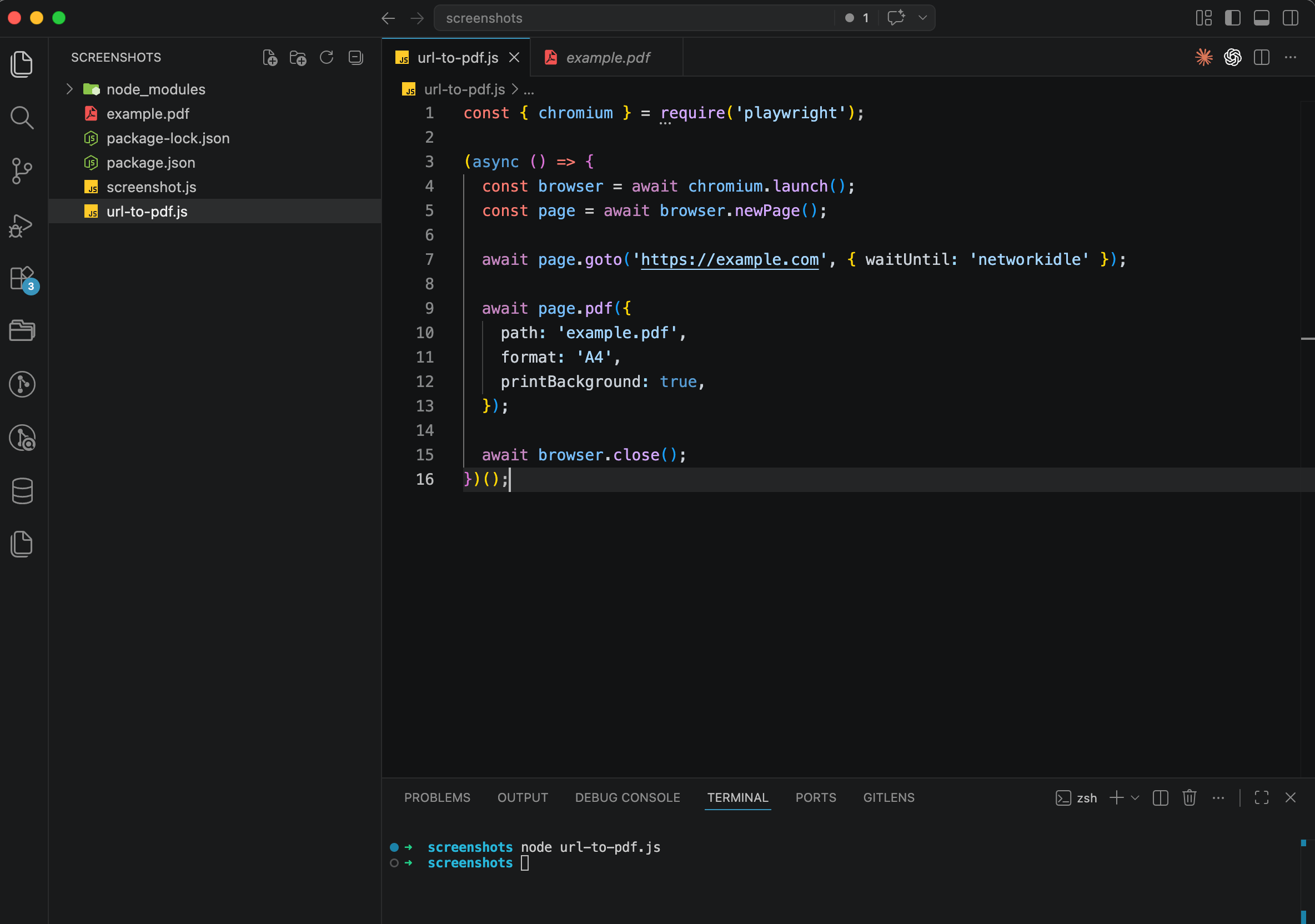
Here's the simplest version, converting a URL to a PDF file:
const { chromium } = require('playwright');

(async () => {
  const browser = await chromium.launch();
  const page = await browser.newPage();

  await page.goto('https://example.com', { waitUntil: 'networkidle' });

  await page.pdf({
    path: 'example.pdf',
    format: 'A4',
    printBackground: true,
  });

  await browser.close();
})();
Run it with node url-to-pdf.js and you'll get an A4 PDF in your folder. The printBackground: true option matters here because without it, background colors and images won't make it into the PDF. Chromium strips them out in print mode by default.
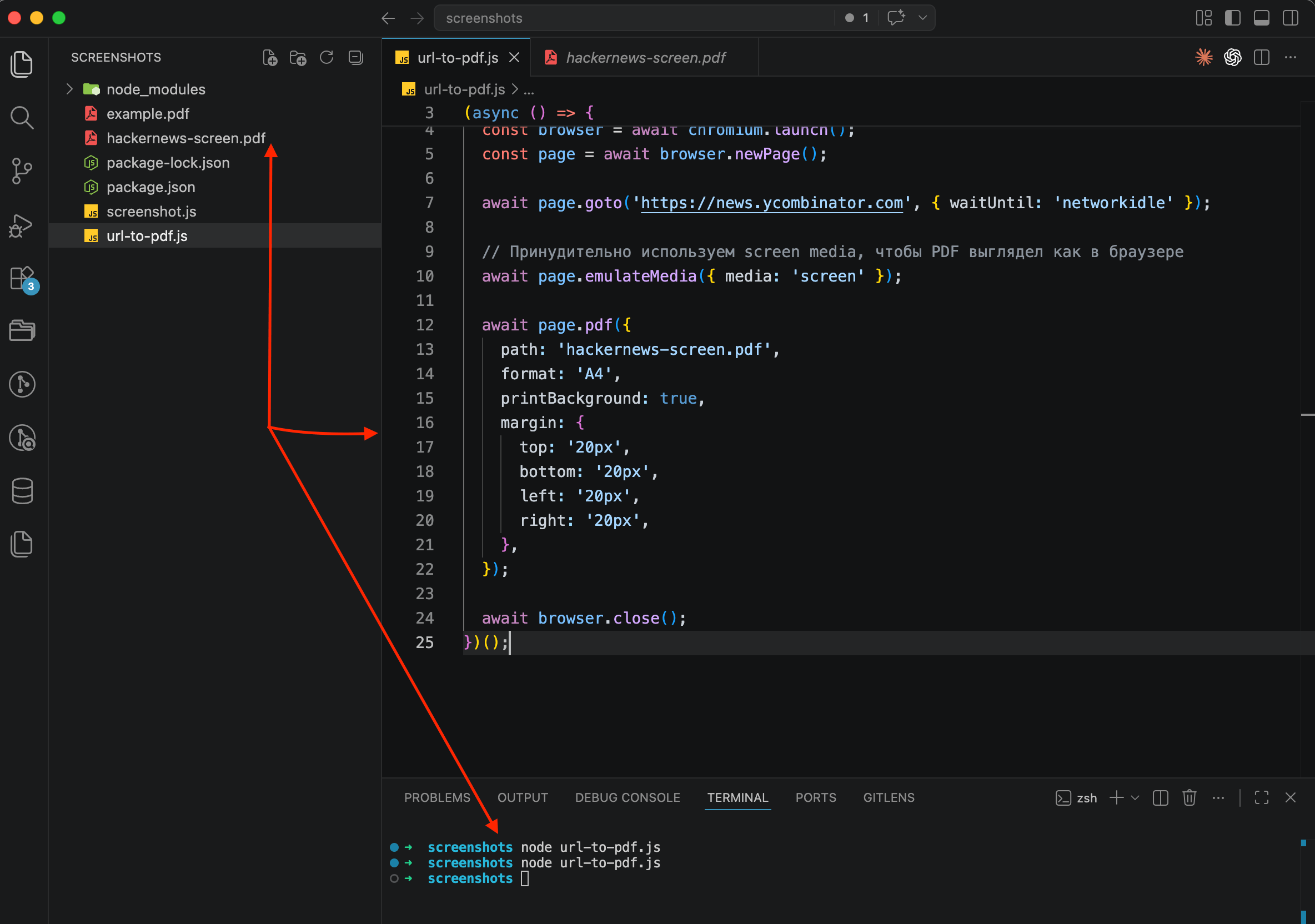
But this basic version uses print media styles, and the result often looks different from what you see on screen. To get a PDF that resembles the actual website, force screen media before generating:
const { chromium } = require('playwright');

(async () => {
  const browser = await chromium.launch();
  const page = await browser.newPage();

  await page.goto('https://news.ycombinator.com', { waitUntil: 'networkidle' });

  // Force screen media so the PDF looks like the browser
  await page.emulateMedia({ media: 'screen' });

  await page.pdf({
    path: 'hackernews-screen.pdf',
    format: 'A4',
    printBackground: true,
    margin: {
      top: '20px',
      bottom: '20px',
      left: '20px',
      right: '20px',
    },
  });

  await browser.close();
})();
The emulateMedia({ media: 'screen' }) call tells Chromium to keep using screen styles instead of switching to print. The result is a PDF that looks much closer to what you'd actually see in the browser.
How to add headers, footers, and page numbers to your PDF
Playwright supports custom headers and footers through HTML templates. This is useful for invoices, reports, or any document where you need a page number or a company logo on every page. If you're building something closer to a proper invoice from an HTML template, I walked through the full pipeline (Handlebars template, dynamic data, webhook triggers) in a separate post on generating PDF invoices and receipts.
await page.pdf({
  path: 'report-with-headers.pdf',
  format: 'A4',
  printBackground: true,
  displayHeaderFooter: true,
  headerTemplate: `
    <div style="font-size: 10px; width: 100%; text-align: center; color: #999;">
      My Company Report
    </div>
  `,
  footerTemplate: `
    <div style="font-size: 10px; width: 100%; text-align: center; color: #999;">
      Page <span class="pageNumber"></span> of <span class="totalPages"></span>
    </div>
  `,
  margin: {
    top: '80px',
    bottom: '80px',
    left: '40px',
    right: '40px',
  },
});
The <span class="pageNumber"> and <span class="totalPages"> placeholders are built into Chromium's PDF engine and get replaced automatically. One catch, though: header and footer templates don't inherit page styles. You need to inline all your CSS directly in the template. If you reference a class from the page's stylesheet, it won't work.
The margins also need to be large enough to fit the headers and footers. If your header is 60px tall but your top margin is only 20px, the header will overlap the content.
Option 2: Puppeteer, same page.pdf() with minor differences
PDF generation in Puppeteer works almost identically to Playwright. Same API, same options, same output, because both use Chromium under the hood.
npm install puppeteerconst puppeteer = require('puppeteer');
(async () => {
const browser = await puppeteer.launch();
const page = await browser.newPage();
await page.goto('https://example.com', {
waitUntil: 'networkidle2',
});
await page.pdf({
path: 'example.pdf',
format: 'A4',
printBackground: true,
});
await browser.close();
})();The only real difference is how you wait for the page to load. Playwright uses networkidle, while Puppeteer uses networkidle2 (it waits until no more than two network connections remain active for 500ms). In practice the results are the same.
If Puppeteer is already in your stack, there's no reason to switch to Playwright just for PDF generation. The APIs are nearly identical, so pick whichever you're already working with.
Common problems you'll run into when generating PDFs in a browser
I've generated PDFs from dozens of different websites and kept hitting the same issues. A few things keep coming up.
The most common surprise is background colors vanishing. Chromium's print mode strips backgrounds unless you set printBackground: true. I forget this setting every single time and then stare at a completely white PDF wondering what went wrong.
Page breaks are another recurring annoyance. The browser decides where to split based on content height and paper format, and its choices aren't always smart. Headings end up orphaned at the bottom of a page, table rows get sliced in half. The CSS properties break-inside: avoid and break-before: page give you control, but you'll need to test them on every page layout.
Web fonts are trickier than you'd expect. Google Fonts and custom typefaces sometimes don't load in headless mode, leaving your PDF with fallback system fonts. Setting waitUntil: 'networkidle' usually helps, but I've had cases where I needed page.waitForTimeout(2000) on top of that. Fonts from slow CDNs are the worst offenders.
Cookie banners and popups end up in the PDF. Just like with screenshots, if there's a consent banner on the page, it'll be in your PDF too. I covered how to deal with this in my article on hiding cookie banners and widgets in screenshots, and the same techniques apply here.
Each headless Chrome instance burns through a few hundred megabytes of RAM. If you're generating PDFs at scale (hundreds or thousands per day), you need queue management, process recycling, and crash recovery. This is the same infrastructure problem I described in my build vs buy comparison.
Option 3: screenshot API, one request to get a PDF
If you don't want to manage Chromium instances, deal with font loading quirks, or build queue infrastructure, a screenshot API can generate PDFs from URLs with a single HTTP request.
In ScreenshotRun, you just set format: "pdf" instead of "png" or "jpeg". Everything else works the same as screenshot capture: cookie banners get blocked, the page loads fully before rendering, and you get a clean result.
curl -X POST https://api.screenshotrun.com/v1/screenshots \
  -H "Authorization: Bearer YOUR_API_KEY" \
  -H "Content-Type: application/json" \
  -d '{
    "url": "https://example.com",
    "format": "pdf",
    "full_page": true,
    "block_cookies": true
  }'
And in Node.js:
const response = await fetch('https://api.screenshotrun.com/v1/screenshots', {
  method: 'POST',
  headers: {
    'Authorization': 'Bearer YOUR_API_KEY',
    'Content-Type': 'application/json',
  },
  body: JSON.stringify({
    url: 'https://example.com',
    format: 'pdf',
    full_page: true,
    block_cookies: true,
  }),
});

const { data } = await response.json();
console.log(data.id); // retrieve the PDF via GET /screenshots/:id
For a synchronous response (the PDF file directly), use the GET endpoint:
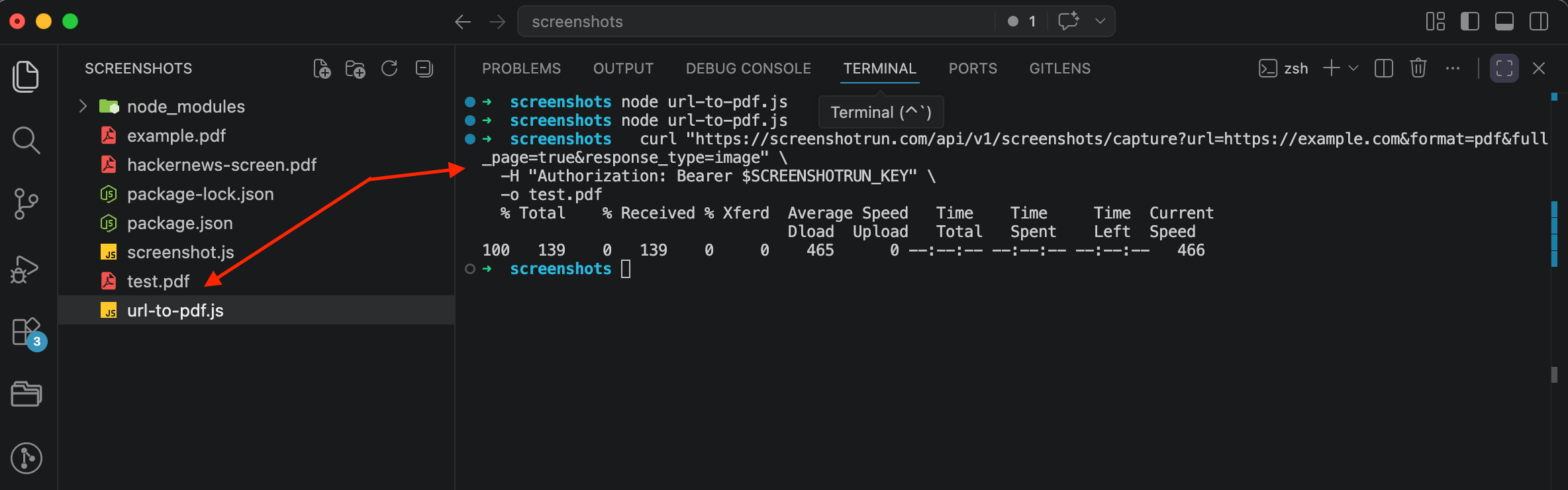
curl "https://api.screenshotrun.com/v1/screenshots/capture?url=https://example.com&format=pdf&full_page=true&response_type=image" \
  -H "Authorization: Bearer YOUR_API_KEY" \
  -o example.pdf
One request, one PDF on disk. The API takes care of media emulation, font loading, cookie banner blocking, and page rendering without any local infrastructure.
Playwright for control, Puppeteer if it's already there, API for everything else
If you need granular control over the PDF (custom headers and footers with page numbers, specific paper sizes, CSS injection for print styles), Playwright or Puppeteer give you that level of control. They're free and run locally, which matters if you can't send your content to an external service.
If you're generating PDFs from public URLs and want to skip the infrastructure overhead, an API is the faster path. No Chromium to install, no memory management, no font loading issues. The tradeoff is less customization over the PDF layout, but for most use cases like archiving pages, generating reports from URLs, or saving documentation, that's perfectly fine.
For caching strategies with either approach, I wrote a separate post on how to cache screenshots that applies to PDFs as well. And if you're rendering pages that require authentication, my guide on screenshotting password-protected pages with cookies and auth covers passing custom cookies and headers into the request.
For anything production-facing, I'd lean toward the API. Maintaining browser infrastructure at scale is genuinely unpleasant work, and the margin between what Playwright gives you and what an API handles keeps shrinking.