
 Vitalii Holben
Full-page screenshots and lazy loading: why your captures come out blank and how to fix it
Lazy loading breaks automated full-page screenshots because headless browsers do not scroll. Working fixes for Playwright and Puppeteer with code examples and real-world edge cases
If you've ever tried to take a full-page screenshot of a modern website with a headless browser, you've probably seen the result: the top part of the page looks fine, but everything below the fold is covered in empty rectangles where images should be, or the layout is just broken halfway through. It's not your code and it's not a Playwright bug (if you're seeing completely blank output instead, check my post on blank white screenshots in Puppeteer and Playwright for other causes). It's lazy loading, and at this point it's on pretty much every site out there.
I ran into this early on when building screenshotrun. One of the first bug reports I got was something like "your API returns blank images." I spent a solid hour debugging — checking logs, restarting the service, the whole thing — before I realized the problem wasn't on my end at all. The target site had loading="lazy" on every image below the fold, and Playwright's fullPage: true option doesn't scroll the page. It just measures the DOM height and renders whatever is already loaded at that point. Images the browser never "saw" stay unloaded.
In this article I'll go through why lazy loading breaks full-page screenshots, show working fixes for both Playwright and Puppeteer with code examples, and cover the tricky scenarios that caught me off guard while building my own screenshot API.
Why lazy loading breaks full-page screenshots in headless browsers
Lazy loading is a performance optimization where the browser postpones loading images and other content until the user scrolls close enough to see them. Technically it works in two ways: through the native HTML attribute loading="lazy" on <img> tags, or through JavaScript observers like IntersectionObserver that track whether an element has entered the visible area of the page.
When a headless browser takes a full-page screenshot, it doesn't scroll like a real person would. It asks the DOM for the total document height and renders the entire page in a single pass. The catch is that images below the first screen never entered the viewport, so the browser never started fetching them. What you get instead are grey placeholders or a broken layout where the images should have been.
Infinite scroll makes things even worse, but that's a separate problem: there the page doesn't even have a fixed height. Lazy loading at least assumes all the content is already present in the DOM, just the media files haven't been pulled in yet.
How to fix it with scroll-and-wait in Playwright
The most reliable way to make lazy loading actually trigger is to do what a real user does: scroll down the page, give the browser time to fetch all the resources, and only then take the screenshot. Throughout this article I'm using unsplash.com as the target — it's a photo gallery with aggressive lazy loading and blur placeholders, so you can immediately tell whether images loaded or not. I implemented the scrolling in Node.js with Playwright like this:
const { chromium } = require('playwright');

const TARGET_URL = 'https://unsplash.com';

async function captureFullPage() {
  const browser = await chromium.launch();
  const page = await browser.newPage();

  await page.goto(TARGET_URL, { waitUntil: 'networkidle' });

  // Scroll the page to trigger lazy-loaded content
  await autoScroll(page);

  // Give images a moment to finish loading
  await page.waitForTimeout(2000);

  const screenshot = await page.screenshot({ fullPage: true });

  await browser.close();
  return screenshot;
}

async function autoScroll(page) {
  await page.evaluate(async () => {
    await new Promise((resolve) => {
      let totalHeight = 0;
      const distance = 300;
      const timer = setInterval(() => {
        const scrollHeight = document.body.scrollHeight;
        window.scrollBy(0, distance);
        totalHeight += distance;

        if (totalHeight >= scrollHeight) {
          clearInterval(timer);
          // Scroll back to top for a clean screenshot
          window.scrollTo(0, 0);
          resolve();
        }
      }, 100);
    });
  });
}
The autoScroll function moves down the page in 300-pixel steps with a 100-millisecond pause between each one. That interval is enough for IntersectionObserver and native lazy loading to detect that elements have entered the visible area and start fetching images from the server.
After the scroll reaches the bottom, I move it back to the top. This isn't just cosmetic — without it, some sites with sticky headers or scroll-position-dependent animations render incorrectly, and you end up with visual artifacts in the final screenshot.
The 2-second pause after scrolling is a safety buffer. Even after the network request for an image completes, the browser still needs time to decode and render it. I've found that 1-2 seconds is enough for most pages, but image-heavy landing pages with large photos might need 3-4 seconds.
Same approach adapted for Puppeteer
If you're working with Puppeteer instead of Playwright, the logic is nearly identical. The main differences are in how you initialize the browser and a few API details:
const puppeteer = require('puppeteer');

const TARGET_URL = 'https://unsplash.com';

async function captureFullPage() {
  const browser = await puppeteer.launch();
  const page = await browser.newPage();

  await page.goto(TARGET_URL, { waitUntil: 'networkidle2' });

  await autoScroll(page);
  await new Promise(r => setTimeout(r, 2000));

  const screenshot = await page.screenshot({ fullPage: true });

  await browser.close();
  return screenshot;
}

async function autoScroll(page) {
  await page.evaluate(async () => {
    await new Promise((resolve) => {
      let totalHeight = 0;
      const distance = 300;
      const timer = setInterval(() => {
        const scrollHeight = document.body.scrollHeight;
        window.scrollBy(0, distance);
        totalHeight += distance;
        if (totalHeight >= scrollHeight) {
          clearInterval(timer);
          window.scrollTo(0, 0);
          resolve();
        }
      }, 100);
    });
  });
}
One thing to pay attention to: Puppeteer uses networkidle2 where Playwright has networkidle. The difference is that networkidle2 considers the page loaded when there are no more than 2 active network connections for 500 milliseconds. In practice this works better for sites with analytics, tracking pixels, and ad scripts that never fully stop sending requests.
Situations where scrolling alone won't get you a clean screenshot
The scroll approach covers maybe 80% of websites. But there are categories of pages where it falls apart, and it's worth knowing about them before you spend hours debugging.
Pages with animations that fire on scroll
A lot of modern landing pages use libraries like GSAP or AOS to animate elements as they enter the viewport. If you scroll too fast, the animations might be mid-transition when you take the capture. I've gotten screenshots where text was at 50% opacity and blocks were frozen halfway through a slide-in effect.
The fix is simple but costs you time: increase the pause between scroll steps from 100 to 300-500 milliseconds. The capture will be noticeably slower, but the result will actually look like the finished page.
Sites that use custom JavaScript to load images instead of the native attribute
Not every site relies on the native loading="lazy" attribute. Some use their own JavaScript that swaps a placeholder src with the real image URL the moment the element enters the viewport. The scroll triggers the swap, but the image still needs time to download over the network.
For these cases I add a waitForFunction check after scrolling (screenshotrun's wait-for-selector feature handles this automatically) that waits until every image on the page has finished loading:
await page.waitForFunction(() => {
  const images = document.querySelectorAll('img');
  return Array.from(images).every(img => img.complete);
}, { timeout: 10000 });
This polls every <img> tag on the page and checks whether it reports complete === true. The 10-second timeout is a safeguard against broken images that will never load — without it the script would hang forever.
Background images loaded through CSS
The CSS background-image property doesn't have a loading="lazy" equivalent, but developers sometimes implement lazy background images through JavaScript anyway. Scrolling does trigger those loaders, but there's no clean programmatic way to check whether a CSS background has actually finished loading. The only reliable strategy here is to rely on the post-scroll pause and hope the interval you picked is long enough.
Cookie consent banners that sit on top of everything
This isn't strictly a lazy loading problem, but it comes up every single time you try to take a full-page screenshot of a European or any GDPR-compliant site. The consent banner hovers over your content, and no amount of scrolling will make it go away. I wrote up the full layered approach I use — network blocking, CSS injection, and click-accept fallback — in a separate post on hiding cookie banners, ads, and chat widgets in screenshots.
The viewport size trap that most tutorials don't mention
Something that confused me at first. The viewport width affects which lazy loading strategy a site uses. Some responsive designs load entirely different sets of images depending on screen width: a mobile viewport gets compressed thumbnails while a desktop viewport loads full-resolution photos.
If you're taking screenshots with device emulation (as I described in my article about capturing sites as they appear on iPhone, iPad, and Android), make sure you set the viewport before navigating to the page, not after:
const page = await browser.newPage();
await page.setViewportSize({ width: 375, height: 812 }); // iPhone size
await page.goto('https://unsplash.com', { waitUntil: 'networkidle' });
await autoScroll(page);
Setting the viewport after goto triggers a layout shift. The page has already decided which images to load based on the default window size, and changing the viewport after the fact won't always force lazy loading to re-trigger with the new dimensions.
How long the scroll-and-wait capture takes and whether it's worth the overhead
Honest answer: it's slow. A regular screenshot without scrolling takes 2-5 seconds depending on the page. With scroll-and-wait, you're looking at 5-15 seconds for a typical landing page, and for really long pages with dozens of images it can run up to 30 seconds or more.
I tried several things to speed it up, and this is what worked and what didn't:
Bumping the scroll step from 300 pixels to the full viewport height sounds logical: fewer steps, faster scrolling. But some lazy loading implementations only fire when the element gets close enough to the viewport edge, not just anywhere on the visible screen. A 300-pixel step is a compromise that works for most sites.
Cutting the inter-scroll delay to 50 milliseconds works well for sites using native loading="lazy", but it breaks JavaScript-based loaders that need more time to react to scroll position changes.
Skipping scrolling entirely and stripping loading="lazy" attributes via JavaScript before the page renders. Neat in theory, but it doesn't help with JS-based loaders, and some sites actually serve different content depending on how far the user has scrolled.
When you need screenshots in bulk, every extra second per capture adds up. In screenshotrun I solved this by running captures in parallel through a worker pool, so the per-screenshot time matters less when you're processing a batch. If you're curious how caching helps with repeated captures of the same pages, I wrote about that separately in how to cache screenshots.
A faster shortcut: force-loading all images without scrolling at all
Tone trick works well for sites using native loading="lazy". Instead of scrolling the page, you can just strip the loading attribute from every image via JavaScript and then wait for the browser to load them on its own:
// Remove lazy loading attributes
await page.evaluate(() => {
  const images = document.querySelectorAll('img[loading="lazy"]');
  images.forEach(img => {
    img.removeAttribute('loading');
  });
});

// Wait for all images to finish loading
await page.waitForFunction(() => {
  const images = document.querySelectorAll('img');
  return Array.from(images).every(img => img.complete);
}, { timeout: 15000 });

// Now take the screenshot
const screenshot = await page.screenshot({ fullPage: true });
Once the loading="lazy" attribute is gone, the browser stops deferring and immediately starts requesting all the images. It's faster than scrolling and more reliable for simpler pages that don't use custom JS loaders.
But for sites with JavaScript-based loaders this approach is useless, because those track scroll position or use IntersectionObserver, and removing an HTML attribute has no effect on their logic. That's why in production I combine both methods: strip the native lazy loading attributes first, then scroll the page anyway to be safe.
How a managed API handles all of this for you
All this scrolling, waiting, attribute stripping, and handling of unusual scenarios — I packaged it into the screenshotrun API so you don't have to write and maintain it yourself. When you request a full-page screenshot through the API, it automatically scrolls the page, waits for all images to load, deals with cookie banners, and returns a clean result.
The call looks like this:
curl "https://api.screenshotrun.com/v1/screenshots/capture?\
url=https://unsplash.com&\
full_page=true&\
format=png&\
response_type=image" \
  -H "Authorization: Bearer sk_live_your_key" \
  --output screenshot.png
And and the result: a full-page screenshot of unsplash.com that the API returned in a single request. Every photo is loaded, the grid looks exactly like what a real user would see after scrolling all the way down:
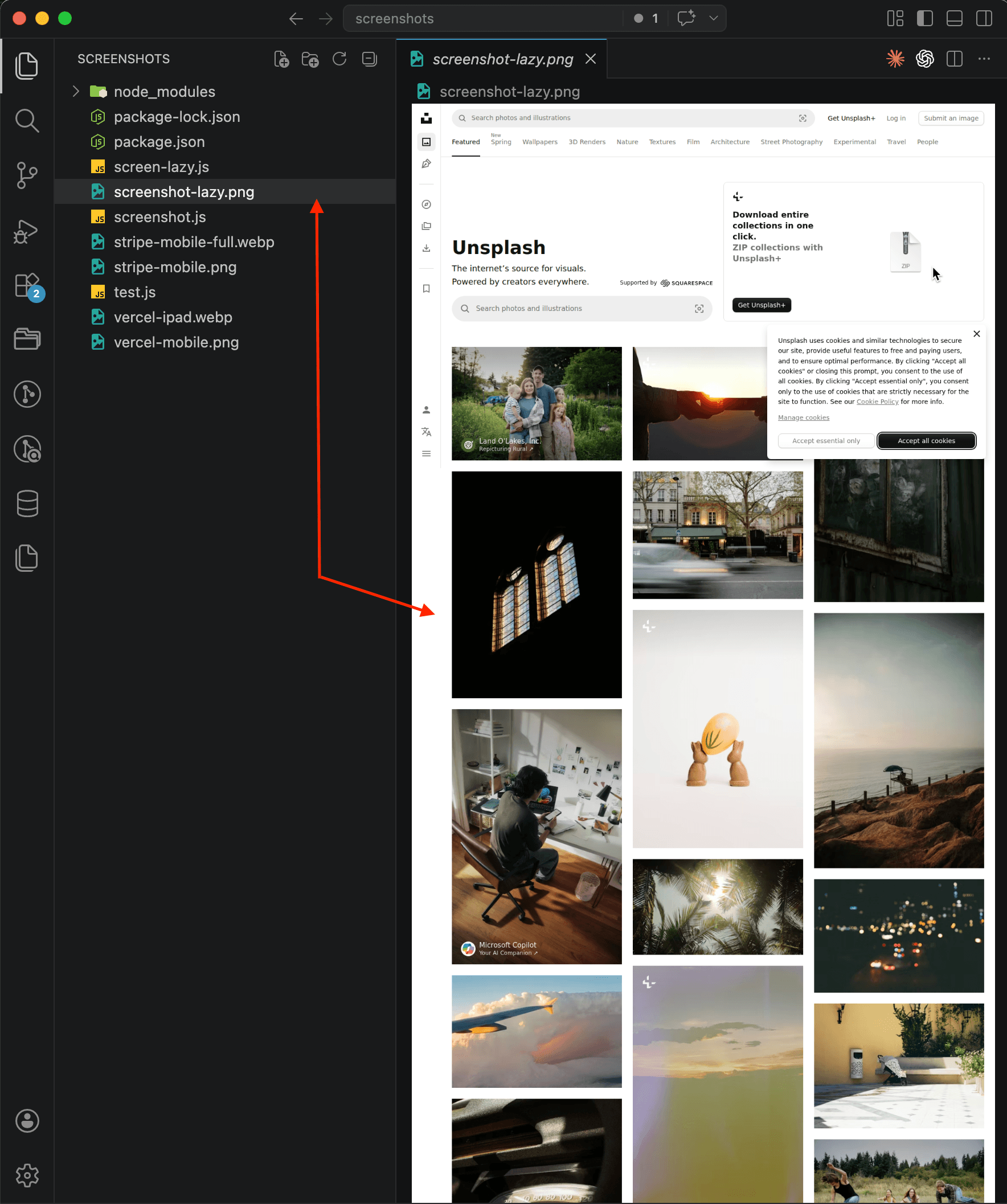
You'll notice the cookie consent banner in the upper right corner — the API didn't remove it because I didn't pass the cookie blocking parameter in this request. In production you can enable cookie popup blocking, but for demonstrating lazy loading it doesn't matter: the point is that all the images are there.
If you've already read my guides on taking screenshots with Node.js, Python, PHP, or Go, you already know the request format. A managed API handles the problematic lazy loading scenarios on its end, so you don't need to maintain scroll scripts that break every time the target site updates how it loads content.
What I'd recommend depending on what you're building
For those capturing screenshots of their own site or a handful of specific pages, the Playwright scroll approach works well enough. You know the page structure, you can tune the scroll speed and wait times to match your specific case, and the results will be predictable.
It's a different story when you're accepting arbitrary URLs from users or building a product that needs to handle any site on the internet. The number of problematic scenarios piles up fast: custom JS loaders, scroll-triggered animations, viewport-dependent loading logic, infinite scroll detection. I spent several weeks stabilizing all of this in screenshotrun, and I still run into new problem cases from time to time.
If you've got a specific lazy loading scenario that you can't get to work, I'd be curious to hear about it. These tricky cases are exactly what keeps building a screenshot API interesting.
Frequently Asked Questions
Most websites use lazy loading, which only fetches images when they enter the visible viewport. When a headless browser captures a full-page screenshot, it measures the page height and renders everything at once without scrolling. Images below the first screen never enter the viewport, so they stay unloaded.
Scroll the page in small steps (around 300 pixels) with short pauses between each one. This triggers both native lazy loading and JavaScript-based loaders. After reaching the bottom, scroll back to top and wait 1-2 seconds for images to finish decoding before taking the screenshot.
Playwright uses networkidle, which waits until zero network connections remain for 500 milliseconds. Puppeteer uses networkidle2, which allows up to 2 active connections. The Puppeteer version works better for sites with analytics and tracking scripts that never fully stop sending requests.
You can strip the loading="lazy" attribute from all images via JavaScript, which forces the browser to fetch them immediately. This works for sites using native HTML lazy loading, but it has no effect on custom JavaScript loaders that track scroll position with IntersectionObserver.
A regular screenshot takes 2-5 seconds. With scroll-and-wait, expect 5-15 seconds for a typical landing page. Image-heavy pages with dozens of photos can take up to 30 seconds. Using a screenshot API removes this overhead because the scrolling and waiting is handled on the server side.
Fix "Could Not Find Expected Browser (Chrome) Locally" in Puppeteer
Puppeteer cannot find Chrome? Fix the "could not find expected browser locally" error in Docker, CI/CD, serverless, monorepos, and local development.
Read more →
Fix Puppeteer "Browser Has Disconnected" Error (All Causes)
Read more →
Why Instagram Breaks Your Screenshots (And How to Fix It with Playwright)
Instagram shows two login popups, triggers React re-renders when you hide them wrong, and locks scrollHeight to the viewport. Three problems, three fixes for Playwright and Puppeteer.
Read more →