
 Vitalii Holben
How to Pass Cookies and Auth Headers to a Screenshot API
I kept running into the same problem — send a dashboard URL to a screenshot API, get back a picture of the login form. Turns out, passing a session cookie along with the request is all it takes. Here's how I set it up for my own admin panel, with code for cURL, Node.js, and PHP, plus two other auth methods for staging servers and token-protected pages.
Not every page you need to screenshot is open to the world. Sometimes you need a screenshot of a service admin panel, an internal dashboard, a staging server, or a page behind basic auth. And that's where the problem starts: you send the URL to a screenshot API, and what comes back is a screenshot of the login form. The headless browser on the API side doesn't know your credentials and visits the page as a brand new user.
I want to walk through how to handle this. As an example, I'll use my own project fixheaders.com, a security headers scanner. It has a Filament admin panel, and I periodically need a screenshot of the dashboard showing scan counts without logging in manually every time.
For an overview of authenticated screenshot capture and common workflows, see the Screenshot API for Pages Behind Login use-case page. This tutorial focuses on the technical implementation details.
I'll cover three authentication methods: cookies, custom HTTP headers, and Basic Auth. Each method comes with code examples in cURL, Node.js, and PHP.
Why a regular screenshot request won't work
When you ask a screenshot API (or Playwright, or Puppeteer) to capture a URL, the headless browser opens it as a completely new visitor. No session, no cookies, no saved credentials. If the page requires a login, the server sees an unauthenticated request and either redirects to the login form or shows it directly.
This is what happens when you send a regular request to the fixheaders.com admin URL without any cookies:
curl -X POST https://api.screenshotrun.com/v1/screenshots \
  -H "Authorization: Bearer $SCREENSHOTRUN_KEY" \
  -H "Content-Type: application/json" \
  -d '{"url": "https://fixheaders.com/admin"}'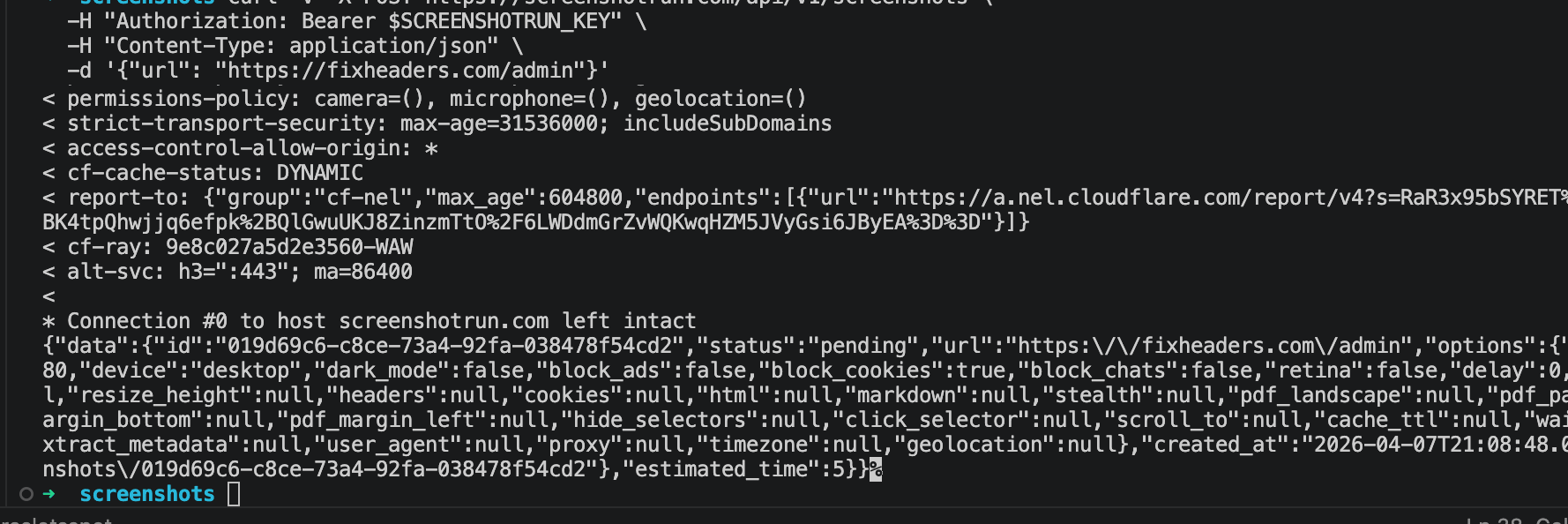
After a few seconds we can download the result:
curl -H "Authorization: Bearer $SCREENSHOTRUN_KEY" \
  https://api.screenshotrun.com/v1/screenshots/SCREENSHOT_ID/image \
  -o screenshot-no-auth.png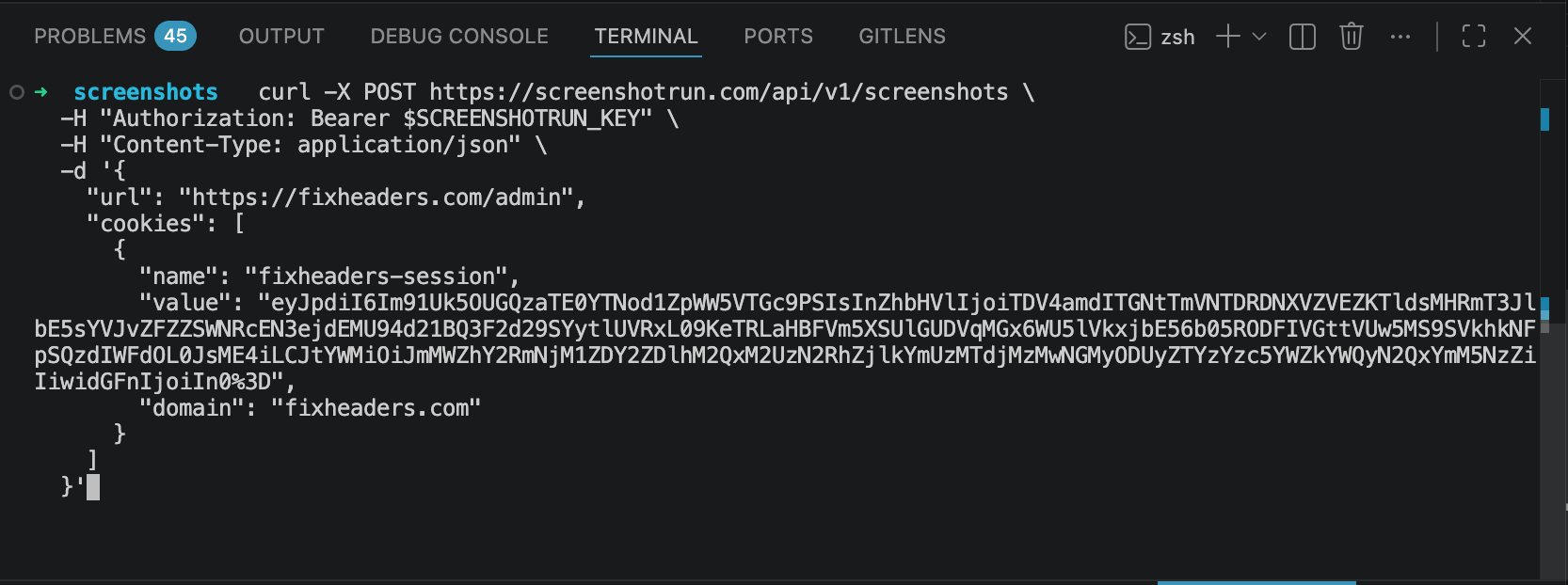
Open the file and — yeah, exactly what you'd expect: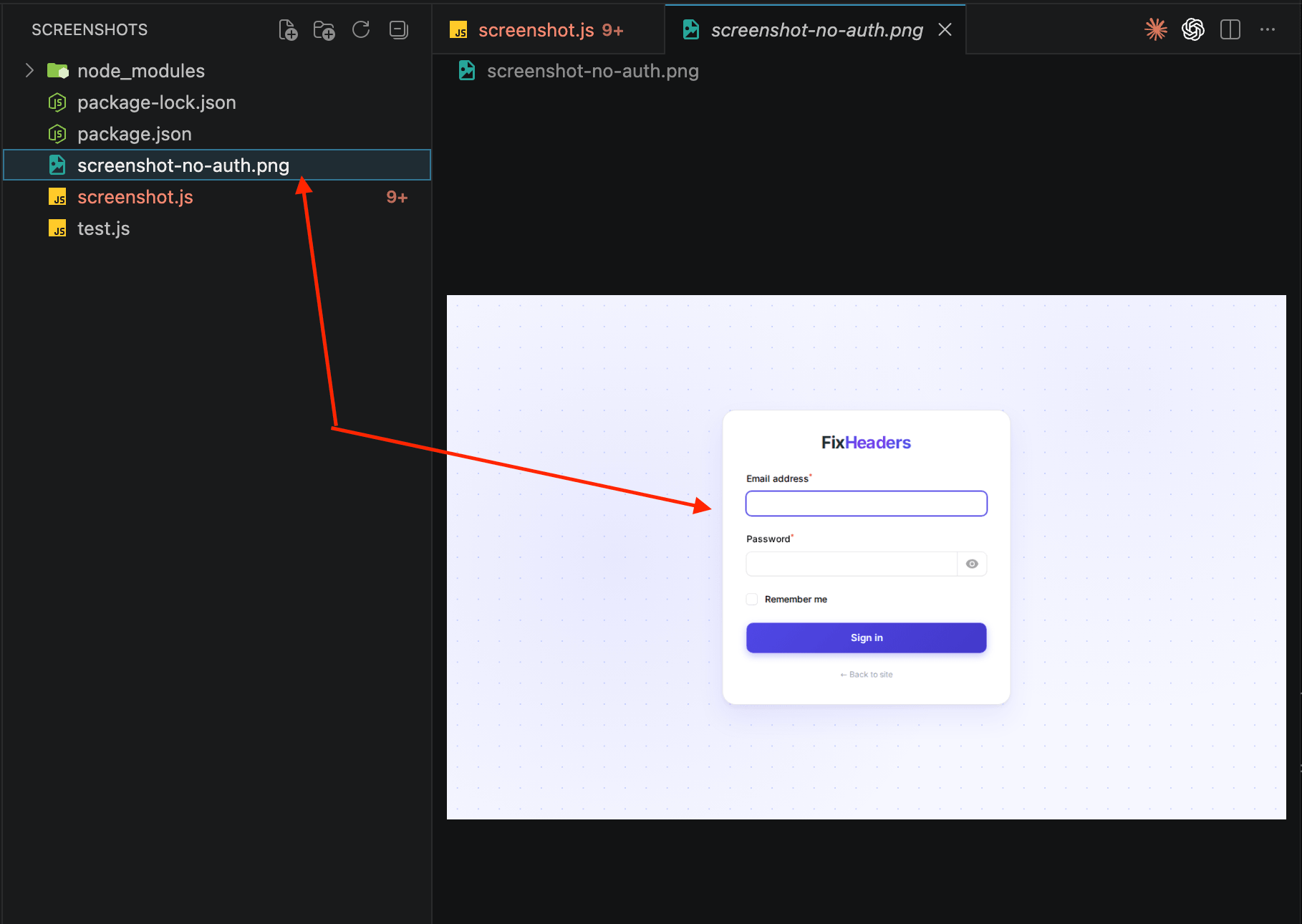
You get the login form, exactly what the headless browser sees when it visits a protected URL without authentication. Same as opening a private URL in an incognito window. No cookies means the server treats you as a stranger.
To fix this, give the headless browser the same credentials your regular browser already has. A few ways to do that exist, depending on how the target site handles authentication.
Method 1: pass session cookies (the most common case)
Most web apps (Laravel, Django, Rails, WordPress, Filament, any admin panel) use cookie-based sessions. When you log in, the server creates a session and sends a cookie. Every subsequent request includes that cookie, and the server knows who you are.
Grab the session cookie from your browser and pass it to the screenshot API. The headless browser will send that cookie with the request, the server will see a valid session, and you'll get a screenshot of the actual dashboard, not the login page.
Step 1: find your session cookie
Open the site you want to screenshot (in my case, the fixheaders.com admin panel). Log in normally. Then open DevTools → Application → Cookies (in Chrome) or Storage → Cookies (in Firefox).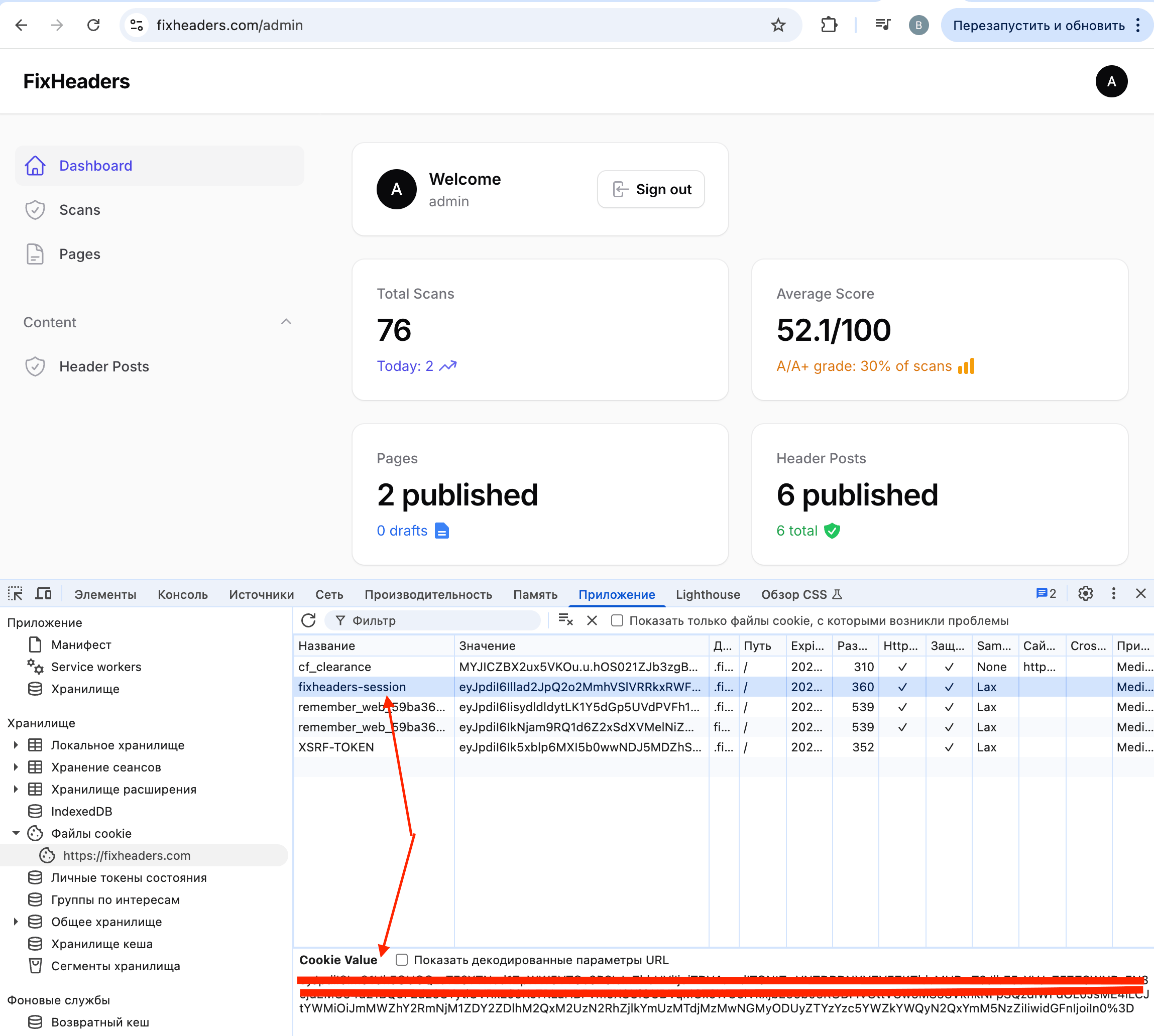
Look for the session cookie. In Laravel apps it's usually called laravel_session or a custom name from config/session.php. In my case it's fixheaders-session. The name varies across frameworks. In some apps it's PHPSESSID, in Django it's sessionid, in Rails it's _yourapp_session.
Copy the cookie value. It'll look something like this:
eyJpdiI6IkxMNk1DVjZhN0FKWjZ2a3...long_base64_stringStep 2: pass it to the screenshot API
Send that cookie with a screenshotrun API request like this.
cURL:
curl -X POST https://api.screenshotrun.com/v1/screenshots \
  -H "Authorization: Bearer $SCREENSHOTRUN_KEY" \
  -H "Content-Type: application/json" \
  -d '{
    "url": "https://fixheaders.com/admin",
    "cookies": [
      {
        "name": "fixheaders-session",
        "value": "eyJpdiI6IkxMNk1DVjZhN0FKWjZ2a3...",
        "domain": "fixheaders.com"
      }
    ]
  }'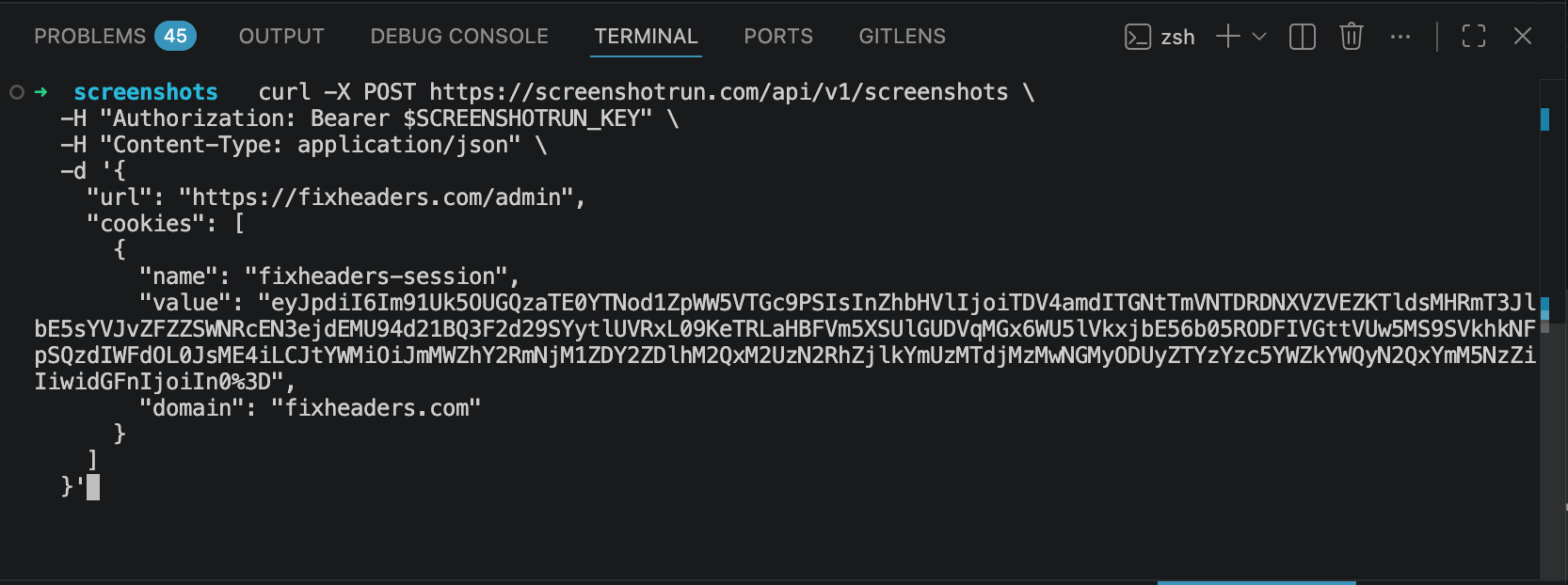
The cookies parameter takes an array of objects. Each one needs a name, value, and domain. The domain tells the browser which site to send the cookie to. Without it, the cookie might not get attached to the request.
Download the result the same way, using the ID from the response:
curl -H "Authorization: Bearer $SCREENSHOTRUN_KEY" \
  https://api.screenshotrun.com/v1/screenshots/SCREENSHOT_ID/image \
  -o screenshot-with-auth.png
And here's what we get this time: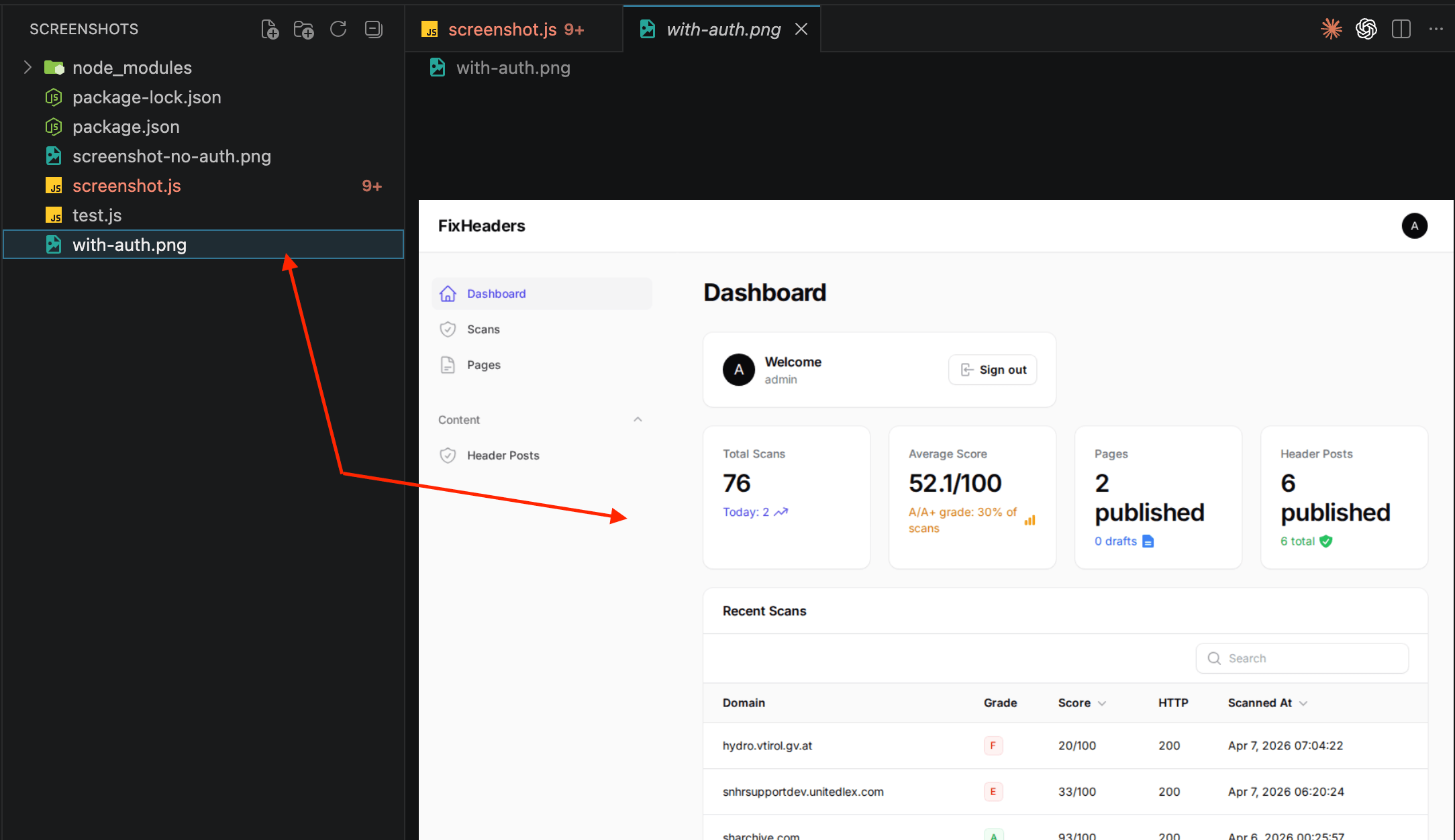
Now you see the actual dashboard. Scan counts, average score, recent checks. Exactly what I see when I'm logged in through the browser. One cookie made all the difference.
Node.js:
const response = await fetch("https://api.screenshotrun.com/v1/screenshots", {
  method: "POST",
  headers: {
    "Authorization": "Bearer YOUR_API_KEY",
    "Content-Type": "application/json",
  },
  body: JSON.stringify({
    url: "https://fixheaders.com/admin",
    cookies: [
      {
        name: "fixheaders-session",
        value: "eyJpdiI6IkxMNk1DVjZhN0FKWjZ2a3...",
        domain: "fixheaders.com",
      },
    ],
  }),
});

const { data } = await response.json();
console.log(data.id);
PHP (Laravel):
If you're working with PHP and haven't set up the screenshot API yet, I covered the full setup process in the PHP screenshot tutorial. The short version for authenticated pages:
$response = Http::withToken(env('SCREENSHOTRUN_API_KEY'))
    ->post('https://api.screenshotrun.com/v1/screenshots', [
        'url' => 'https://fixheaders.com/admin',
        'cookies' => [
            [
                'name' => 'fixheaders-session',
                'value' => 'eyJpdiI6IkxMNk1DVjZhN0FKWjZ2a3...',
                'domain' => 'fixheaders.com',
            ],
        ],
    ]);

$screenshotId = $response->json('data.id');
After the request completes, poll the screenshot status or use a webhook to get notified when it's ready.
What can go wrong with cookies
Session expiration is the biggest gotcha. Session cookies have a lifetime. In Laravel the default is 2 hours. After that, the session is invalid and the screenshot API will get the login page again. If you're automating this, you need to refresh the cookie periodically. One option is to write a script that logs in via HTTP (POST to the login endpoint with credentials), grabs the fresh session cookie from the Set-Cookie response header, and uses that for the screenshot request.
Some apps require more than one cookie. CSRF tokens, "remember me" cookies, or multi-cookie session setups. If the screenshot comes back as a login page even though you're sending the session cookie, check whether the site sets additional cookies during login. You can pass up to 20 cookies in a single screenshotrun request, which covers pretty much any setup.
Session cookies are often marked as HttpOnly (can't be read by JavaScript) and Secure (only sent over HTTPS). These flags don't affect the screenshot API. The headless browser handles them the same way a regular browser does. Just make sure you're using HTTPS URLs.
If the cookie has SameSite=Strict, it might not get sent in certain cross-origin scenarios. With a screenshot API, the headless browser navigates directly to the URL (it's a top-level navigation, not a cross-origin fetch), so SameSite=Strict cookies are included normally.
Method 2: custom HTTP headers (API tokens and Bearer auth)
Not every protected page uses cookies. Internal tools, API documentation portals, and headless CMS interfaces sometimes protect pages with custom HTTP headers: an API token, a Bearer token, or a custom X-Auth-Token header.
If the page you need to screenshot checks for a specific header instead of (or in addition to) cookies, you can pass custom headers through the screenshot API.
cURL:
curl -X POST https://api.screenshotrun.com/v1/screenshots \
  -H "Authorization: Bearer $SCREENSHOTRUN_KEY" \
  -H "Content-Type: application/json" \
  -d '{
    "url": "https://internal-tool.example.com/dashboard",
    "headers": {
      "X-Auth-Token": "your-internal-token-here"
    }
  }'
Node.js:
const response = await fetch("https://api.screenshotrun.com/v1/screenshots", {
  method: "POST",
  headers: {
    "Authorization": "Bearer YOUR_API_KEY",
    "Content-Type": "application/json",
  },
  body: JSON.stringify({
    url: "https://internal-tool.example.com/dashboard",
    headers: {
      "X-Auth-Token": "your-internal-token-here",
    },
  }),
});
PHP:
$response = Http::withToken(env('SCREENSHOTRUN_API_KEY'))
    ->post('https://api.screenshotrun.com/v1/screenshots', [
        'url' => 'https://internal-tool.example.com/dashboard',
        'headers' => [
            'X-Auth-Token' => 'your-internal-token-here',
        ],
    ]);
The headers parameter accepts an object where keys are header names and values are header values. You can send up to 20 custom headers per request.
One thing to watch out for: the Authorization header in the headers parameter is the one sent to the target page, not to the screenshotrun API itself. The API key for authenticating with screenshotrun goes in the top-level Authorization header of the HTTP request. The headers object is what the headless browser sends when loading the target URL. These are two different things, and it's easy to mix them up.
Method 3: Basic Auth for staging and htpasswd-protected sites
If you've ever password-protected a staging server with Nginx's auth_basic or Apache's .htpasswd, you know how it works. The browser shows a modal dialog asking for a username and password. Headless browsers can't interact with that dialog, so the request just fails or returns a 401.
The fix is simple: send the credentials as a Basic Auth header. The browser won't see the dialog at all because the server gets the credentials before it has a chance to ask for them.
cURL:
curl -X POST https://api.screenshotrun.com/v1/screenshots \
  -H "Authorization: Bearer $SCREENSHOTRUN_KEY" \
  -H "Content-Type: application/json" \
  -d '{
    "url": "https://staging.example.com",
    "headers": {
      "Authorization": "Basic dXNlcm5hbWU6cGFzc3dvcmQ="
    }
  }'
The Basic dXNlcm5hbWU6cGFzc3dvcmQ= part is just username:password encoded in Base64. You can generate it from the terminal:
echo -n "username:password" | base64
# Output: dXNlcm5hbWU6cGFzc3dvcmQ=
Node.js:
const credentials = Buffer.from("username:password").toString("base64");

const response = await fetch("https://api.screenshotrun.com/v1/screenshots", {
  method: "POST",
  headers: {
    "Authorization": "Bearer YOUR_API_KEY",
    "Content-Type": "application/json",
  },
  body: JSON.stringify({
    url: "https://staging.example.com",
    headers: {
      "Authorization": `Basic ${credentials}`,
    },
  }),
});
PHP:
$credentials = base64_encode('username:password');

$response = Http::withToken(env('SCREENSHOTRUN_API_KEY'))
    ->post('https://api.screenshotrun.com/v1/screenshots', [
        'url' => 'https://staging.example.com',
        'headers' => [
            'Authorization' => 'Basic ' . $credentials,
        ],
    ]);
This method works for any site that uses HTTP Basic Authentication. It's common on staging environments, dev servers, and some internal tools.
Combining cookies with other capture options
All three authentication methods work alongside the regular screenshot parameters. For a full list, check the cookie blocking and custom viewport feature pages. You can take a full-page screenshot of an authenticated dashboard in dark mode, at a mobile viewport, with cookie banners blocked. All in one request:
curl -X POST https://api.screenshotrun.com/v1/screenshots \
  -H "Authorization: Bearer $SCREENSHOTRUN_KEY" \
  -H "Content-Type: application/json" \
  -d '{
    "url": "https://fixheaders.com/admin",
    "cookies": [
      {
        "name": "fixheaders-session",
        "value": "your-session-cookie-value",
        "domain": "fixheaders.com"
      }
    ],
    "full_page": true,
    "dark_mode": true,
    "device": "mobile",
    "format": "webp"
  }'
I covered the full list of parameters (dark mode, device presets, CSS injection and element selectors) in the API documentation. If you haven't looked at the other capture options yet, the cURL examples article walks through each one with copy-paste commands.
Automating the login (when cookies expire too fast)
If you want to capture authenticated screenshots on a schedule (say, every hour for a dashboard you embed somewhere), manually copying cookies won't cut it. Sessions expire, and your screenshot will revert to a login page.
A better approach is to automate the login step itself. Instead of grabbing cookies from a browser by hand, write a script that logs in programmatically, extracts the session cookie, and passes it to the screenshot API.
A Node.js example using plain fetch (if you need more context on the Node.js setup, check out the full Node.js tutorial):
async function getSessionCookie(loginUrl, email, password) {
  const response = await fetch(loginUrl, {
    method: "POST",
    headers: { "Content-Type": "application/json" },
    body: JSON.stringify({ email, password }),
    redirect: "manual",
  });

  const setCookie = response.headers.get("set-cookie");
  if (!setCookie) {
    throw new Error("No Set-Cookie header in login response");
  }

  const match = setCookie.match(/(\w+[-_]session)=([^;]+)/);
  if (!match) {
    throw new Error("Could not find session cookie in Set-Cookie header");
  }

  return { name: match[1], value: match[2] };
}

// Usage
const cookie = await getSessionCookie(
  "https://fixheaders.com/login",
  "[email protected]",
  "your-password"
);

const response = await fetch("https://api.screenshotrun.com/v1/screenshots", {
  method: "POST",
  headers: {
    "Authorization": "Bearer YOUR_API_KEY",
    "Content-Type": "application/json",
  },
  body: JSON.stringify({
    url: "https://fixheaders.com/admin",
    cookies: [
      {
        name: cookie.name,
        value: cookie.value,
        domain: "fixheaders.com",
      },
    ],
  }),
});
The login endpoint depends on your app. Laravel's default route is POST /login with email and password fields (plus a CSRF token, more on that below). Django uses POST /accounts/login/. WordPress uses POST /wp-login.php with log and pwd fields.
The CSRF token problem
Most frameworks protect login forms with CSRF tokens. If you just POST to /login without a valid token, you'll get a 419 (Laravel) or 403 (Django/Rails). You need to first GET the login page, extract the CSRF token from the HTML or cookies, then include it in the POST request.
In Laravel, the CSRF token lives in a cookie called XSRF-TOKEN (URL-encoded) and needs to be sent back as an X-XSRF-TOKEN header or as a _token form field:
async function laravelLogin(baseUrl, email, password) {
  // Step 1: GET the login page to grab the CSRF cookie
  const loginPage = await fetch(`${baseUrl}/login`);
  const csrfCookie = loginPage.headers
    .get("set-cookie")
    ?.match(/XSRF-TOKEN=([^;]+)/)?.[1];

  if (!csrfCookie) {
    throw new Error("Could not extract CSRF token");
  }

  const csrfToken = decodeURIComponent(csrfCookie);

  // Step 2: POST login credentials with the CSRF token
  const response = await fetch(`${baseUrl}/login`, {
    method: "POST",
    headers: {
      "Content-Type": "application/json",
      "X-XSRF-TOKEN": csrfToken,
      Cookie: `XSRF-TOKEN=${csrfCookie}`,
    },
    body: JSON.stringify({ email, password }),
    redirect: "manual",
  });

  // Step 3: extract the session cookie from the response
  const sessionCookie = response.headers
    .get("set-cookie")
    ?.match(/(\w+[-_]session)=([^;]+)/);

  if (!sessionCookie) {
    throw new Error("Login failed — no session cookie returned");
  }

  return { name: sessionCookie[1], value: sessionCookie[2] };
}
This is more involved than copying a cookie from DevTools, but it runs unattended and the session is always fresh. I use a similar approach inside screenshotrun's own renderer when I need to test authenticated pages during development.
Choosing the right authentication method
For a high-level overview of which authentication method fits your workflow, check the authenticated screenshots use-case page.
Some setups combine multiple methods. A staging server might have Basic Auth at the Nginx level and cookie-based sessions at the application level. In that case, pass both: the headers parameter with the Basic Auth header and the cookies parameter with the session cookie. The screenshotrun API sends everything together with the request.
Security notes
Don't hardcode credentials. Use environment variables or a secrets manager. If you're storing session cookies or passwords in your codebase, you're one accidental commit away from leaking them.
If you're automating dashboard screenshots, create a read-only user account specifically for this purpose. Don't use your admin credentials in scripts.
Authenticated dashboards might contain sensitive data: revenue numbers, user emails, internal metrics. If you're using screenshot caching or storing images long-term, think about who has access to those files.
Treat session cookies like passwords. Don't log them, don't put them in URLs, don't send them over unencrypted connections.
What I ended up doing with fixheaders
Back to the original problem. I needed to periodically check fixheaders.com scan stats without logging in manually every time.
The setup I landed on: a scheduled task in Laravel (schedule:run) that fires every hour. It logs into fixheaders using the automated approach above, takes a screenshot of the dashboard, and saves it. I can open the latest screenshot any time and see the numbers without any extra steps.
Could I have built a proper API integration instead? Sure. But that would have taken way longer than the 20 minutes this approach took. Sometimes a screenshot is the fastest way to pull data out of a system that doesn't have an API for what you need.
One thing worth knowing if you're trying this: the cookies and headers parameters in screenshotrun are available on the Pro plan and above, not on the free tier.
If you hit edge cases with specific frameworks (NextAuth, Passport, Sanctum, they all have their quirks), feel free to reach out and I'll try to help.
Frequently Asked Questions
Grab the session cookie from your browser (DevTools → Application → Cookies), then pass it to the screenshot tool or API. The headless browser sends that cookie with the request, the server sees a valid session, and you get the authenticated page instead of the login form.
The screenshot reverts to showing the login page. Session cookies have a limited lifetime (2 hours by default in Laravel, for example). For automated captures, write a script that logs in programmatically via HTTP, extracts the fresh session cookie from the Set-Cookie header, and passes it to the screenshot request.
Send the credentials as a Base64-encoded Authorization header: Authorization: Basic dXNlcm5hbWU6cGFzc3dvcmQ=. Generate the encoded string with echo -n "username:password" | base64. The headless browser sends this header and bypasses the native password dialog entirely.
Yes. Some setups need both — for example, a staging server with Basic Auth at the Nginx level and cookie-based sessions at the application level. Pass the Authorization header through the headers parameter and the session cookie through the cookies parameter. They get sent together.
Not recommended. Create a dedicated read-only account specifically for screenshot automation. Store its credentials in environment variables or a secrets manager, never in your codebase. Session cookies are temporary credentials too — treat them like passwords and don't log or expose them.
Fix "Could Not Find Expected Browser (Chrome) Locally" in Puppeteer
Puppeteer cannot find Chrome? Fix the "could not find expected browser locally" error in Docker, CI/CD, serverless, monorepos, and local development.
Read more →
Fix Puppeteer "Browser Has Disconnected" Error (All Causes)
Read more →
Why Instagram Breaks Your Screenshots (And How to Fix It with Playwright)
Instagram shows two login popups, triggers React re-renders when you hide them wrong, and locks scrollHeight to the viewport. Three problems, three fixes for Playwright and Puppeteer.
Read more →