
 Vitalii Holben
How to take a website screenshot with Node.js
Learn how to capture website screenshots in Node.js using Playwright, Puppeteer, and a screenshot API. Step-by-step code examples with real output: full-page captures, custom viewports, mobile emulation, cookie banner handling, and production gotchas.
Today I'll show you how to take a screenshot of a web page using Node.js. We'll go through actual implementation, look at what can go wrong, and figure out how to deal with it.
In this guide we'll cover three working approaches: Playwright, Puppeteer, and a screenshot API. We'll start with the simplest script and then step by step work our way up to full-page captures, custom viewport sizes, mobile emulation, and even try to get around cookie banners and lazy-loaded page elements. Fair warning: this guide is long, but it covers a lot of ground and you'll pick up some things you probably haven't seen before.
To keep things clear, we'll run scripts step by step, add features one at a time, and look at the output after each change. Let's get started.
Before we start
You need Node.js 18 or newer. Let's check:
node -vIf you see v18 or higher, you're good. Otherwise grab the latest LTS from nodejs.org. Here's what I've got at the moment:
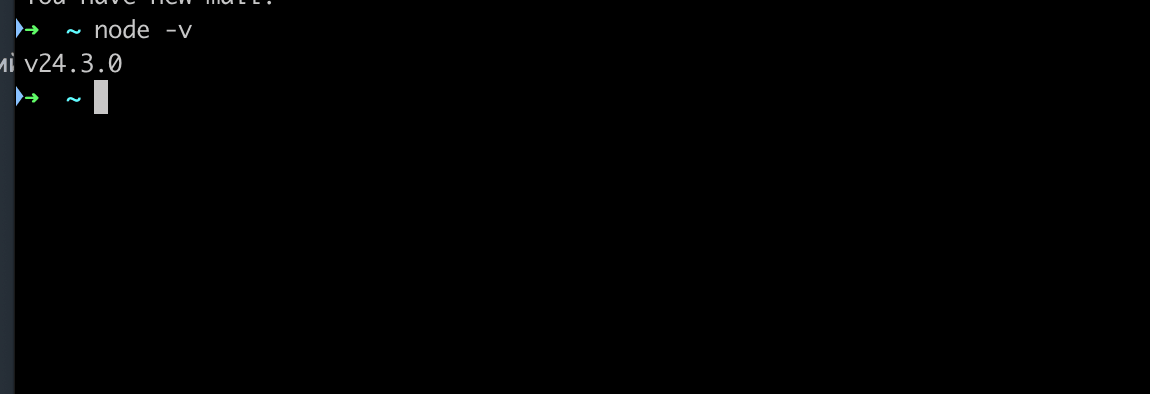
Works for us. Now create the project folder:
mkdir screenshots
cd screenshots
npm init -y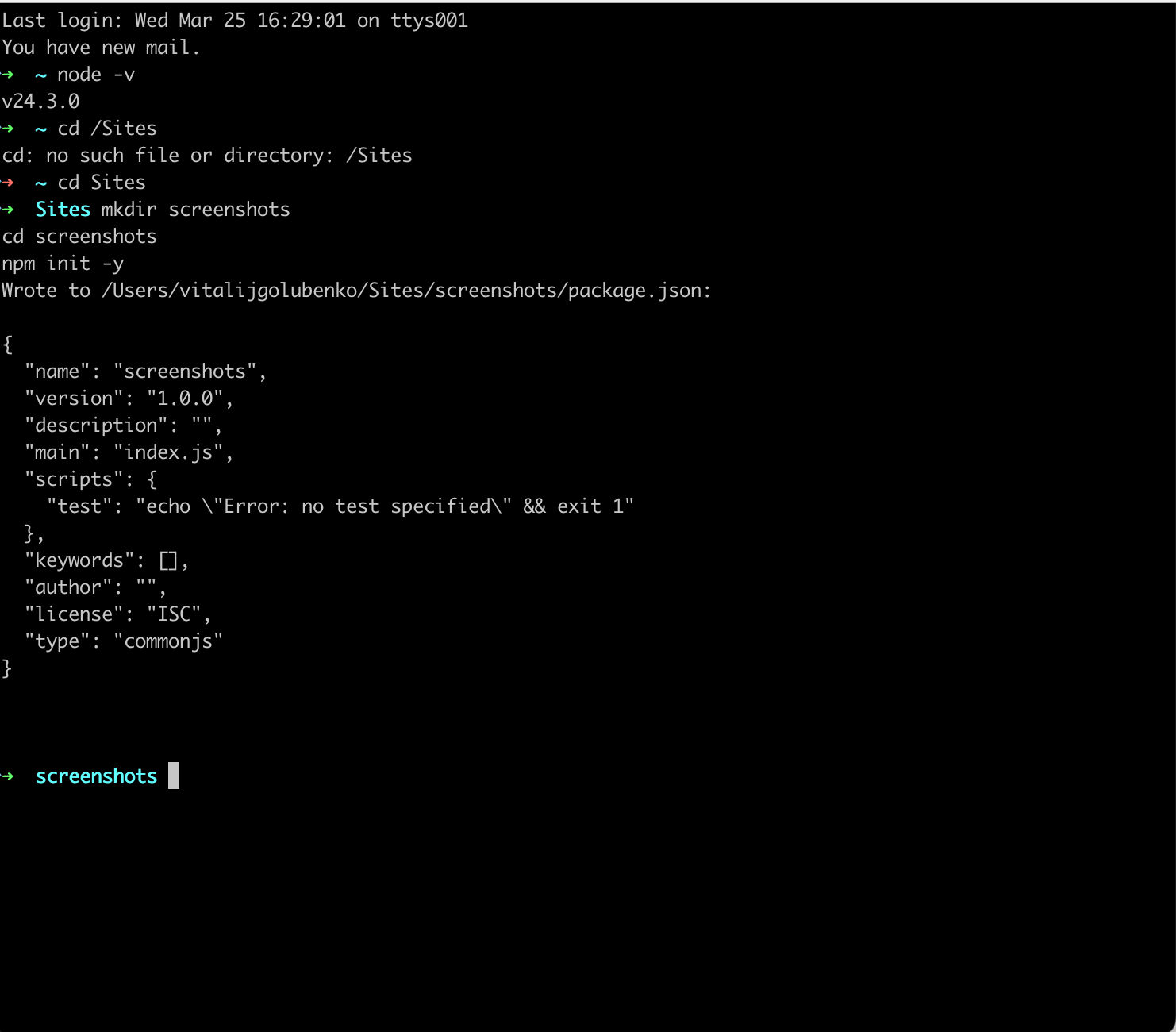
Folder created, we're inside it. Let's move on.
Method 1: Playwright
Playwright is my go-to tool for browser automation. It's maintained by Microsoft, supports Chromium, Firefox, and WebKit out of the box, and the API is clean. Install it:
npm install playwrightThis downloads Chromium, Firefox, and WebKit binaries. About 400-500 MB total. If you only need Chromium, you can save time:
npx playwright install chromiumBasic screenshot
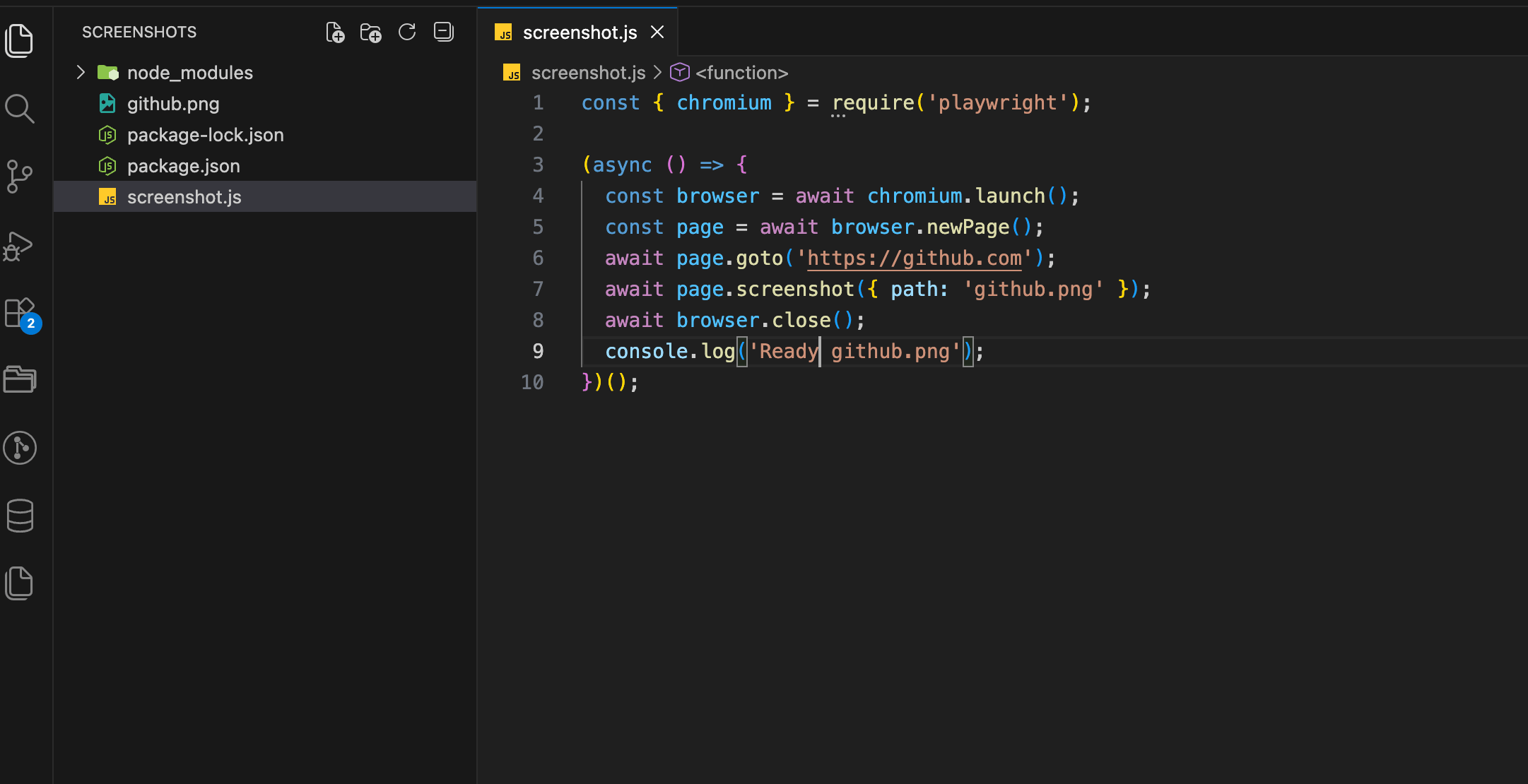
Create a file called screenshot.js:
const { chromium } = require('playwright');

(async () => {
  const browser = await chromium.launch();
  const page = await browser.newPage();
  await page.goto('https://github.com');
  await page.screenshot({ path: 'github.png' });
  await browser.close();
  console.log('Ready. github.png');
})();
Run it:
node screenshot.jsA couple of seconds and it's done. An image file appears in the project directory. Let's open it:
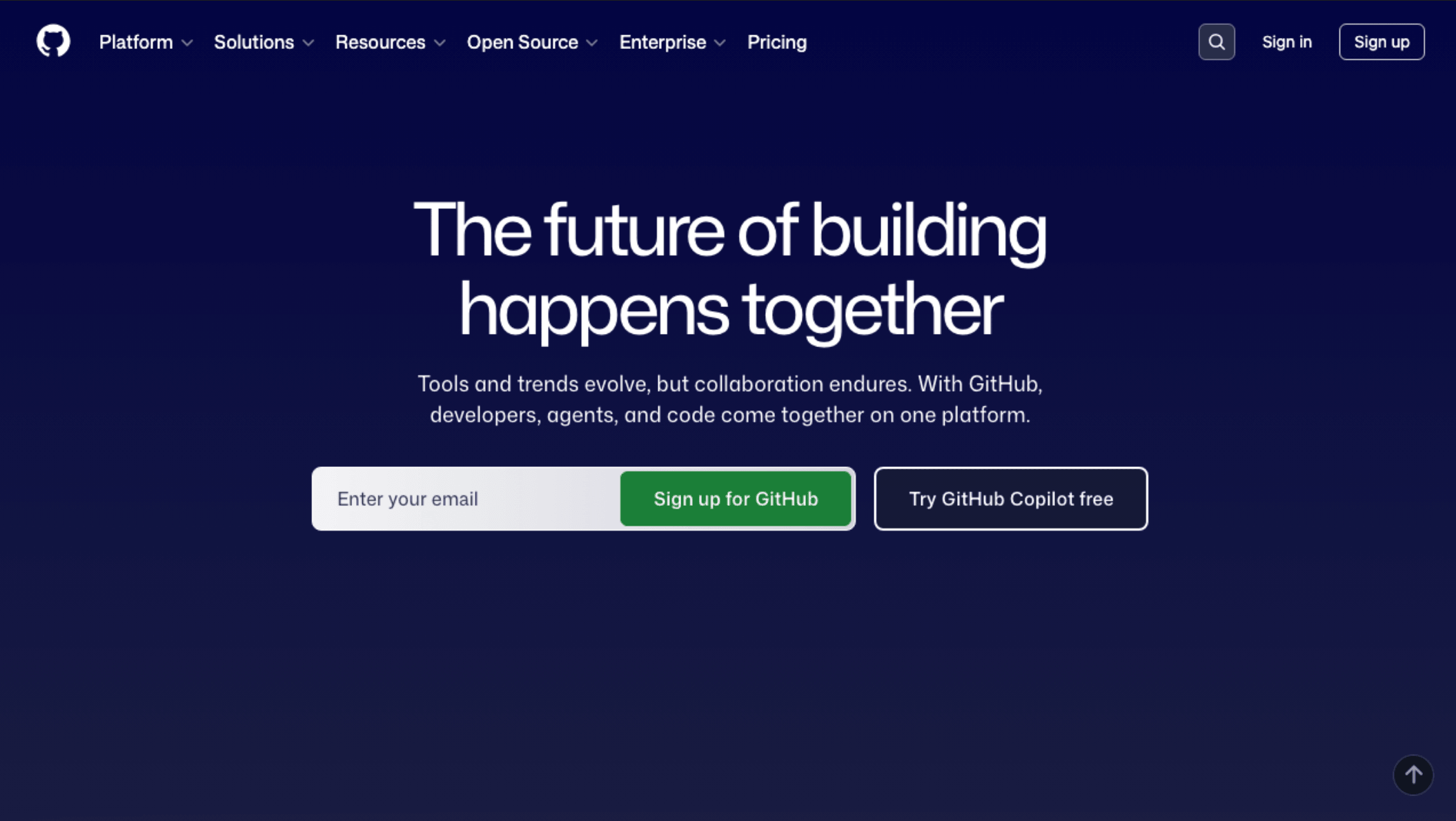
We've got our first result: an image at 1280x720 pixels. That's Playwright's default viewport. The screenshot captured only what fits in this viewport, roughly the top part of the page. Where 720 pixels ended, the image got cut off.
Obviously that's not quite what we want, so let's keep going.
Full-page screenshot
Usually you need the entire page, not just what fits in the window. Let's fix that. We only need to change one line:
const { chromium } = require('playwright');

(async () => {
  const browser = await chromium.launch();
  const page = await browser.newPage();
  await page.goto('https://github.com');
  await page.screenshot({
    path: 'github-full.png',
    fullPage: true
  });
  await browser.close();
  console.log('Ready. github-full.png');
})();
Run it again with node screenshot.js and open the result:
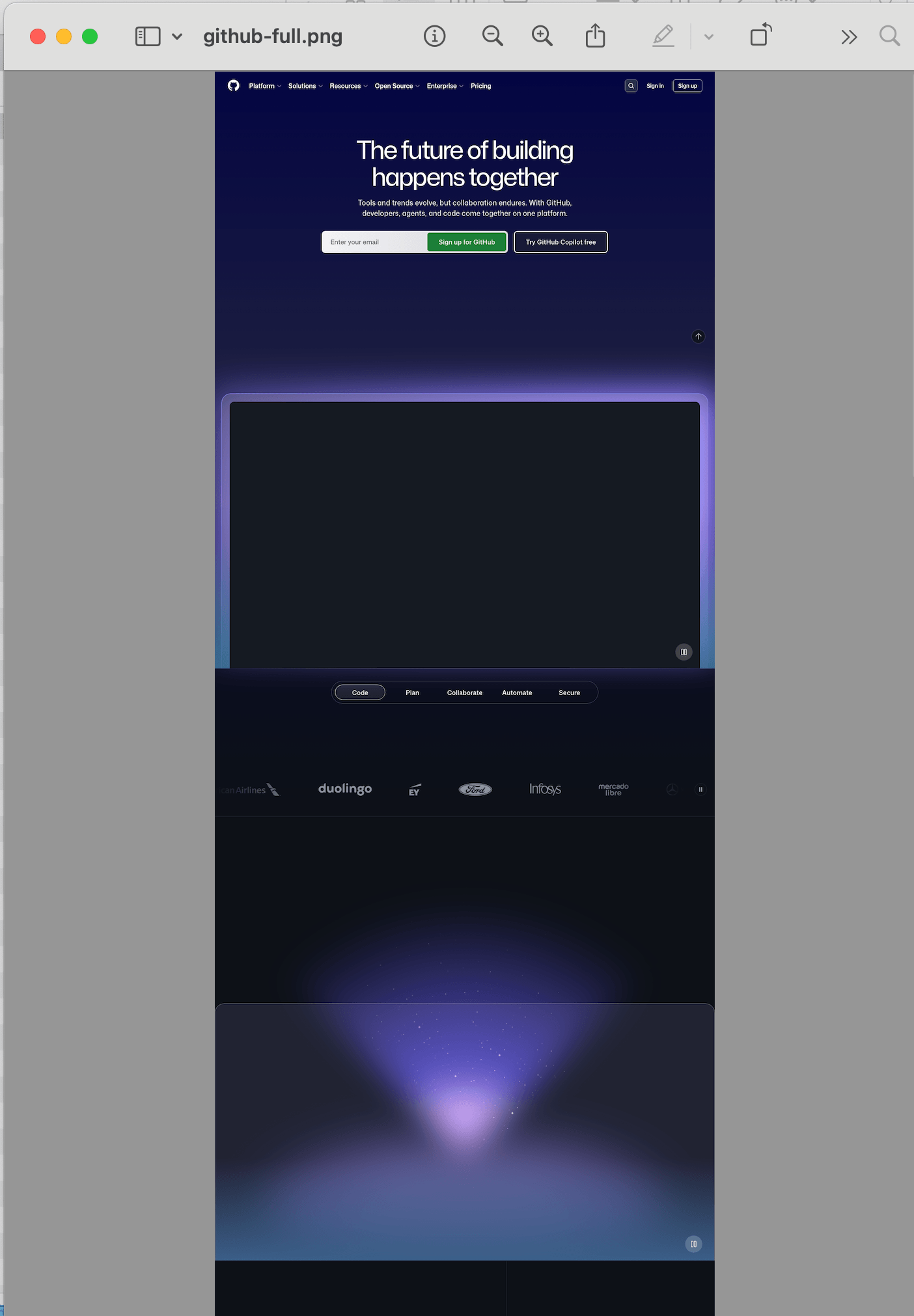
The image is now much taller, from the header all the way down to the footer. If you want to learn more about how full-page screenshot capture works behind the scenes, I wrote a separate feature page on it. Width stays the same (1280px), height is whatever the page needed.
One thing to keep in mind: Chromium has a hard limit on screenshot height of 16,384 pixels. If the page is longer than that, the content will start repeating. This is a browser limitation, not a Playwright bug. For very long pages you'll need to capture them in chunks. But we're getting decent results already. Let's keep going.
Custom viewport size
1280x720 might not work for you. Say you need a screenshot that looks like a 1920x1080 desktop monitor (our custom viewport feature handles this with a single parameter):
const { chromium } = require('playwright');

(async () => {
  const browser = await chromium.launch();
  const page = await browser.newPage({
    viewport: { width: 1920, height: 1080 }
  });
  await page.goto('https://github.com');
  await page.screenshot({ path: 'github-1080p.png' });
  await browser.close();
})();
Run the script and open the result:
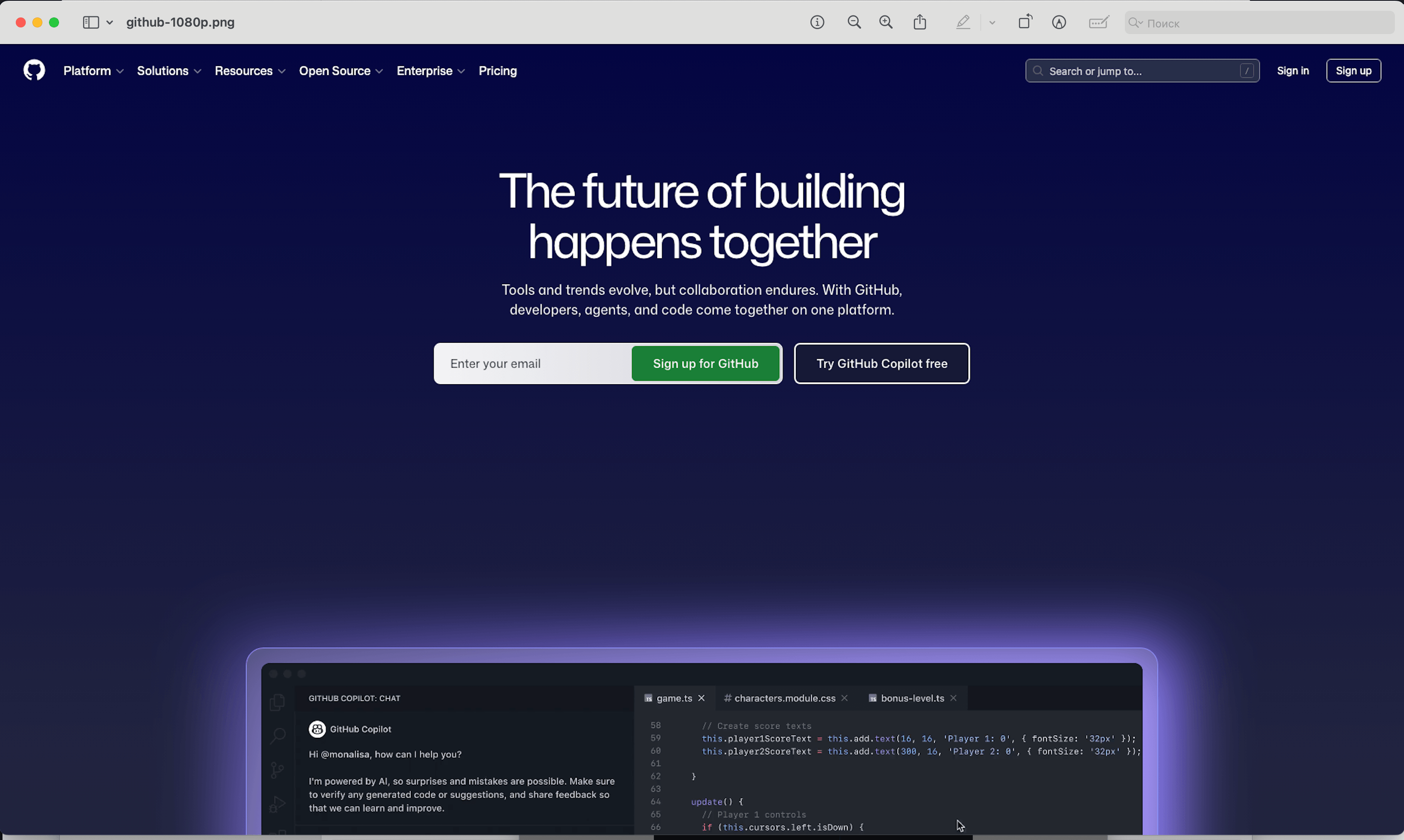
The page now renders at 1920px width. If the site has a max-width container of 1200px, you'll see whitespace on the sides, exactly like on a real monitor.
Mobile screenshot
Playwright has built-in device profiles. Each one sets the viewport, user agent, pixel density, and touch support:
const { chromium, devices } = require('playwright');
const iPhone = devices['iPhone 14'];

(async () => {
  const browser = await chromium.launch();
  const context = await browser.newContext({
    ...iPhone
  });
  const page = await context.newPage();
  await page.goto('https://github.com');
  await page.screenshot({ path: 'github-mobile.png' });
  await browser.close();
})();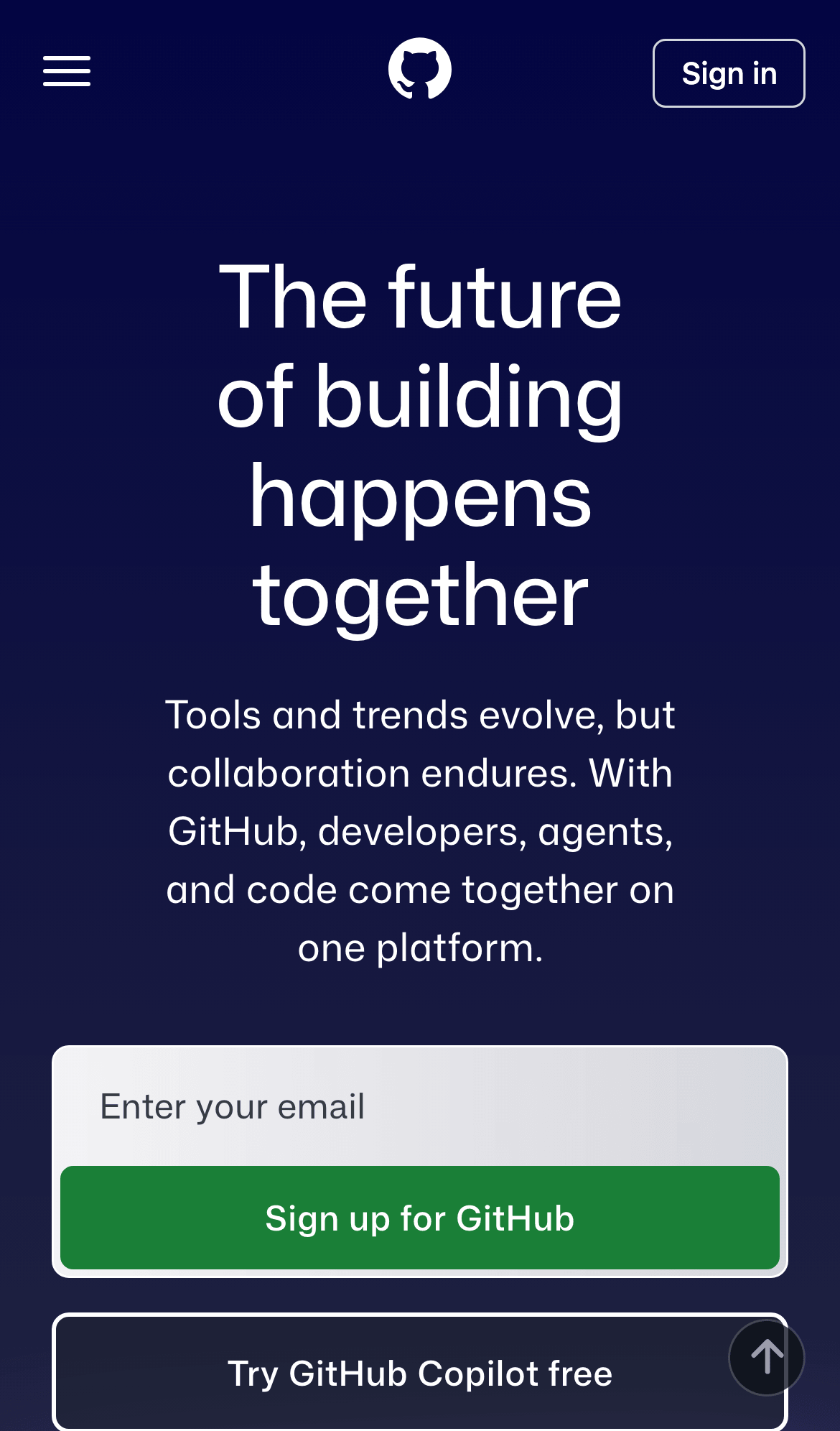
The page looks like you'd see it on an actual phone: hamburger menu instead of the navigation bar, mobile layout, touch-friendly spacing. The dimensions match the iPhone viewport (390x844 at 3x device pixel ratio).
Waiting for content to load
This is where a lot of people get tripped up. You run the script, get a screenshot, and half the page is blank. Images didn't load, dynamic content didn't render, there's a spinner in the middle of the screen.
The problem is that page.goto() by default waits for the load event. It fires when the HTML and its resources are loaded. But it says nothing about JavaScript that runs after load, lazy images, or data fetched from APIs.
The most reliable option for screenshots is networkidle (for more on this, see the wait-for-selector feature):
await page.goto('https://example.com', {
  waitUntil: 'networkidle'
});
With this setting, it waits until there are no network requests for 500ms. Yes, it slows things down, but you get practically all the dynamic content in the output.
It gets even better though. If you know exactly what you're waiting for, you can specify it in the code:
// Wait for a specific element to appear
await page.goto('https://example.com');
await page.waitForSelector('.main-content');
await page.screenshot({ path: 'screenshot.png' });
Or just add a delay (not ideal, but sometimes necessary):
await page.goto('https://example.com');
await page.waitForTimeout(3000); // wait 3 seconds
await page.screenshot({ path: 'screenshot.png' });
Working with different formats: JPEG and PDF
By default screenshots are saved as PNG. But sometimes you need a different format. If file size matters, JPEG can be 3-5x smaller:
await page.screenshot({
  path: 'screenshot.jpg',
  type: 'jpeg',
  quality: 80
});
Or even PDF:
await page.pdf({
  path: 'page.pdf',
  format: 'A4'
});
Worth mentioning: PDF only works with Chromium. Firefox and WebKit in Playwright don't support it.
Method 2: Puppeteer
Puppeteer is the other popular option. It's maintained by Google, works with Chrome and Chromium. The API is very similar to Playwright, because Playwright was originally built by the same people who created Puppeteer.
npm install puppeteerDownloads Chromium (about 170 MB). If you already have Chrome installed:
npm install puppeteer-coreThen you point it to the binary manually.
Basic screenshot
Same pattern, let's try making a basic screenshot:
const puppeteer = require('puppeteer');

(async () => {
  const browser = await puppeteer.launch();
  const page = await browser.newPage();
  await page.goto('https://github.com');
  await page.screenshot({ path: 'github-puppeteer.png' });
  await browser.close();
})();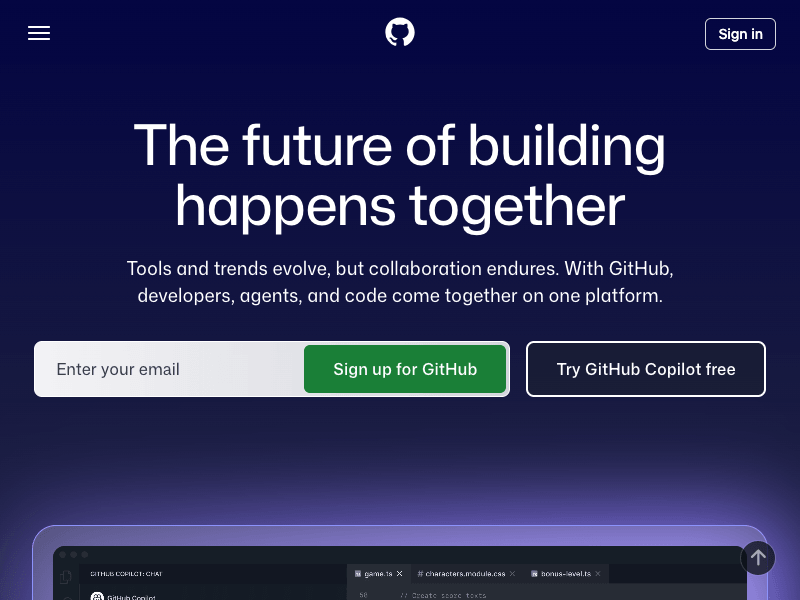
Puppeteer's default viewport is 800x600. That's narrower than Playwright's 1280x720. This catches some people off guard: the screenshot comes out narrow and the layout might switch to a tablet or even mobile breakpoint.
Just like in Playwright, you can set the size manually:
const browser = await puppeteer.launch();
const page = await browser.newPage();
await page.setViewport({ width: 1280, height: 720 });
await page.goto('https://github.com');
await page.screenshot({ path: 'github-puppeteer.png' });
await browser.close();
Full-page screenshot
await page.screenshot({
  path: 'github-full-puppeteer.png',
  fullPage: true
});
Same fullPage: true flag. Same 16,384 pixel height limit.
Dealing with cookie banners
These days pretty much every European website shows a GDPR banner, because the law requires it. Neither Playwright nor Puppeteer can block them out of the box, but there are two workarounds:
Option 1: Click the banner before taking the screenshot.
await page.goto('https://example.com', { waitUntil: 'networkidle0' });

// Try clicking "Accept" if the banner exists
try {
  await page.click('[class*="cookie"] button', { timeout: 3000 });
  await page.waitForTimeout(1000);
} catch (e) {
  // No banner found, that's fine
}

await page.screenshot({ path: 'clean.png' });
This is pretty unreliable. Every site has its own banner, its own selectors, its own button text.
Option 2: Hide the banner with CSS.
await page.goto('https://example.com', { waitUntil: 'networkidle0' });

await page.addStyleTag({
  content: `
    [class*="cookie-banner"],
    [class*="consent"],
    [id*="cookie"],
    .cc-window,
    #onetrust-banner-sdk {
      display: none !important;
    }
  `
});

await page.screenshot({ path: 'no-banner.png' });
The trouble with this approach is that you'll keep adding new selectors as you hit new sites. And the banners themselves change over time, so the selectors you're clicking also change. It's a task that sounds simple but turns into endless maintenance at scale. Honestly, there's no clean solution yet beyond specifying which button selector to click to close the banner window.
Playwright or Puppeteer: which one to pick?
If you're starting from scratch, I'd go with Playwright.
Playwright supports three browser engines (Chromium, Firefox, WebKit). Puppeteer only does Chromium. Playwright has smarter auto-waiting, so you spend less time looking for the right screenshot delay to let all dynamic or animated elements load. Device emulation is built into both, and both keep it up to date.
Puppeteer works fine too. If you've already got a working Puppeteer setup, there's no reason to rewrite it. The screenshot API between the two is nearly identical. But for a new project, Playwright gives you more out of the box.
Real problems in production
So we know how to take screenshots. At first glance it doesn't seem that hard. But here's what happens when you move from "ran a script on my laptop" to "500 screenshots a day on a server".
Each Chromium tab can consume a few hundred megabytes of memory. Run 10 screenshots in parallel and you are looking at 2-4 GB just for the browsers. Like any Node.js process, it will eventually crash with OOM, especially if you don't manage instances manually, don't reuse pages, and don't set up a queue.
Then there are timeouts. Some pages take 15 seconds to load. Some will never finish loading because of an infinite spinner or a broken third-party script. You need timeout handling, retry logic, and realistically you'll never get it fully debugged.
Fonts are another surprise. Headless Chromium on a Linux server doesn't have the same fonts as your Mac. Screenshots in production will look different. You need to install font packages (at minimum fonts-liberation, fonts-noto-cjk for CJK support) or use a Docker image that has them preinstalled.
And we already talked about cookie banners, consent overlays, and chat widgets. We covered this above. Solvable for a single site, but across hundreds of different sites it becomes a job in itself.
These aren't theoretical problems. I ran into every one of them while building ScreenshotRun. The screenshot rendering itself is the easy part. Everything around it is where the complexity lives.
Using a screenshot API instead
If you don't want to manage Chromium processes, Docker images, and font packages in production, a screenshot API handles all of that behind a single HTTP call. We cover the full Node.js integration (fetch, axios, Express.js proxy, error handling) in a dedicated guide:
Node.js Screenshot API — full integration guide with code examples
Looking for other languages? We have similar guides for Go with chromedp and converting pages to PDF with working code examples.
Frequently Asked Questions
Node.js 18 or higher. Playwright dropped support for Node 16 in late 2024, so if you're on an older version, you'll need to upgrade before installing it. Run node -v in your terminal to check.
Puppeteer defaults to an 800×600 viewport, which is narrower than most desktop layouts. Many sites switch to a tablet or even mobile breakpoint at that width. Set the viewport explicitly with page.setViewport({ width: 1280, height: 720 }) before navigating to the page.
Both Playwright and Puppeteer support a fullPage: true option in the screenshot call. Playwright scrolls the page automatically and stitches the result. Keep in mind Chromium caps screenshot height at 16,384 pixels — pages taller than that will have repeated content at the bottom.
The screenshot fires before JavaScript finishes rendering the page. By default, page.goto() waits for the load event, which doesn't account for API calls or lazy content. Switch to waitUntil: 'networkidle' in Playwright (or networkidle2 in Puppeteer), or wait for a specific element with page.waitForSelector().
Playwright, in most cases. It supports three browser engines (Chromium, Firefox, WebKit), has smarter auto-waiting built in, and the device emulation profiles are more complete. Puppeteer only supports Chromium. If you already have a working Puppeteer setup, there's no strong reason to migrate — the screenshot APIs are nearly identical.
Fix "Could Not Find Expected Browser (Chrome) Locally" in Puppeteer
Puppeteer cannot find Chrome? Fix the "could not find expected browser locally" error in Docker, CI/CD, serverless, monorepos, and local development.
Read more →
Fix Puppeteer "Browser Has Disconnected" Error (All Causes)
Read more →
Why Instagram Breaks Your Screenshots (And How to Fix It with Playwright)
Instagram shows two login popups, triggers React re-renders when you hide them wrong, and locks scrollHeight to the viewport. Three problems, three fixes for Playwright and Puppeteer.
Read more →