
 Vitalii Holben
How to take a website screenshot with Python
Learn how to capture website screenshots with Python using three approaches: Selenium, Playwright, and a screenshot API. Step-by-step code, real output screenshots, full-page captures, mobile viewports, and honest comparison of pros and cons for each method.
Today I want to walk you through a step-by-step guide on how to capture website screenshots using Python. The task turned out to be simpler than I expected, especially with a third-party API in the mix, but the local-library approaches are still worth knowing for different situations.
Python gives you three working options: Selenium, Playwright, and a screenshot API. Each one covers a different use case and has its own limits. In this guide I'll go through all three, show you working code you can run right now, and explain when each approach makes sense.
What you'll need
Before we start, make sure you have Python 3.8 or higher installed. Check your version:
python --versionIf Python is in place, let's create a working directory and a virtual environment:
mkdir python-screenshots
cd python-screenshots
python -m venv venv
source venv/bin/activate  # Linux/macOS
# or venv\Scripts\activate on Windows
Your virtual environment keeps global packages clean. Now we can install libraries and write code.
Method 1: Selenium
Selenium is an old, battle-tested tool for browser automation. If you already use it for testing or scraping, adding screenshots to your existing code is the easiest path. No new dependency, just one method call.
Installation
pip install selenium webdriver-managerWith webdriver-manager, the right Chrome driver downloads automatically. Without it, you'd have to manually download chromedriver and keep its version in sync with your browser version. If you've ever tried doing that by hand, you know it's an adventure on its own.
Basic screenshot
Create a file called selenium_screenshot.py:
from selenium import webdriver
from selenium.webdriver.chrome.options import Options
from selenium.webdriver.chrome.service import Service
from webdriver_manager.chrome import ChromeDriverManager

# Set up headless mode so the browser doesn't open on screen
options = Options()
options.add_argument('--headless=new')
options.add_argument('--window-size=1280,800')

# Create a driver with automatic chromedriver installation
driver = webdriver.Chrome(
    service=Service(ChromeDriverManager().install()),
    options=options
)

# Open the page and take a screenshot
driver.get('https://dev.to')
driver.save_screenshot('dev_to.png')

print(f'Saved: dev_to.png')
driver.quit()
Run it:
python selenium_screenshot.py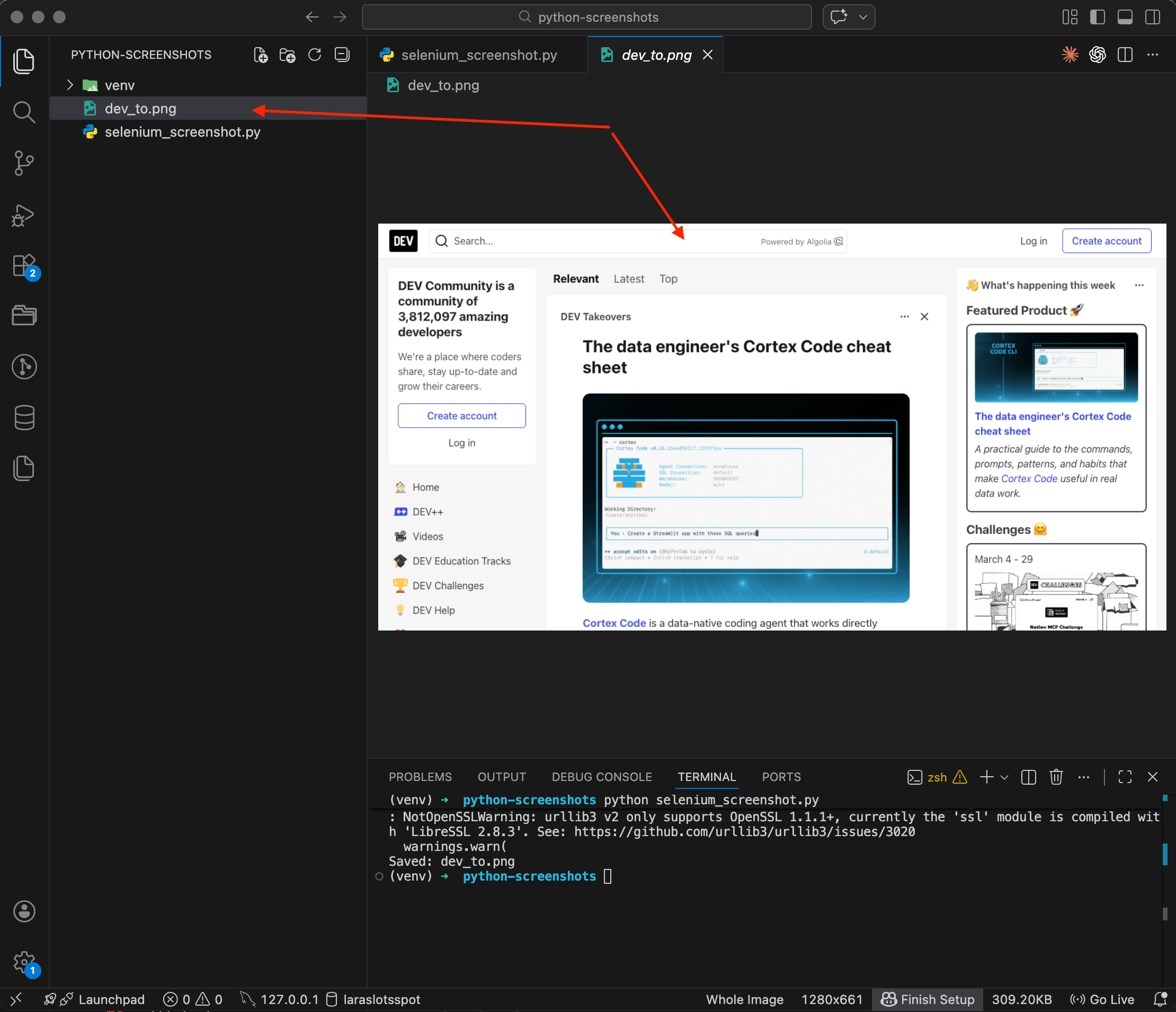
Your terminal shows Saved: dev_to.png, and the file appears in the sidebar on the left. Open it up, and there's the DEV Community homepage, captured by the headless browser. The image is 1280x661 pixels, about 309 KB. Notice that Selenium only captured the visible part of the page, whatever fits in the browser window. Content below the fold didn't make it into the screenshot.
Screenshotting a specific element
Sometimes you don't need the whole page, just one particular block. Selenium can capture individual elements too:
from selenium import webdriver
from selenium.webdriver.chrome.options import Options
from selenium.webdriver.chrome.service import Service
from selenium.webdriver.common.by import By
from webdriver_manager.chrome import ChromeDriverManager

options = Options()
options.add_argument('--headless=new')
options.add_argument('--window-size=1280,800')

driver = webdriver.Chrome(
    service=Service(ChromeDriverManager().install()),
    options=options
)

driver.get('https://dev.to')

# Find the element by CSS selector and screenshot just that
header = driver.find_element(By.TAG_NAME, 'header')
header.screenshot('dev_to_header.png')

print('Saved: header.png')
driver.quit()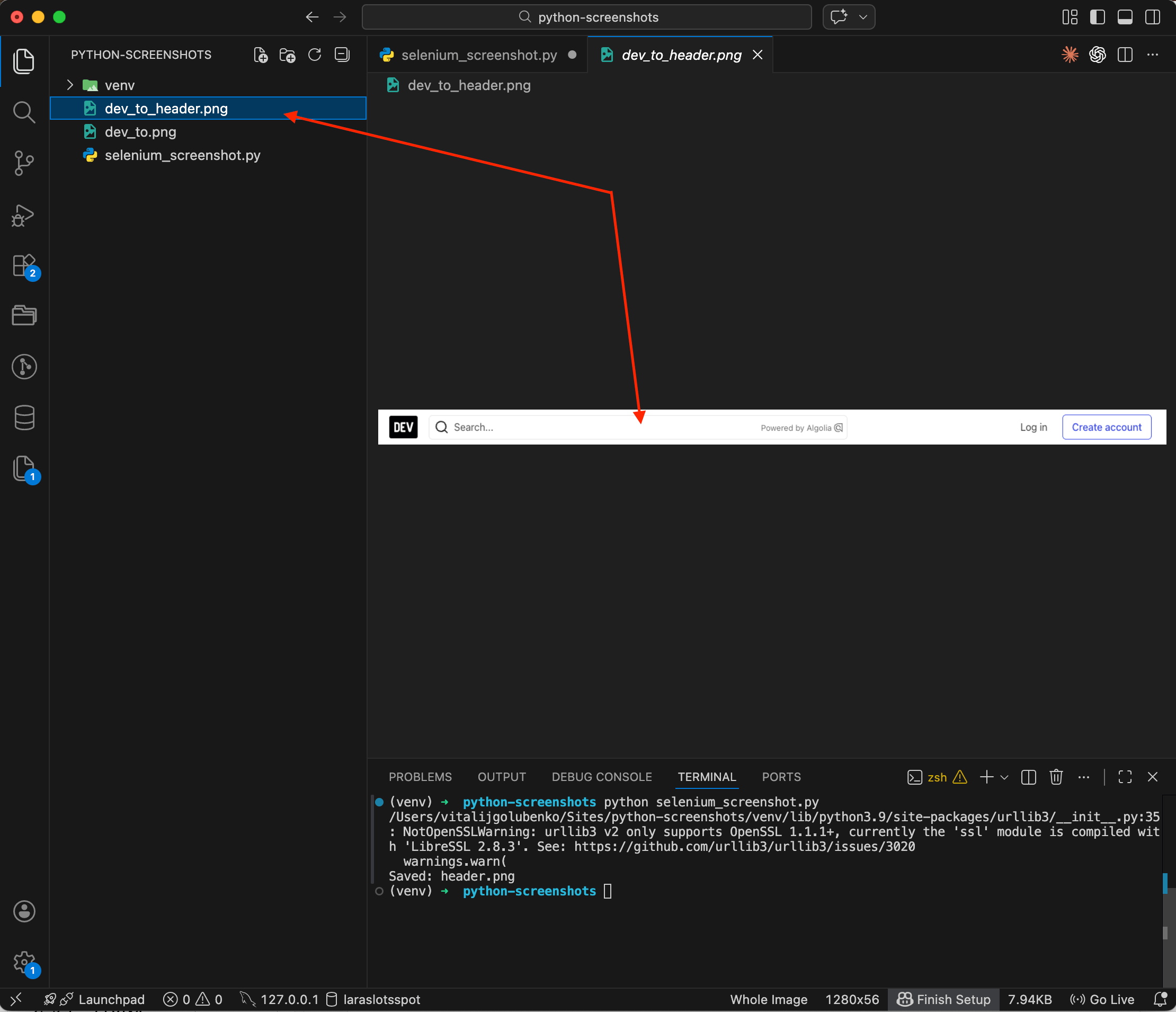
What you get is a narrow strip spanning the full page width, showing just the DEV Community navigation bar, nothing else. This comes in handy when you need to capture a signup form, a product card, or any other specific block on the page. I wrote a separate post on element screenshots with CSS selectors that covers Playwright and the API approach for the same task.
Where Selenium falls short
Selenium has one notable limitation: it can't do full-page screenshots out of the box. The save_screenshot() method only captures the viewport. There are workarounds involving JavaScript scrolling and image stitching, but they're tedious and unreliable. If you need a full-page screenshot, that's where Playwright comes in.
Method 2: Playwright
Playwright is a more modern alternative from Microsoft. It supports Chrome, Firefox, and Safari through a single API. For screenshots, it beats Selenium for one simple reason: it can do full-page captures by adding literally one line of code.
Installation
pip install playwright
playwright install chromium
The second command downloads Chromium. If you need Firefox or WebKit, you can specify playwright install firefox webkit. For screenshots, Chromium is more than enough.
Basic screenshot
File playwright_screenshot.py:
from playwright.sync_api import sync_playwright

with sync_playwright() as p:
    browser = p.chromium.launch()
    page = browser.new_page(viewport={'width': 1280, 'height': 800})

    page.goto('https://news.ycombinator.com')
    page.screenshot(path='hackernews.png')

    print('Saved: hackernews.png')
    browser.close()
python playwright_screenshot.py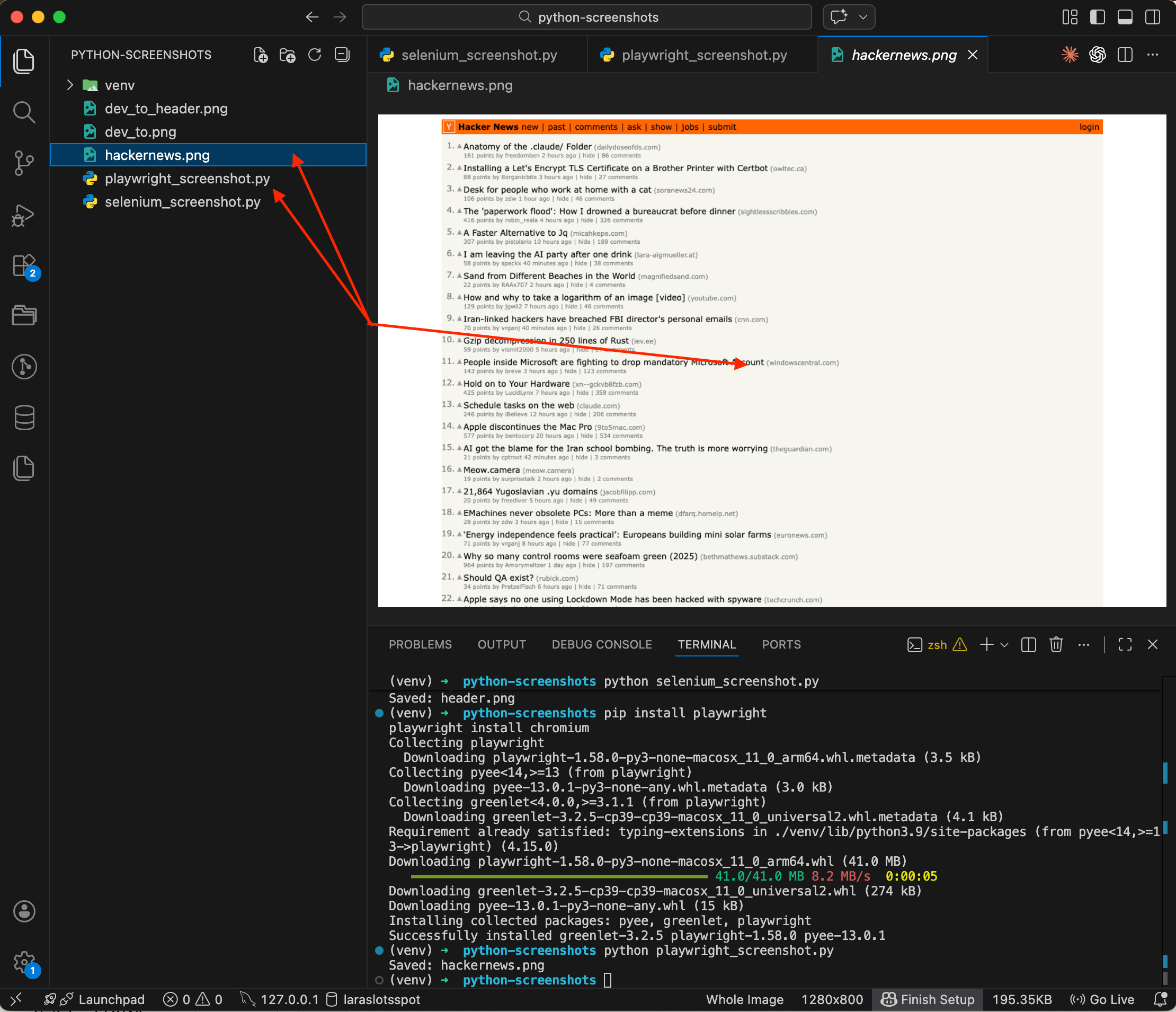
You can see the whole process in the terminal: Playwright installed first, then the script ran and printed Saved: hackernews.png. The preview shows a screenshot of Hacker News with its orange header, list of posts, everything just like in a browser. The code is noticeably more compact than Selenium, with no fiddling with drivers and options. But the real advantage of Playwright is coming up next.
Full-page screenshot
This is what makes Playwright worth picking — and the reason full-page capture is one of the most-used API features too. One option, full_page=True, and you get a screenshot of the entire page from top to bottom:
from playwright.sync_api import sync_playwright

with sync_playwright() as p:
    browser = p.chromium.launch()
    page = browser.new_page(viewport={'width': 1280, 'height': 800})

    page.goto('https://news.ycombinator.com')
    page.screenshot(path='hackernews_full.png', full_page=True)

    print('Full-page screenshot saved: hackernews_full.png')
    browser.close()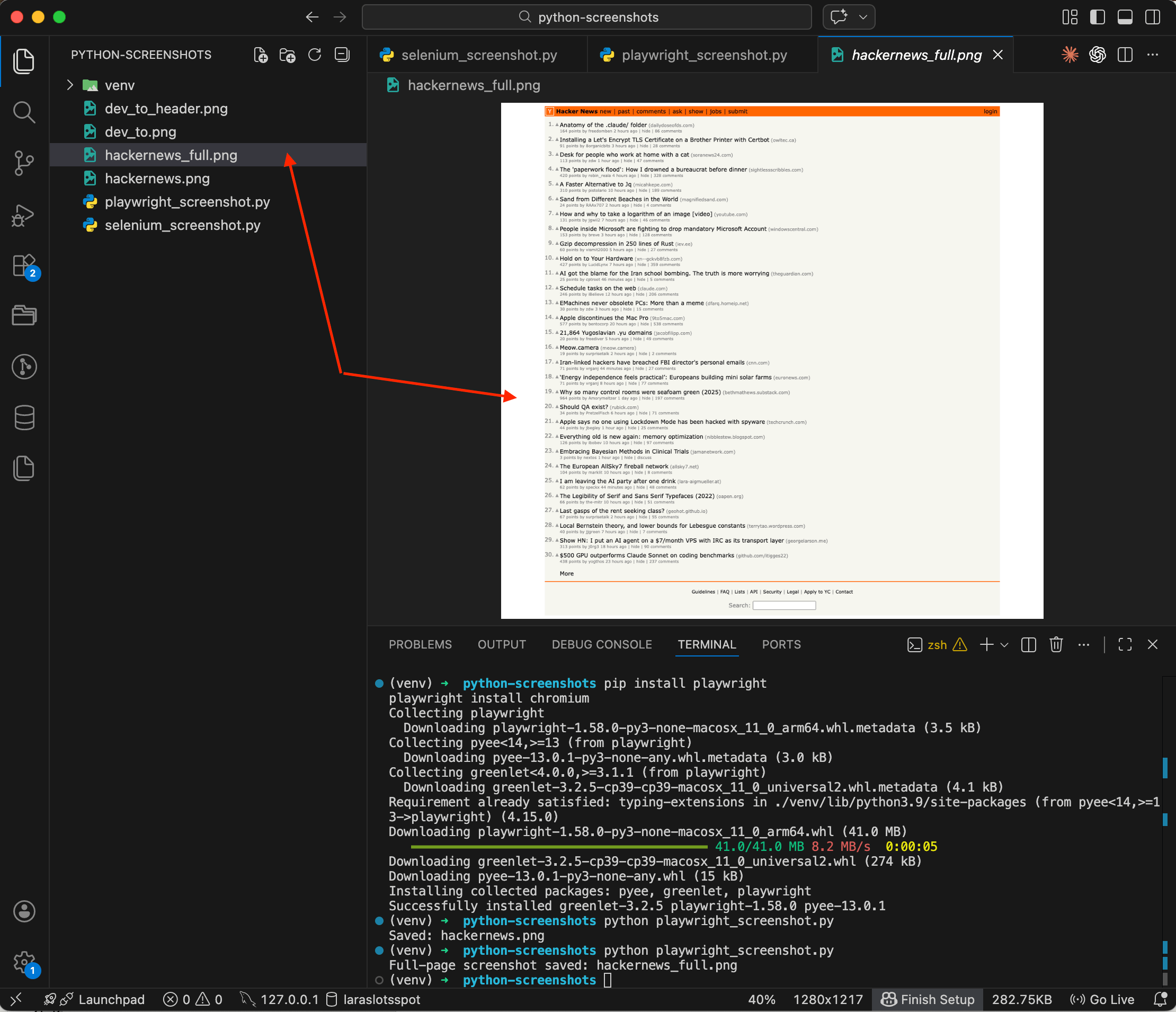
The difference is obvious. A regular screenshot gets cut off at the viewport height, while the full-page version captures everything: all 30 posts plus the footer with the search bar. Try doing that in Selenium with a single line, you can't.
Mobile viewport
Let's say you need to see how a site looks on a phone. Playwright lets you emulate specific devices (the API does the same via the custom viewport parameter):
from playwright.sync_api import sync_playwright

with sync_playwright() as p:
    browser = p.chromium.launch()

    # Emulate iPhone 14
    iphone = p.devices['iPhone 14']
    context = browser.new_context(**iphone)
    page = context.new_page()

    page.goto('https://news.ycombinator.com')
    page.screenshot(path='hackernews_mobile.png')

    print('Mobile screenshot saved: hackernews_mobile.png')
    browser.close()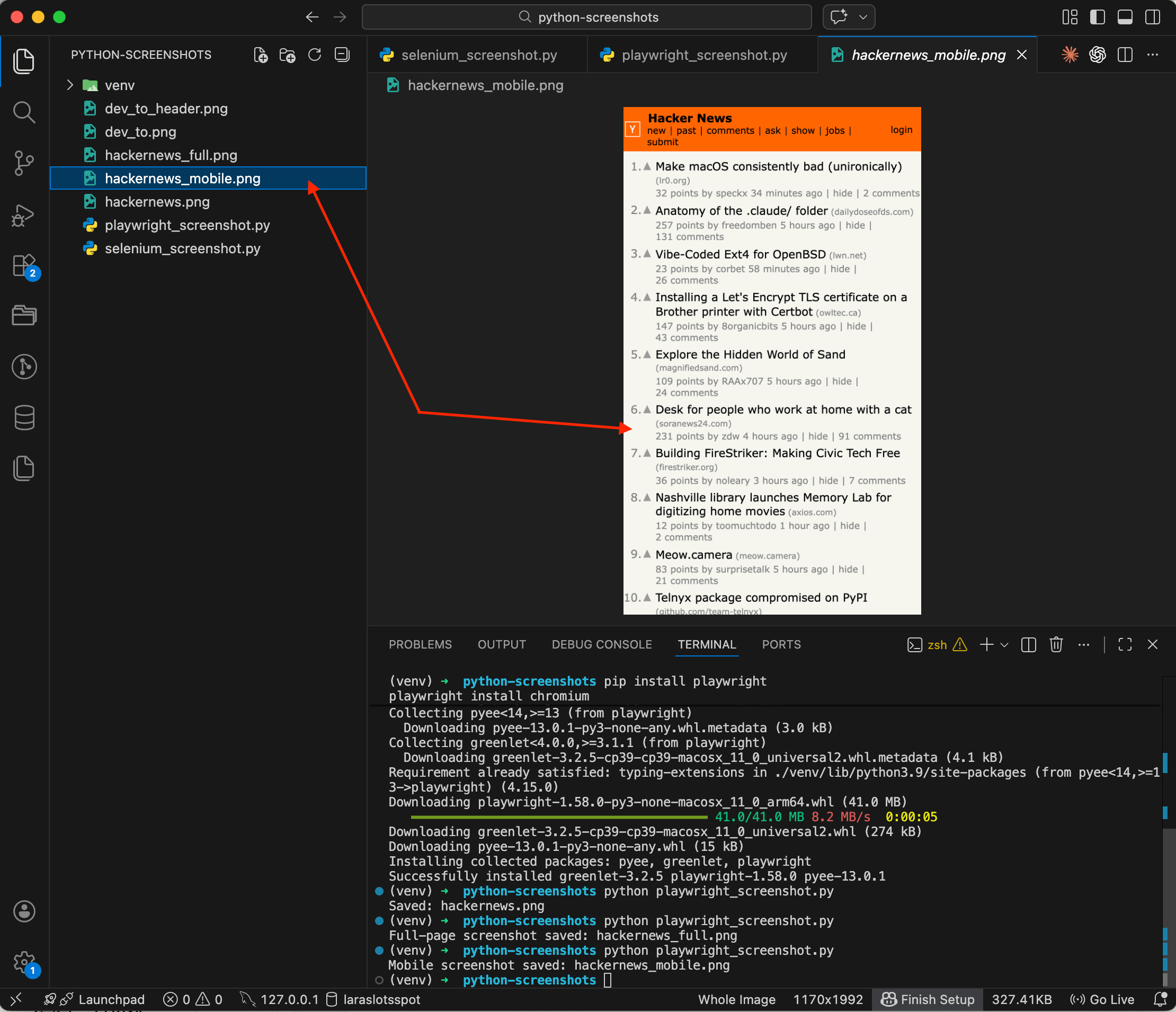
Hacker News appears fully adapted to a mobile screen. Posts stack in a single column, fonts are larger, navigation is rearranged. Playwright knows the specs of dozens of devices: iPhone, Pixel, iPad, and others, so there's no need to manually figure out viewport widths and user agents. I went deeper into the viewport-size and DPR details in a separate post on capturing websites as they appear on iPhone, iPad, or Android.
Waiting for content to load
Another common problem: the screenshot fires before the page has finished loading. (The API equivalent is the wait-for-selector parameter.) This is especially painful with JavaScript-heavy pages. Playwright can wait for a specific element to appear:
from playwright.sync_api import sync_playwright

with sync_playwright() as p:
    browser = p.chromium.launch()
    page = browser.new_page(viewport={'width': 1280, 'height': 800})

    page.goto('https://github.com/trending')
    # Wait for the repository list to appear
    page.wait_for_selector('article.Box-row')
    page.screenshot(path='github_trending.png')

    print('Screenshot GitHub Trending saved: github_trending.png')
    browser.close()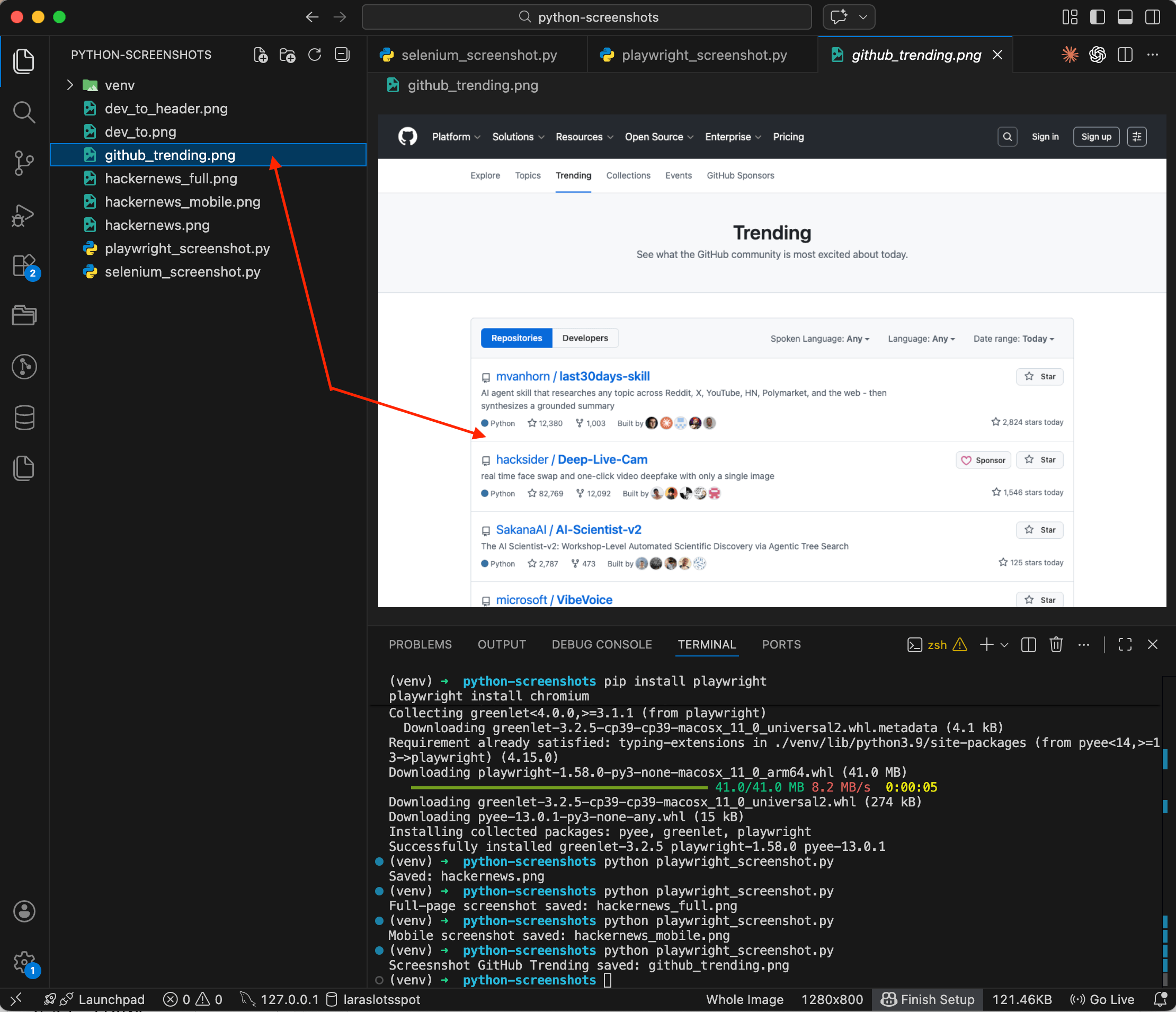
GitHub Trending shows up with the repository list fully loaded. You can see stars, forks, descriptions, all the content is there. Without wait_for_selector you might have gotten a half-empty page with just a spinner. With it, Playwright waits until the target content appears in the DOM, then takes the shot.
Selenium vs Playwright: an honest comparison
I've tried all three approaches. Here's what I think.
Selenium
When it fits: you already have Selenium in your project for testing or scraping. Adding save_screenshot() to existing code takes one line. Installing Selenium just for screenshots isn't worth it.
Pros: the most mature tool out there, with a huge amount of documentation and examples online. Supports all major browsers: Chrome, Firefox, Safari, Edge. You can interact with the page before taking a screenshot: click buttons, fill forms, scroll. Works well with pytest for testing.
Cons: no full-page screenshots out of the box, only viewport. You need to keep chromedriver version in sync with the browser (webdriver-manager helps, but doesn't always solve this). Verbose code even for simple tasks. On a server without a GUI, you need to configure headless mode and install rendering dependencies.
Playwright
When it fits: you're writing a script from scratch and need full-page screenshots, mobile emulation, or smart waiting. For local work and CI/CD with moderate volume, it's the best choice.
Pros: full-page screenshots with a single line, full_page=True. Built-in mobile device emulation with a ready-made device database. Smart waiting that lets you wait for a specific element, network idle, or a particular page state. Clean, compact API with less boilerplate compared to Selenium. Same API for Chromium, Firefox, and WebKit.
Cons: Chromium weighs about 400 MB and downloads on first install. Each running browser instance consumes 200-400 MB of RAM. On servers you still need system dependencies for rendering (fonts, libraries). For 100+ screenshots you need to think about parallelism and browser pools.
Which one to pick
For one-off screenshots on your own machine, go with Playwright. For integrating into an existing test infrastructure, stick with Selenium.
If you need screenshots in a production environment without managing browser infrastructure, a dedicated API is worth considering. I wrote a separate guide on integrating the ScreenshotRun API with Python that covers requests, httpx, FastAPI, and error handling.
Production gotchas I wish I'd known earlier
A few things I figured out in practice.
Waiting for page load. Pages with heavy JavaScript might not finish rendering by the time the screenshot fires. In Playwright, use wait_for_selector() to wait for a specific element, or wait_for_load_state('networkidle') to wait until all network requests have settled.
Cookie banners and popups. They constantly cover content in screenshots. In Selenium and Playwright you can dismiss them via JavaScript injection: find the "Accept" button or the entire banner and remove it from the DOM. I wrote up the full layered approach I ended up using (network-level blocking, CSS injection, and auto-click fallback) in a separate post on hiding cookie banners, ads, and chat widgets in screenshots.
Server resources. Each Chrome instance consumes 200-400 MB of RAM. Ten parallel browsers, and that's already 2-4 GB just for screenshots.
File format. PNG is for pixel-perfect images with no quality loss. JPEG is for when file size matters and you can sacrifice some detail. WebP strikes a good balance between size and quality, though not all image viewers support it yet.
If Ruby is more your thing, we have a similar walkthrough covering Selenium and Ferrum for screenshots.
Frequently Asked Questions
Playwright is the strongest choice for new projects. It supports full-page captures with a single parameter, has built-in device emulation, and handles dynamic content with smart waiting. Selenium works well if your project already depends on it, but it lacks native full-page screenshot support.
Not natively. Selenium's save_screenshot() method only captures the visible viewport. Workarounds exist — scrolling the page in a loop and stitching images together — but they are fragile and break on sticky headers or lazy-loaded content. Playwright handles full-page captures out of the box with the full_page=True parameter.
In Playwright, use the built-in device descriptors: p.devices["iPhone 14"] sets the correct viewport width, height, pixel ratio, and user agent automatically. In Selenium, you can set the window size manually with options.add_argument("--window-size=390,844"), but you won't get accurate device pixel ratio emulation.
The most common cause is that the script captures the page before JavaScript finishes rendering. Pages that load data from APIs often appear empty at first. Use Playwright's wait_for_selector() to pause until a specific element appears in the DOM, or wait_for_load_state("networkidle") to wait until all network requests settle.
Each headless Chrome instance consumes 200-400 MB of RAM. Running ten browsers in parallel can easily require 2-4 GB. For occasional captures this is fine, but for production workloads at scale, you need to manage browser pools carefully or offload rendering to a dedicated screenshot API.
Fix "Could Not Find Expected Browser (Chrome) Locally" in Puppeteer
Puppeteer cannot find Chrome? Fix the "could not find expected browser locally" error in Docker, CI/CD, serverless, monorepos, and local development.
Read more →
Fix Puppeteer "Browser Has Disconnected" Error (All Causes)
Read more →
Why Instagram Breaks Your Screenshots (And How to Fix It with Playwright)
Instagram shows two login popups, triggers React re-renders when you hide them wrong, and locks scrollHeight to the viewport. Three problems, three fixes for Playwright and Puppeteer.
Read more →