ScreenshotRun's API captures any live webpage as a PNG, WebP, or PDF through a single GET request. Designers use it to build reference libraries, populate gallery sites, and keep mood boards current without opening a browser for every URL. One API call with block_cookies=true and block_chats=true returns a clean screenshot: no consent overlays, no Intercom bubbles, no "accept all" button covering the hero section.
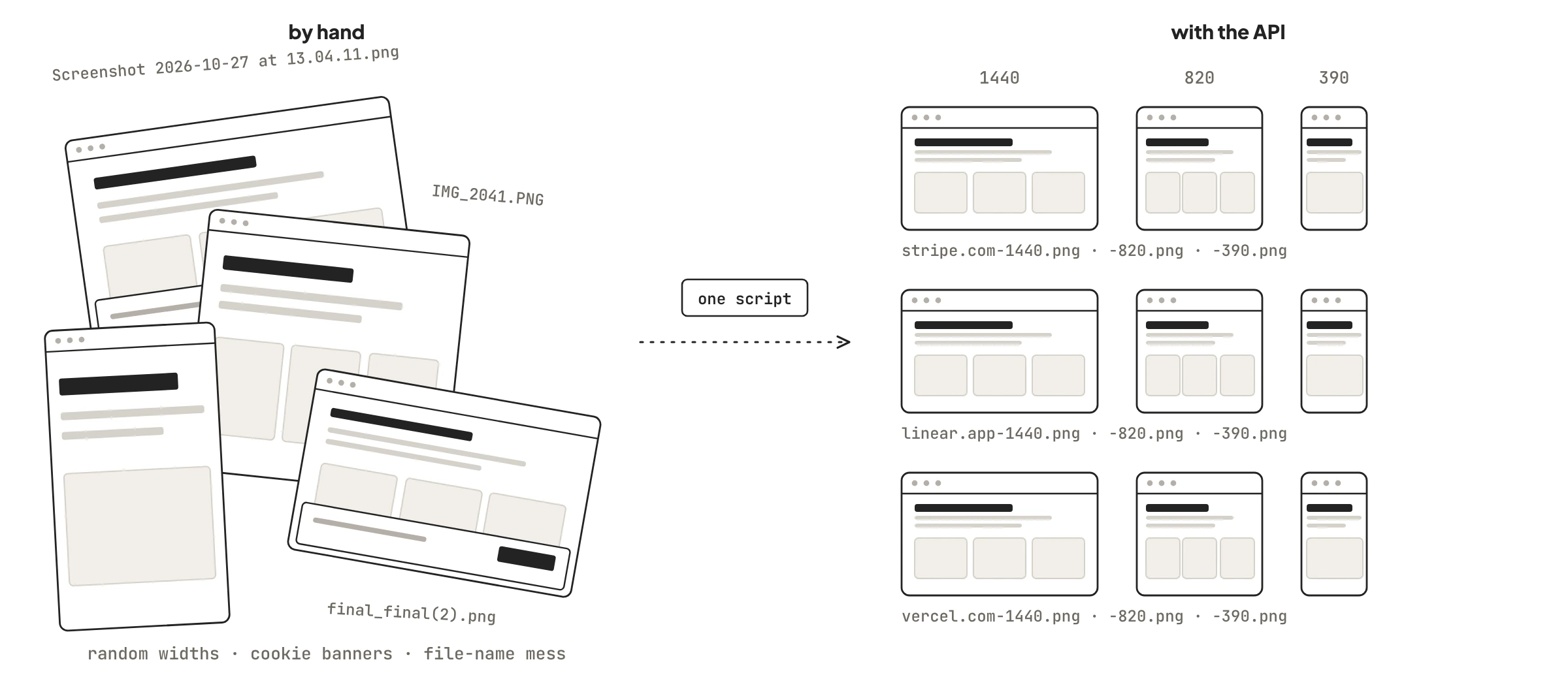
Collecting website screenshots by hand feels small until you try scaling it. Grabbing five landing pages for a pitch deck? Fine. Building a 200-site reference library organized by industry, device, and component? That's a full workday of opening tabs, dismissing cookie banners, resizing viewports, and saving files as Screenshot 2026-10-27 at 14.32.15.png. The API collapses that to a script you run once.
A batch-capture script that replaces your afternoon
Start with a list of URLs. Maybe you pulled them from a spreadsheet, maybe you scraped Awwwards, maybe your design lead pasted them into Slack. This script reads each URL, captures it at 1440px wide (the most common desktop breakpoint we see across our users), and saves the result with a slugified filename:
import fs from 'fs';

const API_KEY = process.env.SCREENSHOTRUN_KEY;
const urls = [
  'https://linear.app',
  'https://vercel.com',
  'https://stripe.com/payments',
  'https://notion.so',
  'https://figma.com',
];

for (const url of urls) {
  const slug = new URL(url).hostname.replace(/\./g, '-');
  const params = new URLSearchParams({
    url,
    format: 'webp',
    width: '1440',
    block_cookies: 'true',
    block_chats: 'true',
    block_ads: 'true',
    response_type: 'image',
  });

  const res = await fetch(
    `https://api.screenshotrun.com/v1/screenshots/capture?${params}`,
    { headers: { Authorization: `Bearer ${API_KEY}` } }
  );

  if (res.ok) {
    fs.writeFileSync(`reference/${slug}.webp`, Buffer.from(await res.arrayBuffer()));
    console.log(`Saved: ${slug}.webp (${Math.round(res.headers.get('content-length') / 1024)} KB)`);
  }
}
Five sites, five clean WebP files in a reference/ folder. No cookie walls, no chat widgets. Add fifty more URLs to the array and the whole run still finishes in under three minutes because the API processes requests in parallel on our end.
WebP keeps file sizes manageable for galleries that grow to hundreds of entries. If you need lossless quality for close-up studies, switch format to png. For presentations or print, pdf gives you vector text.
Three devices, one loop
Responsive design research means seeing how a layout adapts across breakpoints. Designers who do this manually end up resizing their browser window three times per site. With 30 reference sites that's 90 screenshots, plus the mental overhead of making sure every viewport width actually matches.
The API handles this with the device parameter:
import httpx, os

API_KEY = os.environ["SCREENSHOTRUN_KEY"]
BASE = "https://api.screenshotrun.com/v1/screenshots/capture"

sites = ["https://linear.app", "https://stripe.com", "https://arc.net"]
devices = ["desktop", "mobile", "tablet"]

for site in sites:
    slug = site.split("//")[1].replace("/", "").replace(".", "-")
    for device in devices:
        resp = httpx.get(BASE, params={
            "url": site,
            "device": device,
            "format": "webp",
            "full_page": "false",
            "block_cookies": "true",
            "response_type": "image",
        }, headers={"Authorization": f"Bearer {API_KEY}"}, timeout=60)

        path = f"reference/{slug}--{device}.webp"
        with open(path, "wb") as f:
            f.write(resp.content)
        print(f"{path} ({len(resp.content) // 1024} KB)")
Nine screenshots, three per site, all consistent. Drop them into Figma frames and you've got a responsive comparison board without any manual resizing. The device preset sets viewport dimensions and user agent together (mobile is 390×844 with an iPhone UA, tablet is 820×1180 with an iPad UA).
Crop to a single component
Full-page screenshots work for big-picture inspiration. But designers hunting for specific patterns need tighter crops. How does Stripe lay out its pricing table? What does Linear's feature grid look like in isolation? The selector parameter answers that.
Pass a CSS selector, and the API finds that element, measures its bounding box, and returns an image trimmed to those exact pixel boundaries:
curl -G "https://api.screenshotrun.com/v1/screenshots/capture" \
  -H "Authorization: Bearer $SCREENSHOTRUN_KEY" \
  --data-urlencode "url=https://stripe.com/pricing" \
  --data-urlencode "selector=.pricing-table" \
  --data-urlencode "format=png" \
  --data-urlencode "retina=true" \
  --data-urlencode "block_cookies=true" \
  --data-urlencode "response_type=image" \
  -o stripe-pricing-component.png
You get the pricing section and nothing else. No header, no footer, no surrounding whitespace. The retina=true flag doubles the pixel density, which is useful when you're studying typographic details or spacing values. (Retina output is 4x the file size, not 2x, because both width and height double.)
We built a quick internal library this way: 20 pricing tables, 15 hero sections, 30 navigation bars, each isolated and comparable. Sites like Mobbin and SaaSUI serve this same need at a curated scale. The API lets you build your own collection from any URL, not just the ones someone else decided were worth showcasing.
Scheduled re-captures so nothing goes stale
A reference library captured in May is stale by August. Stripe updates their marketing pages quarterly. SaaS companies A/B test hero sections weekly. If your inspiration library shows last quarter's version of a competitor's landing page, you're designing against outdated references.
Schedule periodic re-captures to keep the library current. A cron job, GitHub Action, or n8n workflow can re-run your batch script on any cadence. Weekly works for competitive research. Monthly is enough for a general reference library.
Our scheduled screenshots page covers the infrastructure side in detail (cron setup, cloud schedulers, GitHub Actions YAML). For a design gallery specifically, the key decision is what to do with the old version. Two approaches:
- Overwrite the file (latest version only, simpler storage, good for inspiration boards where you just want the current design)
- Date-stamp each capture (
stripe--2026-10-27.webp) so you can track how a design evolves over months
Design teams who track competitor redesigns use the second approach. It feeds into client presentations ("here's how their pricing page evolved over six months") and internal design reviews.
Light mode, dark mode, or both?
The dark_mode parameter tells Chrome to set prefers-color-scheme to dark before loading the page. Sites that respect this media query (GitHub, Tailwind UI, Linear, Vercel docs) render their night palette without any extra JavaScript on your side.
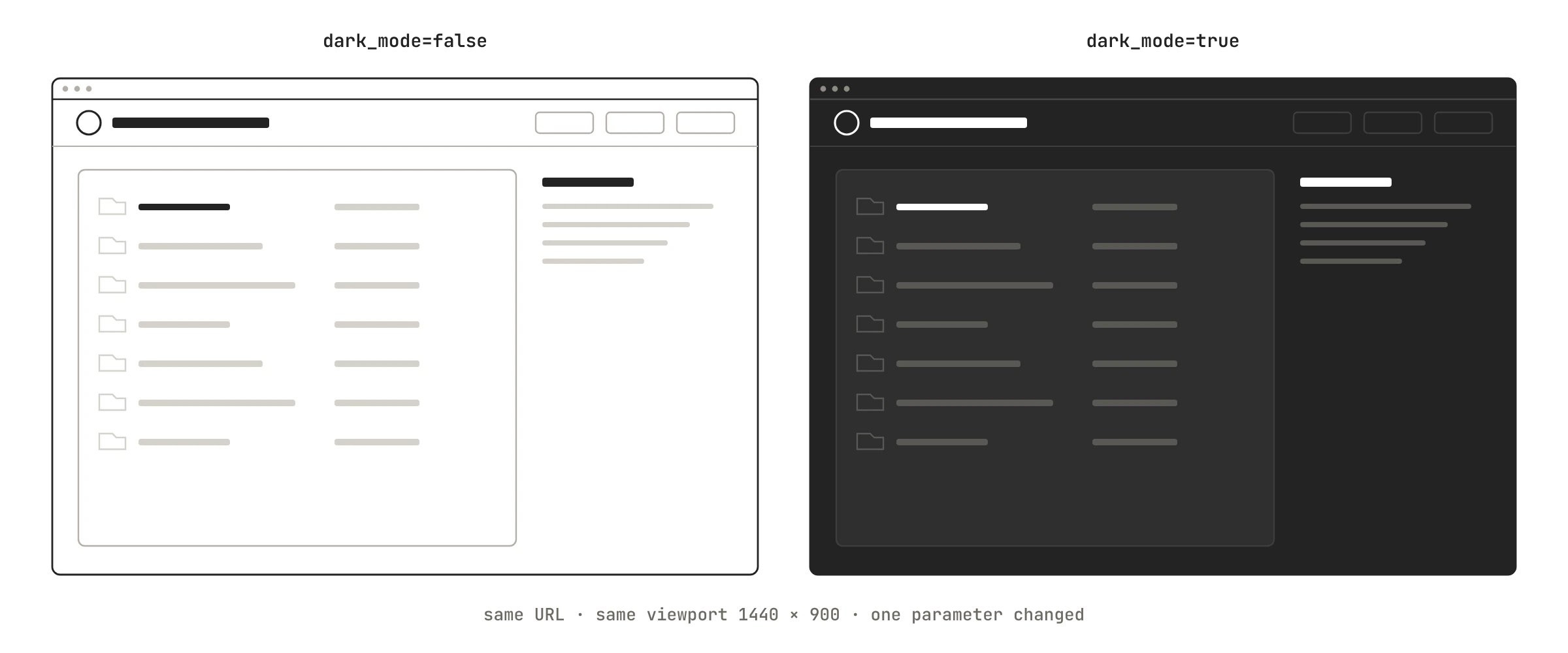
Capture each reference URL twice and you have a side-by-side comparison for studying dark mode implementation patterns. Which sites invert backgrounds fully? Which ones just dim the surface? How does typography contrast shift? You learn more from placing these screenshots next to each other than from reading any design system docs.
One gotcha: dark_mode only affects sites that use the prefers-color-scheme CSS media query. Sites that toggle dark mode through a JavaScript class name (a .dark class on <body>, which Tailwind projects often use) won't respond to it. For those, pass a js parameter that clicks their toggle switch before capture.
Why full-page captures matter for design research
Above-the-fold captures tell you about hero sections. Full-page captures tell you about content hierarchy, section rhythm, CTA placement, and the scroll journey from top to footer. Both views matter for different reasons.
Set full_page=true and the API scrolls the entire document, waits for lazy-loaded images to trigger, and stitches the result into one tall image. A typical SaaS marketing page produces a 3,000-8,000px tall screenshot. Store these as WebP to keep file sizes reasonable. A full-page capture of stripe.com in PNG runs 8-10 MB; WebP compresses that to under 2 MB.
Full-page screenshots are where the API really earns its keep versus browser extensions. GoFullPage and Fireshot often produce stitching artifacts around sticky headers or break on scroll-triggered animations. The API renders the page in a headless Chrome instance with the viewport height extended, so sticky elements render correctly and position: fixed elements don't duplicate across frames.
Clean captures or cluttered ones: your call
Design inspiration screenshots work best without distractions. But sometimes you actually want the clutter. Studying how competitors handle their cookie consent banner, or how a chat widget integrates visually with a page layout, is legitimate design research too.
The blocking parameters are all optional and independent:
| Parameter | What it removes | When to use it |
|---|---|---|
block_cookies | GDPR consent overlays | Almost always for inspiration libraries |
block_ads | Ad banners, AdSense blocks | E-commerce and publisher site captures |
block_chats | Intercom, Drift, Zendesk widgets | SaaS site captures where the bubble covers the CTA |
hide_selectors | Any element by CSS selector | Promo bars, notification banners, sticky footers |
css | Inject a custom stylesheet | Hide specific elements, change backgrounds, remove animations |
Stack them as needed. A SaaS landing page gallery probably wants all three blockers on. A design research project studying dark patterns might want everything visible. The default (no blocking) captures the page exactly as Chrome renders it.
Where do the screenshots go after capture?
The API returns raw image bytes. What you do with them depends on your workflow:
- Figma/Sketch: Save as WebP or PNG, drag into your canvas. The Figma API can import images programmatically, but most designers just drag and drop
- Notion/Airtable: Upload via their APIs, or use Zapier / Make.com to connect the capture to a database row. Each screenshot becomes a record with URL, date, device, and image attached
- Eagle: Popular among designers for organizing visual references. Eagle watches folders, so screenshots saved to a watched directory appear in your library with tags auto-applied
- Custom gallery app: Store images in S3 or Cloudflare R2, metadata in Postgres, and build a Tailwind grid frontend. That's how sites like Landing Gallery and A1 work under the hood
The extract_metadata parameter returns the page title and description alongside the screenshot. Use that to auto-label entries in your gallery instead of manually titling each capture.
What this approach doesn't cover
API screenshots capture the visual state of a public (or accessible) URL. A few things fall outside that scope.
Gated content behind login walls won't render without authentication cookies. The API supports a cookies parameter for sessions you own, but scraping designs from behind someone else's paywall isn't the intended use. For public site design research (landing pages, marketing sites, documentation) this isn't an issue.
Interactive prototypes from Figma or InVision render as static pages. You'll get the first screen, not the flow between screens. For studying interaction design patterns, screen recording tools are a better fit.
Some sites aggressively detect and block headless browsers. The stealth mode parameter helps, but it's a cat-and-mouse game — not a solved problem. About 5% of sites in our experience return different content to headless Chrome than to a regular browser. Retrying with stealth=true catches most of them.
Web font rendering is the last thing to be aware of. Chrome on Linux (where our servers run) renders fonts slightly differently than macOS Safari. Helvetica falls back to Liberation Sans, and some system font stacks look off by a pixel or two. For broad design research this honestly doesn't matter. For pixel-level typography studies, keep it in mind.
API parameters designers use most
| Parameter | Type | Default | Why it matters for design work |
|---|---|---|---|
url | string | required | The page to capture |
format | string | png | WebP for galleries (smaller files), PNG for detailed study, PDF for print |
width | int | 1280 | Viewport width: 1440 for modern desktop, 390 for iPhone |
device | string | desktop | Preset for desktop, mobile, or tablet viewports and user agents |
full_page | bool | false | Capture the entire scrollable page, not just the viewport |
retina | bool | false | 2x pixel density, critical for studying fine typographic details |
dark_mode | bool | false | Flip color scheme preference to dark before loading |
selector | string | Crop to a specific UI component by CSS selector | |
block_cookies | bool | false | Remove consent overlays for clean captures |
block_ads | bool | false | Strip ad placements from publisher sites |
block_chats | bool | false | Remove live chat widgets that cover page corners |
css | string | Inject styles: hide promo bars, change backgrounds, kill animations | |
extract_metadata | bool | false | Return page title and description for auto-labeling gallery entries |
Full parameter reference in the API docs.