
URL to PDF API — Generate PDFs from Any Web Page
 Vitalii Holben
Most websites have zero print-friendly CSS. Open any SaaS dashboard, news site, or e-commerce store in the browser's print preview and you'll see navigation bars splitting across pages, sticky headers repeating on every sheet, and lazy-loaded images that never rendered because the print engine doesn't scroll. The browser prints what it has, not what the page is supposed to look like.
Running headless Chromium with page.pdf() fixes the rendering quality, but adds operational weight: memory management, process crashes under load, font differences between Linux and macOS. Most teams just want "URL in, PDF out" without maintaining browser infrastructure.
format="pdf" generates a paginated PDF from any URL. The renderer handles cookie banners, waits for dynamic content, and outputs a real document with page breaks, margins, and the page size you specify. One API call, no browser process to manage.
Generating a PDF from a URL
Set format to pdf and the API returns a PDF file instead of an image:
curl "https://api.screenshotrun.com/v1/screenshots/capture?url=https%3A%2F%2Fexample.com&format=pdf" \
  -H "Authorization: Bearer YOUR_API_KEY"
The response includes a download URL for the generated PDF. The renderer loads the page in a real Chromium instance, waits for network activity to settle, and then prints to PDF using Chrome's built-in print pipeline (the same engine behind page.pdf() in Puppeteer, managed and scaled on our end.
By default, the output is A4 portrait with 10mm margins on all sides. That works for most documents. But invoices need Letter size in the US, reports look better in landscape, and some layouts need tighter margins to avoid awkward page breaks. The PDF parameters let you control all of this.
Page sizes, margins, and landscape orientation
Six standard page formats are supported: A3, A4, A5, Letter, Legal, and Tabloid. Combined with pdf_landscape, that covers virtually every document format in production use:
{
  "url": "https://dashboard.example.com/report",
  "format": "pdf",
  "pdf_page_format": "Letter",
  "pdf_landscape": true,
  "pdf_margin_top": "15mm",
  "pdf_margin_bottom": "15mm",
  "pdf_margin_left": "20mm",
  "pdf_margin_right": "20mm"
}
This produces a US Letter–sized PDF in landscape with generous margins. The kind of layout that works for dashboards and wide data tables. Margins accept any CSS unit, "10mm", "1in", "0.5cm", or "0" for edge-to-edge content.
A few combinations I use often:
| Scenario | Page format | Orientation | Margins |
|---|---|---|---|
| Invoice / receipt | A4 or Letter | Portrait | 15–20mm |
| Dashboard report | A4 or Letter | Landscape | 10–15mm |
| Legal document archive | Legal | Portrait | 1in all sides |
| Presentation slide | Tabloid or A3 | Landscape | 0 |
| Compact handout | A5 | Portrait | 5mm |
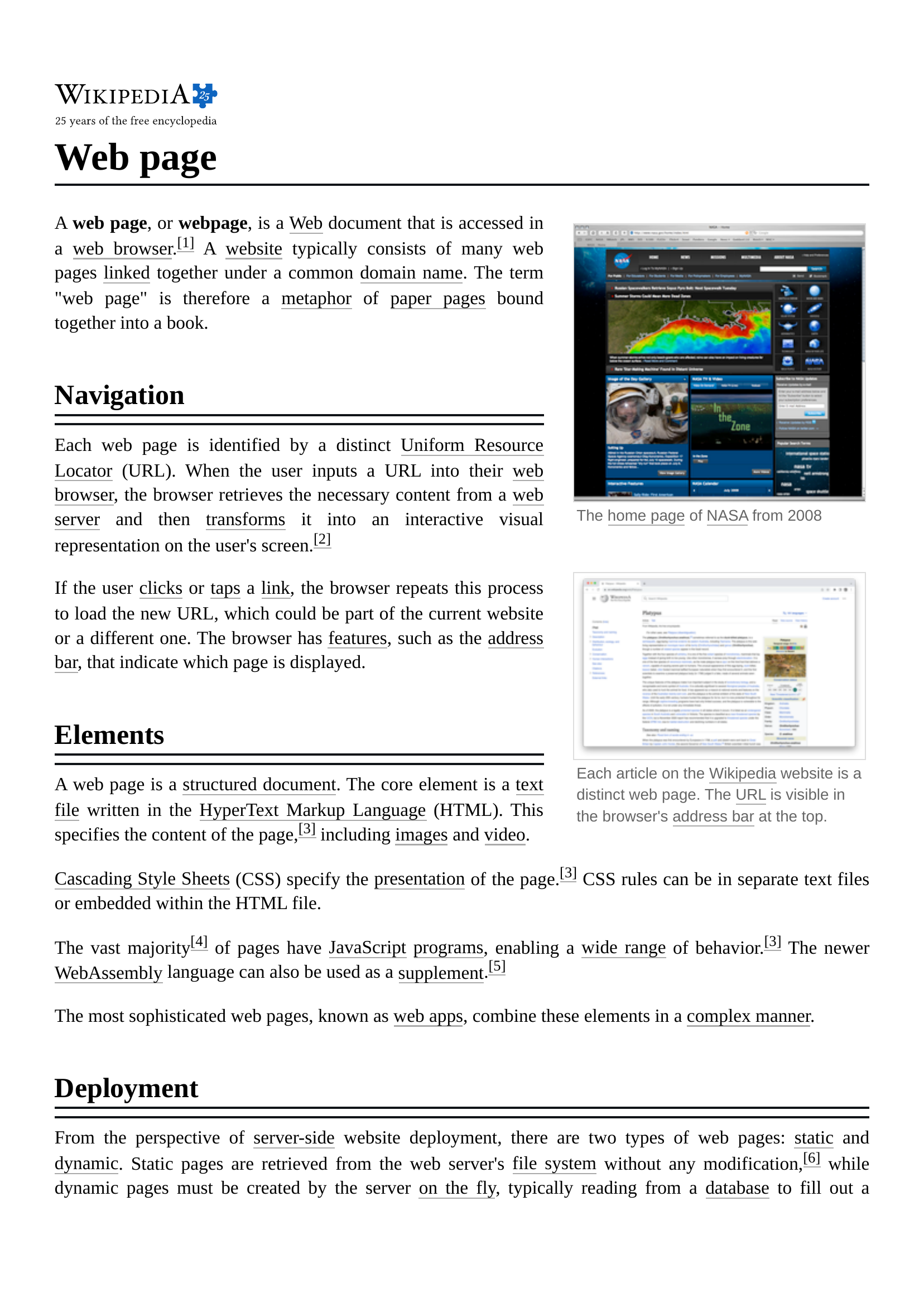
Here's a Wikipedia article rendered as an A4 portrait PDF with default margins. The text is selectable, pagination is clean, and the layout follows Chrome's print engine rules:
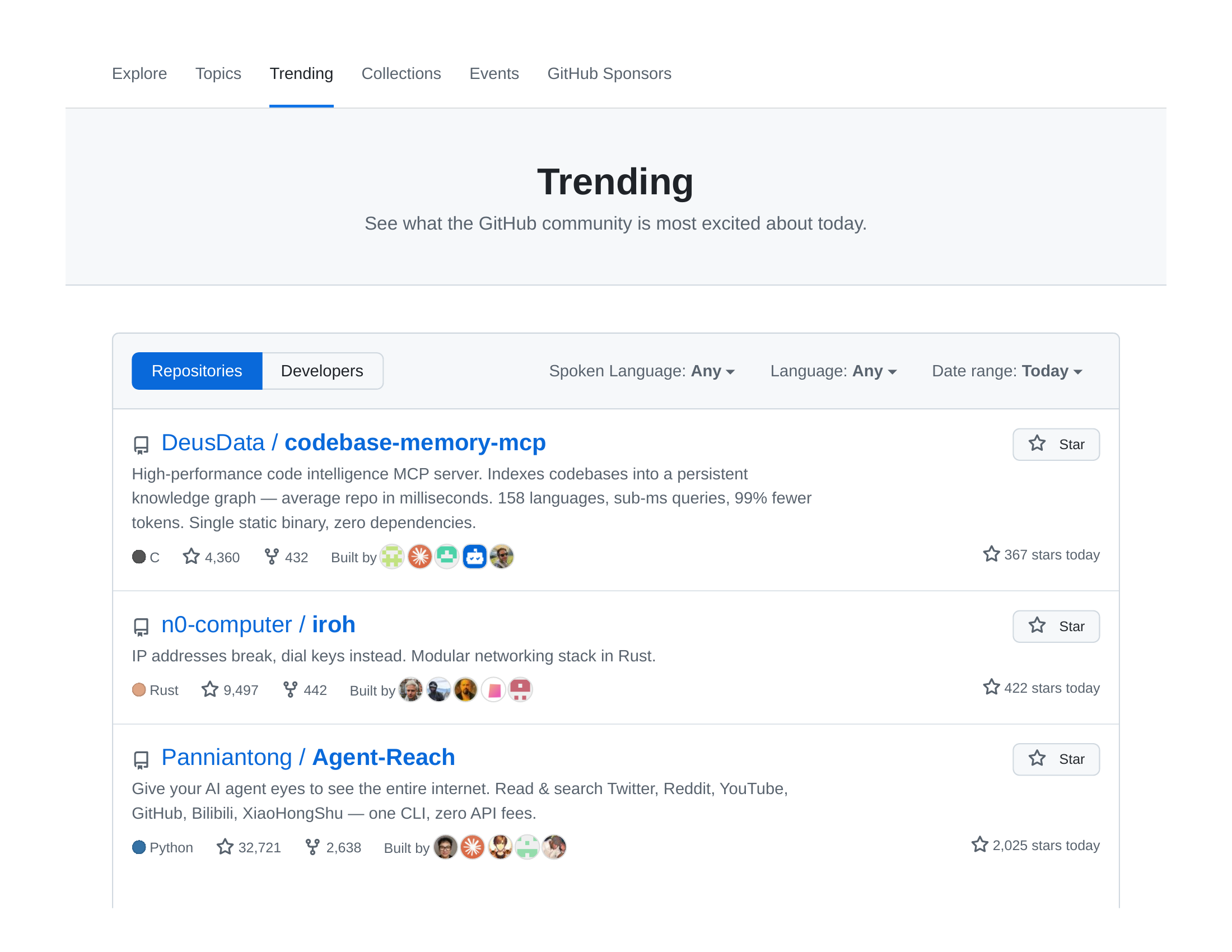
And the same API with pdf_page_format: "Letter" and pdf_landscape: true, applied to GitHub Trending. Wide data tables and repository lists fit naturally in horizontal orientation:
If you omit the PDF parameters, defaults kick in: A4, portrait, 10mm margins. For most standard document workflows, the defaults produce a consistent result without any tuning.
How long pages get split across PDF pages
A website that scrolls for 8000 pixels doesn't become an 8000-pixel-tall single page in the PDF. Chrome's print engine paginates the content, splitting it across however many A4 (or Letter, or whatever format you chose) pages are needed to fit everything. Headers stay at the top, footers at the bottom, and content flows naturally from page to page.
Where the breaks land depends on the page's CSS. Chrome respects page-break-inside: avoid, break-before: page, and the other CSS Paged Media properties. If the site already has print-friendly CSS (many documentation sites and e-commerce receipts do), the pagination looks clean out of the box. If it doesn't, Chrome makes its best guess, and sometimes that means a heading orphaned at the bottom of one page while its paragraph starts on the next.
For pages you control (invoices, reports, templates rendered via the html parameter), adding a few CSS rules makes a real difference:
/* Keep tables, images, and figure blocks from splitting across pages */
table, img, figure, .invoice-line-item {
  page-break-inside: avoid;
}

/* Force a new page before major sections */
.section-break {
  page-break-before: always;
}
The invoice generation guide covers page-break strategies in detail with working HTML templates you can adapt.
PDF vs full-page screenshot: which to use when
Both format="pdf" and full_page screenshots capture the entire length of a page. The output formats serve different purposes:
PDF (format="pdf") | Full-page image (full_page: true) | |
|---|---|---|
| Output | Multi-page document with pagination | Single tall image (PNG/JPEG/WebP) |
| Text | Selectable and searchable | Rasterized into pixels |
| Printing | Clean page breaks, proper margins | One continuous image, scales to fit |
| File size | Smaller for text-heavy pages | Smaller for image-heavy pages |
| Use case | Archival, invoices, reports, compliance | Visual regression, thumbnails, previews |
| CSS media | Triggers @media print styles | Uses @media screen styles |
The CSS media difference is the one that catches people off guard. A site with a @media print stylesheet hides navigation, changes colors, removes backgrounds, and restructures the layout for paper. The PDF output picks up all of those changes. A full-page screenshot doesn't. It captures the screen version.
If you need the page to look exactly like it does on screen but in PDF form, the viewport width still matters. The page renders at whatever viewport width you set, then gets paginated into the chosen page format. A wider viewport means more content per PDF page but smaller text.
Proper PDFs from messy real-world sites
The difference between a screenshot API and a raw PDF library is what happens before the print fires. PDFShift and DocRaptor accept raw HTML and produce proper output, but they don't visit a URL, deal with cookie consent walls, wait for a React dashboard to hydrate, or dismiss a chat widget floating over the content.
The PDF output inherits every rendering feature the screenshot API already handles. Cookie banners and consent walls are stripped before the PDF generates, because block_cookies is on by default. OneTrust dialogs, CookieBot overlays, GDPR consent walls. None of them make it into the document.
Dynamic content also loads before capture. Combine format="pdf" with wait_for_selector to hold the PDF generation until a specific element appears. This matters for SPAs and dashboards where the data arrives after the page shell:
{
  "url": "https://app.example.com/dashboard",
  "format": "pdf",
  "pdf_page_format": "A4",
  "pdf_landscape": true,
  "wait_for_selector": ".chart-loaded",
  "block_ads": true
}
Ads and chat widgets can be removed with block_ads and block_chats. A PDF of a news article without ad blocks between every paragraph is significantly shorter and more readable.
You can also inject custom CSS to override styles before the PDF renders. Hide a sidebar, force single-column layout, or adjust font sizes for print, all without changing the original page:
{
  "url": "https://example.com/article",
  "format": "pdf",
  "css": "nav, .sidebar, .ad-banner { display: none !important; } body { max-width: 700px; margin: 0 auto; font-size: 14px; }"
}
This combination of URL rendering, consent removal, dynamic waiting, and CSS injection is something no PDF-first tool offers. They start from raw HTML. The API starts from a messy real-world URL and handles it along the way.
HTML and Markdown to PDF without a URL
Not every PDF starts with a website. Invoice templates, reports generated from data, email receipts. These start from HTML you build yourself. Pass the markup directly with the html parameter instead of a URL:
{
  "html": "<html><body><h1>Invoice #1042</h1><table><tr><td>Widget Pro</td><td>$49.00</td></tr></table></body></html>",
  "format": "pdf",
  "pdf_page_format": "Letter",
  "pdf_margin_top": "20mm",
  "pdf_margin_bottom": "20mm"
}
The HTML renders in a full Chromium instance, so you get proper CSS layout, web fonts, flexbox, and grid. The html parameter accepts up to 500,000 characters, which is enough for any reasonable document template. Markdown works the same way via the markdown parameter, converted to styled HTML automatically.
For a complete walkthrough of building invoice templates with the HTML parameter, including CSS print rules and dynamic data injection, see the PDF invoice generation guide.
What the print stylesheet changes (and when to care)
When Chrome generates a PDF, it switches to print media mode. That triggers @media print CSS rules on the target page. On sites that have print styles, this can mean a completely different layout: no navigation, no footer, different colors, different typography, and sometimes an entirely different content structure.
Most of the time this is what you want. The site designed a print-friendly version and the PDF picks it up. But sometimes it's not. A visual regression workflow that captures pages for comparison needs the screen version, not the print version. For that, a full-page screenshot in PNG or WebP is the better tool.
If a site's print stylesheet strips too much content, you can override it with the css parameter:
{
  "url": "https://example.com",
  "format": "pdf",
  "css": "@media print { nav { display: block !important; } .hero-image { display: block !important; } }"
}
This re-enables elements that the site's own print stylesheet hides. I've seen documentation sites that hide their entire sidebar in print mode, which removes the table of contents from the PDF. Not ideal when you're archiving the page for reference.
Puppeteer's page.pdf() vs one parameter
The Puppeteer equivalent for PDF generation with custom page size and margins:
const browser = await puppeteer.launch();
const page = await browser.newPage();

await page.goto('https://example.com', {
  waitUntil: 'networkidle0'
});

const pdf = await page.pdf({
  format: 'A4',
  landscape: true,
  margin: {
    top: '15mm',
    right: '20mm',
    bottom: '15mm',
    left: '20mm'
  },
  printBackground: true
});

await browser.close();
fs.writeFileSync('output.pdf', pdf);
Fourteen lines, plus the file-system write. And this is the happy path. No cookie handling, no dynamic content waiting, no error recovery when the browser process hangs. In production, page.pdf() fails silently on pages that haven't finished rendering, produces corrupt output when Chromium runs out of memory, and doesn't handle the consent overlays that print directly into the document. The build-vs-buy comparison has a longer breakdown of the operational overhead.
PDF parameter reference
Full parameter list in the API reference. PDF-specific options:
| Parameter | Type | Default | Values | Plan |
|---|---|---|---|---|
format | string | png | png, jpeg, webp, avif, tiff, pdf | PDF: Starter+ |
pdf_page_format | string | A4 | A3, A4, A5, Letter, Legal, Tabloid | Starter+ |
pdf_landscape | boolean | false | — | Starter+ |
pdf_margin_top | string | 10mm | CSS unit (mm, in, cm, px) | Starter+ |
pdf_margin_right | string | 10mm | CSS unit | Starter+ |
pdf_margin_bottom | string | 10mm | CSS unit | Starter+ |
pdf_margin_left | string | 10mm | CSS unit | Starter+ |
PDF output works with every other API parameter: block_cookies for consent removal, wait_for_selector for dynamic pages, custom viewport for controlling how content reflows, and html for rendering your own templates. Combine them to produce clean, properly formatted documents from any source: URLs, raw HTML, or Markdown. For a side-by-side look at PDF generation in Playwright versus an API, see the Playwright vs Screenshot API comparison. Our tutorial on converting webpages to PDF walks through three working methods with code you can copy. For automated document generation from HTML templates, see the PDF invoices use case.