
Wait for Selector & Delayed Capture
 Vitalii Holben
Most websites today don't work the way they did ten years ago. Back then, you opened a page and everything was already there in the HTML. Today, the page opens first, and the actual content arrives a moment later. Your analytics dashboard, your Shopify admin, your project management tool — they all load a blank shell and then fill it in with data from the server. It happens so fast in a browser that you barely notice.
But a screenshot API notices. It sees the page at the exact moment it asks for the capture, and if that moment lands before the data arrives, you get a white rectangle with a loading spinner where your charts and tables should be. The page wasn't broken. It just wasn't finished yet.
Two parameters fix this: delay adds a fixed pause before the capture, giving the page time to finish loading. wait_for_selector waits for a specific element to appear on the page before firing. Between them, they cover every timing problem I've encountered in production.
A fixed pause with delay
delay holds the capture for a set number of seconds after the page fires its load event. The value is an integer from 0 to 10, default 0.
curl "https://api.screenshotrun.com/v1/screenshots/capture?url=https%3A%2F%2Fshopify.com%2Fblog&delay=3" \
  -H "Authorization: Bearer YOUR_API_KEY"
Three seconds. That's enough for most lazy-loaded images to download, for web fonts to swap in, and for above-the-fold animations to settle. It's a blunt tool: the capture waits the full duration whether the page needs it or not. But blunt tools work when you don't know (or don't care about) the page's internal timing.
Use delay when you're capturing external URLs you don't control, when the page has no single element that signals "ready," or when you just need a quick safety margin. For a deeper look at timing strategies, see the 4 strategies for waiting.
Conditional waiting with wait_for_selector
wait_for_selector accepts any CSS selector and holds the capture until that element appears in the DOM. The API polls for the selector for up to 10 seconds. Once the element exists, the capture fires immediately.
{
  "url": "https://app.example.com/dashboard",
  "wait_for_selector": "[data-testid='revenue-chart']"
}
No wasted time. If the chart renders in 800ms, the capture fires at 800ms. If it takes 6 seconds on a slow backend, the capture waits 6 seconds. The selector acts as a contract between your knowledge of the page and the API's timing.
Any valid CSS selector works: class names (.dashboard-loaded), IDs (#main-content), data attributes ([data-ready="true"]), tag names (footer), or compound selectors (.product-grid > .product-card:nth-child(4)). Pick the element that proves the content you care about has rendered.
Delay vs wait_for_selector vs both
There's no way to know in advance exactly how long an arbitrary page needs. That's the core tension. A few guidelines for picking the right approach:
delay alone works for pages where you want a general safety buffer. Blog posts loading web fonts. Marketing pages with fade-in animations. Any page where "wait a couple seconds" is good enough.
wait_for_selector alone works when you know the page structure. Your own app's dashboard. A competitor's product page where you've inspected the DOM. Any page where you can identify a reliable element that signals completion.
Both together cover the gap between "element exists" and "element is visually complete." A chart component might mount in the DOM before its data populates, or an image container might appear before the actual image downloads. In those cases, wait for the element, then add a short delay for the visual content to fill in:
{
  "url": "https://analytics.example.com/report",
  "wait_for_selector": ".chart-container canvas",
  "delay": 2
}
The API waits for the canvas element, then pauses two more seconds for the chart library to finish drawing. Order matters: the selector resolves first, then the delay runs.
SPA dashboards: why the screenshot comes out empty
If you've ever used Notion, Figma, or any modern admin panel, you've seen how they work: the page opens almost instantly, shows a skeleton or a spinner for a moment, and then the real content fills in. That's because these apps are built as single-page applications (SPAs). The browser downloads a nearly empty HTML page first, then JavaScript kicks in, calls the server for data, and builds everything you actually see — the charts, the tables, the sidebar, the user info.
The problem is that a screenshot captures whatever is on the page at a single point in time. If the capture fires during that brief window between "page opened" and "data arrived," you get an image of the skeleton or the spinner instead of the actual dashboard. The page itself works perfectly fine. The timing was just off.
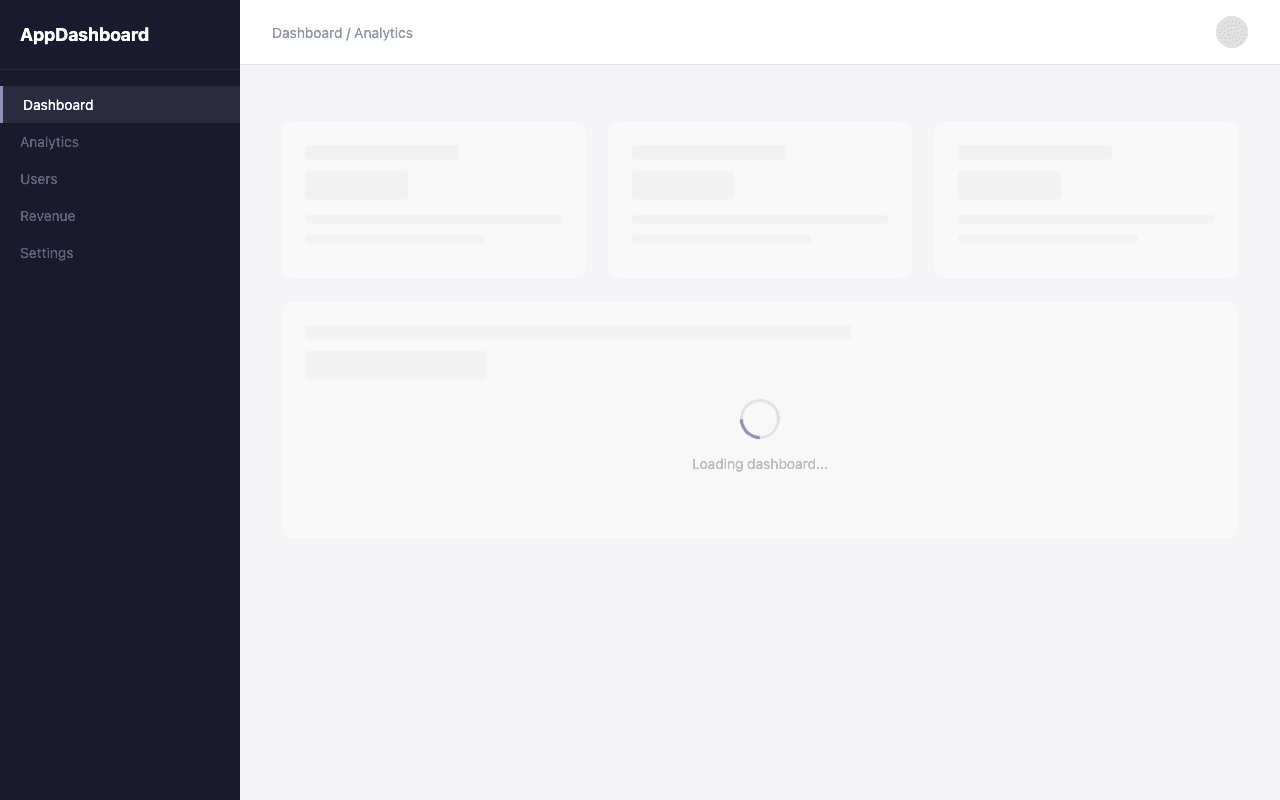
wait_for_selector solves this by holding the capture until a specific element appears on the page. For your own apps, pick a selector tied to the content that matters:
{
  "url": "https://myapp.example.com/settings",
  "wait_for_selector": ".settings-panel",
  "delay": 1
}
For third-party SPAs where you don't know the internal structure, look for generic signals: a main element with child nodes, a footer, or a heading tag inside the content area. The SPA screenshot guide walks through framework-specific patterns for React, Next.js, Vue, and Nuxt.
Lazy images and skeleton-to-content transitions
You know how images on long pages only load as you scroll down to them? That's by design — sites save bandwidth by not loading images you haven't scrolled to yet. The problem is that a screenshot API doesn't scroll the way a human does. When it captures a full page in one shot, the images below the fold never got the signal to start loading, so they show up as gray boxes or empty placeholders in the final image.
Combine full_page (which triggers scroll) with delay (which gives images time to download):
{
  "url": "https://unsplash.com/t/nature",
  "full_page": true,
  "delay": 4
}
Four seconds handles heavy image pages. For sites with skeleton loading patterns where content blocks transition from gray rectangles to real content, wait_for_selector can target the loaded state. Wait for an image's src attribute, or a class that the skeleton removes after loading. Detailed patterns in the lazy loading deep-dive.
Dashboards with multiple widgets that load at different speeds
Analytics dashboards like Grafana, Metabase, or anything custom-built have another wrinkle: they don't load all at once. Each chart, each table, each number widget goes to the server independently and comes back at its own pace. You might see the revenue chart in one second, the traffic graph in three, and the conversion table in five. The page itself says "loaded" almost immediately because the HTML is there, but the actual data trickles in over the next several seconds.
For screenshots, this means even wait_for_selector on one widget isn't always enough. You need to wait for the slowest one.

If the revenue chart always loads last, wait for it specifically:
{
  "url": "https://dashboard.example.com",
  "wait_for_selector": "#revenue-chart .chart-data",
  "delay": 1,
  "timeout": 45
}
Bumping timeout to 45 seconds gives slow backends room. The default 30-second timeout works for most pages, but data-heavy dashboards connected to large databases can legitimately need more. See the navigation timeout post for guidance on setting appropriate limits.
For infinite scroll feeds and other dynamic content, the same pattern applies: identify the element that signals "enough content has loaded," then use it as your gate.
What happens when the selector never appears
If wait_for_selector doesn't find the element within 10 seconds, the API returns an error response instead of a broken image. You get a clear signal that something went wrong, not a screenshot of an empty page.
Common reasons the selector fails: the CSS class changed in a deployment, the element only renders for authenticated users, or a bot-detection wall blocks the page before content loads. The error handling guide covers retry strategies and how to structure your code around these failures.
When the selector itself is wrong, the blank screenshots guide helps diagnose whether the issue is timing, bot detection, or a structural problem with the target page.
Combining wait parameters with the rest of the API
Both delay and wait_for_selector work with every other parameter. Some combinations are particularly useful:
Wait for content, then capture the full page with sticky headers removed:
{
  "url": "https://example.com/pricing",
  "wait_for_selector": ".pricing-table",
  "full_page": true,
  "hide_selectors": ["header.sticky", ".chat-widget"]
}
Pairing wait_for_selector with full-page capture ensures the content exists before the renderer measures page height. Without the wait, the full-page measurement happens against the skeleton, producing a short image that misses content rendered later.
For pages cluttered with overlays, combine the wait with hide_selectors to strip cookie banners, chat widgets, and ad overlays from the final image. The wait fires first, then the selectors hide, then the capture runs.
Skip the Puppeteer boilerplate
The equivalent wait logic in raw Puppeteer looks like this:
const browser = await puppeteer.launch();
const page = await browser.newPage();
await page.goto('https://example.com', {
  waitUntil: 'networkidle0',
  timeout: 30000
});
await page.waitForSelector('.dashboard-content', {
  timeout: 10000
});
await new Promise(r => setTimeout(r, 2000));
const screenshot = await page.screenshot();
await browser.close();
Seven lines of browser lifecycle code, plus error handling, browser management, memory cleanup, and Chrome dependency management you'd still need to add. The API equivalent is one HTTP request with two parameters. For teams weighing the tradeoff, the build vs buy comparison breaks down when each approach makes sense.
Parameter quick reference
Full details in the API reference. The timing-specific subset:
| Parameter | Type | Default | Range | Behavior |
|---|---|---|---|---|
delay | integer | 0 | 0–10 seconds | Fixed pause after page load event |
wait_for_selector | string | none | Any CSS selector | Holds capture until element exists in DOM (max 10s) |
timeout | integer | 30 | 5–60 seconds | Total navigation timeout for page load |
All three parameters are available on every plan, including the free tier at 200 screenshots per month. No feature gating, no premium-only flags.
One parameter for a fixed wait. One parameter for a conditional wait. Between them, they turn blank screenshots of dynamic content into accurate captures of fully loaded pages.
Timing is one piece of capturing dynamic pages correctly. For pages behind cookie consent overlays, cookie blocking removes the banners before the screenshot. For SPA dashboards with dark theme, dark mode triggers the correct color scheme. And if the output needs to be a PDF rather than an image, PDF export handles pagination and margins automatically. For a broader comparison with self-hosted solutions, see Puppeteer vs screenshot API. If you need to capture a single element rather than the full page, our guide on screenshotting specific elements with CSS selectors covers the details.