Every Dockerfile that bundles Chromium tells the same story. It starts with apt-get install chromium, picks up a dozen font and rendering packages along the way, and finishes at 950 MB to 1.9 GB. Your CI pipeline slows to a crawl. Your $6 VPS runs out of memory after three concurrent captures. And then /dev/shm fills up at 3 AM, the renderer crashes with a SIGBUS, and nobody on call knows what shared memory even is.
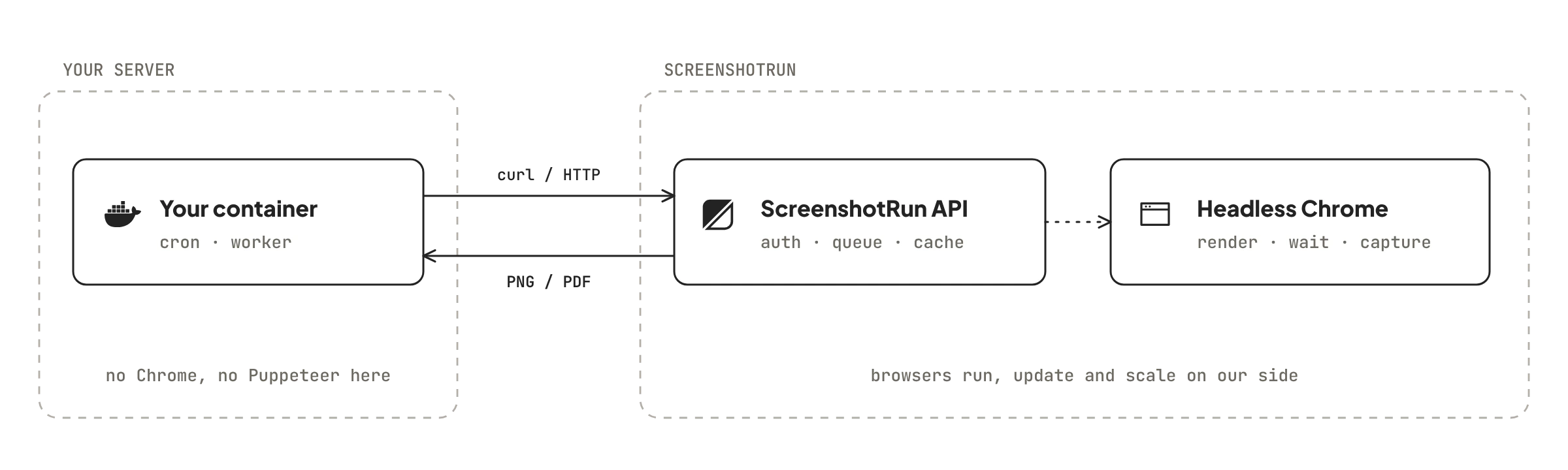
The ScreenshotRun docker screenshot API skips all of that. Your container sends a GET request, our infrastructure runs headless Chrome, and you get back an image: PNG, JPEG, WebP, AVIF, or PDF. The browser never enters your container. No Chromium binary, no Puppeteer, no font packages. Just HTTP.
Your first docker screenshot API call
Grab an API key from the ScreenshotRun dashboard. The free plan includes 200 captures per month with every parameter available, no card on file.
From any container that has curl (Alpine, Debian slim, distroless with a shell, doesn't matter):
curl -G "https://api.screenshotrun.com/v1/screenshots/capture" \
  -H "Authorization: Bearer $SCREENSHOTRUN_KEY" \
  -d "url=https://github.com" \
  -d "format=png" \
  -d "response_type=image" \
  -o screenshot.png
That's the whole integration. The -o flag writes the image to disk; swap it for piping to S3, stdout, or whatever your pipeline expects. No runtime dependencies, no browser binary.
Minimal Dockerfile — no browser, no bloat
A screenshot-capable container without Chrome looks like this:
# Node.js example — 150MB total, not 1.2GB
FROM node:20-alpine

WORKDIR /app
COPY package*.json ./
RUN npm ci --production
COPY . .

ENV SCREENSHOTRUN_KEY=""
EXPOSE 3000
CMD ["node", "server.js"]
Compare that with the typical Puppeteer Dockerfile floating around StackOverflow:
# The "traditional" approach — 950MB to 1.9GB
FROM node:20-slim

RUN apt-get update && apt-get install -y \
    chromium \
    fonts-liberation \
    fonts-noto-color-emoji \
    fonts-freefont-ttf \
    libatk-bridge2.0-0 \
    libdrm2 \
    libgbm1 \
    libnss3 \
    libxkbcommon0 \
    libxshmfence1 \
    --no-install-recommends \
    && rm -rf /var/lib/apt/lists/*

ENV PUPPETEER_EXECUTABLE_PATH=/usr/bin/chromium
ENV PUPPETEER_SKIP_CHROMIUM_DOWNLOAD=true

WORKDIR /app
COPY package*.json ./
RUN npm ci --production
COPY . .

EXPOSE 3000
CMD ["node", "server.js"]
Twelve extra packages, two environment variables that break whenever Puppeteer bumps its Chromium version, and an image size that makes CI pipelines crawl. On a $6 VPS, Chromium alone could eat half your available memory before a single screenshot fires. We've seen build times jump by four minutes just from the font packages.
Node.js screenshot service inside Docker
A typical pattern for building a screenshot service Docker teams actually ship to production: an Express route that proxies capture requests through your backend. The API key stays server-side, your frontend never sees it.
// server.js
import express from 'express';

const app = express();
const API_URL = 'https://api.screenshotrun.com/v1/screenshots/capture';

app.get('/screenshot', async (req, res) => {
  try {
    const url = req.query.url;
    if (!url) return res.status(400).json({ error: 'url is required' });

    const params = new URLSearchParams({
      url,
      format: req.query.format || 'png',
      width: req.query.width || '1280',
      response_type: 'image'
    });

    const response = await fetch(`${API_URL}?${params}`, {
      headers: { 'Authorization': `Bearer ${process.env.SCREENSHOTRUN_KEY}` }
    });

    if (!response.ok) {
      return res.status(502).json({ error: `API returned ${response.status}` });
    }

    const contentType = req.query.format === 'pdf' ? 'application/pdf' : `image/${req.query.format || 'png'}`;
    res.set('Content-Type', contentType);
    res.set('Cache-Control', 'public, max-age=3600');

    const buffer = Buffer.from(await response.arrayBuffer());
    res.send(buffer);
  } catch (err) {
    res.status(500).json({ error: 'Screenshot capture failed' });
  }
});

app.listen(3000, () => console.log('Running on :3000'));
No puppeteer import. No browser.launch() with a wall of Chrome flags. The full Node.js integration guide covers error handling, retries, and batch processing in more depth.
Python container with requests
Same idea for a Python-based container. A FastAPI endpoint that takes a URL, calls the API, streams the image back:
# app.py
import os, requests
from fastapi import FastAPI
from fastapi.responses import Response

app = FastAPI()
API_URL = "https://api.screenshotrun.com/v1/screenshots/capture"

@app.get("/screenshot")
def capture(url: str, format: str = "png", width: int = 1280):
    resp = requests.get(API_URL, params={
        "url": url,
        "format": format,
        "width": width,
        "response_type": "image",
    }, headers={
        "Authorization": f"Bearer {os.environ['SCREENSHOTRUN_KEY']}"
    }, timeout=60)

    resp.raise_for_status()

    media = "application/pdf" if format == "pdf" else f"image/{format}"
    return Response(content=resp.content, media_type=media)
FROM python:3.12-slim
WORKDIR /app
COPY requirements.txt .
RUN pip install --no-cache-dir -r requirements.txt
COPY . .
CMD ["uvicorn", "app:app", "--host", "0.0.0.0", "--port", "8000"]The image pulls in Python, uvicorn, requests, FastAPI. About 180 MB total. Good luck getting Playwright to fit in that budget. The Python integration page has async examples with httpx if you prefer that route.
Docker Compose with environment variables
A production-ready Compose file. The API key lives in an .env file or your secrets manager; the container never stores it on disk:
# docker-compose.yml
services:
  app:
    build: .
    ports:
      - "3000:3000"
    environment:
      - SCREENSHOTRUN_KEY=${SCREENSHOTRUN_KEY}
    restart: unless-stopped
    healthcheck:
      test: ["CMD", "curl", "-f", "http://localhost:3000/health"]
      interval: 30s
      timeout: 5s
      retries: 3
Notice what's missing: no shm_size: '2g', no cap_add: SYS_ADMIN, no --init flag to reap zombie Chrome processes. That entire class of Docker configuration disappears when you use a docker screenshot API instead of bundling the browser.
What breaks when you run Chrome in Docker
Ever wondered why your container suddenly dies at 3 AM with no logs? If you've searched for a reliable headless chrome docker screenshot setup, you've hit at least three of these walls.
Docker allocates 64 MB of shared memory by default. Chromium's renderer uses /dev/shm for inter-process communication, and 64 MB runs out fast on anything beyond a trivial page. The symptom: a SIGBUS crash with no obvious error message. The fix (--disable-dev-shm-usage or --shm-size=2g) trades speed for stability because Chrome falls back to writing temporary files to /tmp instead.
Then there are zombie processes. Chrome spawns child processes for each renderer tab. If your Node app runs as PID 1 inside the container (the default), it won't reap those children when they exit. Over time, zombie renderers pile up. The docker run --init flag (or tini as entrypoint) fixes this, but most Docker tutorials skip it. GitHub issues from 2026 still report this in Linkwarden, Penpot, and other tools that embed headless Chrome.
Fonts are another trap. Minimal Docker images ship without any. CJK characters, emoji, and anything outside basic Latin render as tofu boxes (empty rectangles where glyphs should be). You need fonts-liberation, fonts-noto-color-emoji, and fonts-freefont-ttf at minimum, plus an fc-cache -fv rebuild. Miss one package and half the web looks broken in your screenshots. We handle this on our end with a full font stack covering Latin, CJK, Arabic, Hebrew, Devanagari, and emoji.
Memory is probably the worst offender. Each Chromium renderer tab consumes 100–300 MB of RAM depending on page complexity. Ten concurrent screenshots on a 2 GB VPS and the OOM killer starts dropping processes. Puppeteer's GitHub has an open issue (#5893) about Chrome memory leaks that's been collecting comments for years without a definitive fix.
And the security side: Chromium's sandbox requires kernel capabilities (SYS_ADMIN) or a carefully configured non-root user. Most Docker setups take the shortcut: --no-sandbox. It works, but disables the layer that prevents a compromised renderer from reaching the host filesystem.
What ScreenshotRun handles for you
Each screenshot request spins up an ephemeral Chrome instance on our infrastructure. Fresh browser, no cookies, no cache, no history from previous captures. The instance loads your target URL, waits for JavaScript to finish, fires the capture, and shuts down. Your container never touches Chrome.
Because Chrome never enters your stack, the problems listed above don't transfer. Fonts? We maintain a full set covering Latin, CJK, Arabic, Hebrew, Devanagari, and emoji, the same set that would cost you 200 MB of apt-get packages. Shared memory? Sized for rendering, not constrained by Docker's 64 MB default. Zombie processes and sandbox flags? Not your concern anymore.
On top of the rendering engine, the API gives you things that would take weeks to build from scratch with Puppeteer. Cookie consent dialogs, ad banners, and floating chat widgets each have a dedicated toggle (block_cookies, block_ads, block_chats) instead of the custom click scripts and filter lists you'd maintain yourself. Setting stealth=true rotates browser fingerprints so protected sites don't serve a CAPTCHA wall. Output comes in six formats (PNG, JPEG, WebP, AVIF, PDF) plus scrolling video capture, while Puppeteer limits you to PNG and JPEG without post-processing.
Need to capture a page in its dark color scheme? One parameter flips prefers-color-scheme before the first paint. Want to see how a site renders in a different country? Geolocation targeting handles that, which is useful for e-commerce listing verification or compliance checks across regions.
The free plan includes 200 captures per month with every parameter unlocked, no feature gating, no watermarks. If you outgrow it, paid plans start at $9/month.
Migrating from Puppeteer in Docker to the screenshot API
If you're looking for a puppeteer docker alternative that doesn't require Chrome in your image, the migration is simpler than you'd expect. Puppeteer options map almost directly to API parameters. The table below covers the most common calls.
| Puppeteer code | ScreenshotRun parameter |
|---|---|
page.setViewport({ width: 1440 }) | width=1440 |
page.screenshot({ fullPage: true }) | full_page=true |
page.screenshot({ type: 'webp' }) | format=webp |
page.emulateMediaFeatures([{ name: 'prefers-color-scheme', value: 'dark' }]) | dark_mode=true |
page.waitForSelector('.content') | wait_for_selector=.content |
page.evaluate(() => { ... }) | js=... (up to 10,000 characters) |
page.addStyleTag({ content: '...' }) | css=... |
page.screenshot({ clip: { ... } }) | selector=.target-element |
Rip out the Puppeteer dependency, remove the Chromium packages from your Dockerfile, replace page.screenshot() calls with HTTP requests. That's the whole migration for most setups. Your image drops from north of a gigabyte to a few hundred megabytes, and the next Chrome security advisory becomes somebody else's problem.
One thing the API won't cover: if you're screenshotting your own locally-rendered HTML that isn't accessible via a public URL, you'll need to either use the html parameter (send raw HTML to the API) or expose the page behind a URL the API can reach. The HTML-to-image feature handles the first case.
Saving screenshots to a volume or S3
Inside a Docker container, you typically want screenshots going somewhere persistent: a mounted volume, S3, or another storage backend.
# Save to a mounted volume
docker run -v $(pwd)/screenshots:/data myapp \
  sh -c 'curl -G "https://api.screenshotrun.com/v1/screenshots/capture" \
    -H "Authorization: Bearer $SCREENSHOTRUN_KEY" \
    -d "url=https://example.com" \
    -d "response_type=image" \
    -o /data/example.png'
# Pipe directly to S3 (no temp file)
curl -s -G "https://api.screenshotrun.com/v1/screenshots/capture" \
-H "Authorization: Bearer $SCREENSHOTRUN_KEY" \
-d "url=https://example.com" \
-d "format=webp" \
-d "response_type=image" \
| aws s3 cp - s3://my-bucket/screenshots/example.webpThe pipe-to-S3 pattern works well for ephemeral containers (CI runners, cron jobs, Lambda-like setups) where you don't want to manage local disk at all. Bytes flow from the API straight into S3 without touching the filesystem. No temp file, no cleanup.
Scheduled captures with Docker cron
A lightweight cron container that takes daily screenshots of a list of URLs. No browser in the image. Just curl and a shell script:
FROM alpine:3.19
RUN apk add --no-cache curl
COPY capture.sh /usr/local/bin/capture.sh
RUN chmod +x /usr/local/bin/capture.sh
COPY crontab /etc/crontabs/root
CMD ["crond", "-f"]
#!/bin/sh
# capture.sh
DATE=$(date +%Y-%m-%d)
URLS="https://your-app.com https://competitor.com https://news.ycombinator.com"
for url in $URLS; do
SLUG=$(echo "$url" | sed 's|https\?://||;s|/|-|g;s|\.$||')
curl -s -G "https://api.screenshotrun.com/v1/screenshots/capture" \
-H "Authorization: Bearer $SCREENSHOTRUN_KEY" \
-d "url=$url" \
-d "full_page=true" \
-d "response_type=image" \
-o "/data/screenshots/${SLUG}_${DATE}.png"
echo "Captured: $SLUG ($DATE)"
done# crontab — runs every day at 6 AM UTC
0 6 * * * /usr/local/bin/capture.shThe Alpine image is 8 MB. Add curl and you're at 12 MB. That's the entire screenshot infrastructure. Mount a volume at /data/screenshots for persistence, or replace the -o flag with an S3 upload. For visual change detection over time, pair these daily captures with website change monitoring.
API parameters
All of these work from any Docker container that can make HTTP requests. Pass them as query string parameters on the GET request:
| Parameter | Type | Default | What it does |
|---|---|---|---|
url | string | required | Target page to capture |
format | string | png | Output: png, jpeg, webp, avif, or pdf |
width | integer | 1280 | Viewport width in pixels |
height | integer | 720 | Viewport height in pixels |
full_page | boolean | false | Take one continuous image from the top of the page to the very bottom |
device | string | desktop | Viewport preset: desktop, mobile, or tablet |
retina | boolean | false | Double the DPI for crisp output on Retina and 4K displays (expect roughly 4x the file weight) |
dark_mode | boolean | false | Flip the browser's prefers-color-scheme to dark |
selector | string | — | Crop to a single DOM element |
delay | integer | — | Seconds to wait after page load before capturing (0–10) |
wait_for_selector | string | — | Hold until this CSS selector appears in the DOM |
block_cookies | boolean | false | Clear away cookie consent popups so they don't appear in the capture |
block_ads | boolean | false | Suppress ad banners, interstitials, and tracking-heavy third-party embeds |
block_chats | boolean | false | Hide Intercom, Drift, Crisp, and other live-chat bubbles that float over content |
css | string | — | Inject custom CSS before the capture |
js | string | — | Run JavaScript after load, before the screenshot |
stealth | boolean | false | Bypass bot-detection scripts on protected sites |
response_type | string | json | What comes back: json (URL + metadata), image (raw bytes), or base64 |
Find the full reference in the API docs. One Docker-specific tip: if your container has no writable filesystem (distroless or read-only mounts), use response_type=base64 and handle the image in memory. The base64 feature page covers that pattern.
Self-hosted Docker screenshots vs. ScreenshotRun API
Should you keep running a self-hosted screenshot API Docker setup, or switch to a managed service? We built ScreenshotRun partly because we got tired of debugging this exact stack in production. The comparison below comes from that experience.
| Self-hosted Chrome in Docker | ScreenshotRun API | |
|---|---|---|
| Docker image size | 950 MB – 1.9 GB (Node + Chromium + fonts) | Your app only (50–200 MB) |
| /dev/shm tuning | Required — --shm-size=2g or crashes | Not your problem |
| Chrome sandbox | --no-sandbox or CAP_SYS_ADMIN | Not applicable |
| Font coverage | Manual: apt-get + fc-cache for CJK/emoji | Full stack preinstalled (Latin, CJK, Arabic, emoji) |
| Zombie process cleanup | --init flag or tini entrypoint | Not applicable |
| Memory per capture | 100–300 MB per Chrome tab | HTTP response buffer only |
| Concurrent captures | 3–5 per container before degradation | Rate-limited by plan, scales horizontally on our side |
| Chromium updates | Your responsibility — new version every 4 weeks | Managed by ScreenshotRun |
| Output formats | PNG, JPEG, PDF (Puppeteer); more with Playwright | PNG, JPEG, WebP, AVIF, PDF, scrolling video |
| Cookie/ad blocking | Write Puppeteer scripts per site | One parameter each: block_cookies, block_ads, block_chats |
| Bot detection bypass | Maintain stealth patches yourself | stealth=true |
| Cost at 1K captures/month | VPS + your engineering hours | Free plan (200/mo) or $9/mo Starter |
| Cost at 50K captures/month | Multiple containers + load balancer + ops time | $49/mo Pro plan |
Self-hosted Chrome makes sense in one scenario: you need to screenshot your own app's pages that aren't publicly accessible, and you're already running Chrome for other reasons (end-to-end testing, PDF generation from internal views). For capturing external URLs at scale (monitoring, thumbnails, archival, product listing snapshots), a hosted docker screenshot API strips a whole infrastructure layer out of your Compose stack.
One honest tradeoff: the API adds network latency. A local Chrome tab renders in 1–3 seconds; the API call adds round-trip time on top of rendering. For interactive use cases where sub-second response matters, local Chrome is faster. The gap closes for batch workloads and disappears entirely when you factor in cold-start time for a Docker container that isn't already running.
FAQ#
No. ScreenshotRun runs headless Chrome on its own infrastructure. Your container only needs to make an HTTP request (curl, fetch, requests, or any HTTP client). No Chromium binary, no font packages, no --no-sandbox flags.
Zero bytes. The API is a remote service accessed over HTTP. A typical Node.js container stays at 150 MB instead of the 950 MB to 1.9 GB that Puppeteer with Chromium requires.
The HTTP request will timeout or fail, just like any external API call. Use retry logic with exponential backoff in your application code. The free plan includes 200 captures per month, and paid plans scale up from there.
Yes. Set response_type=base64 to receive the screenshot as a base64-encoded string instead of writing to disk. This works in containers with no writable filesystem.
Use environment variables via docker-compose.yml, Docker secrets, or your orchestrator's secret management. Never bake the key into the Docker image. The examples on this page show the SCREENSHOTRUN_KEY environment variable pattern.