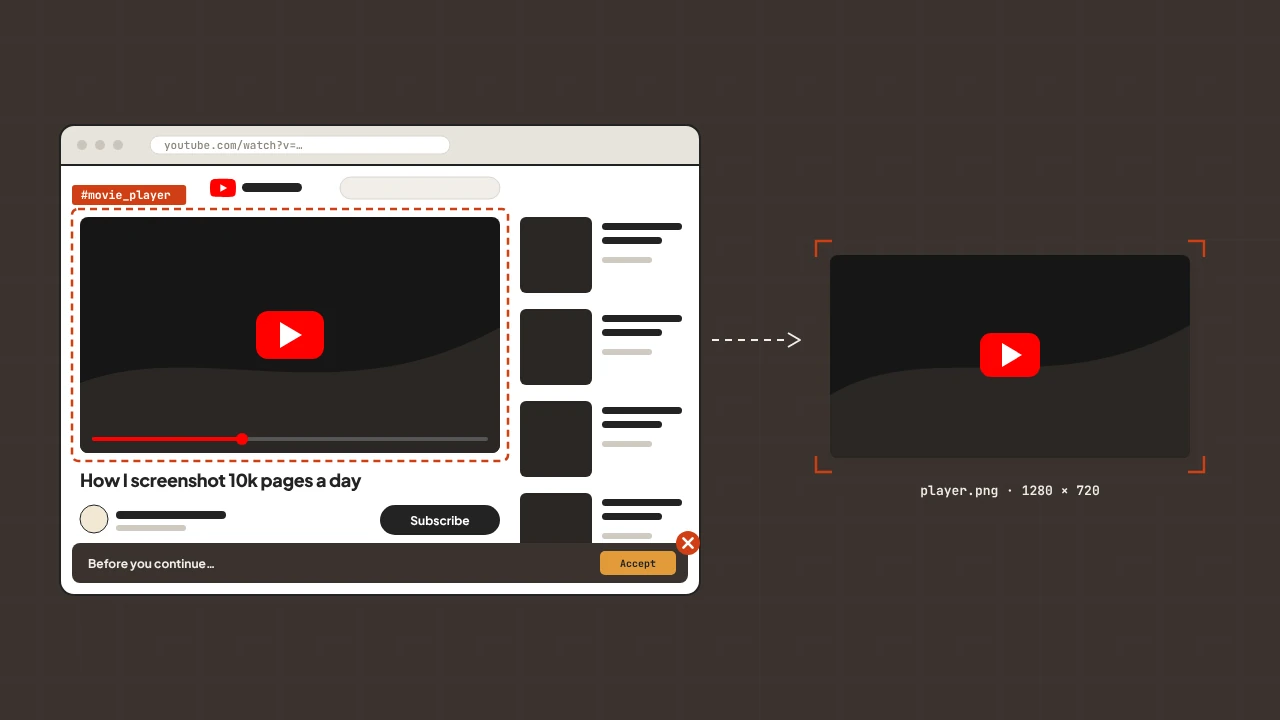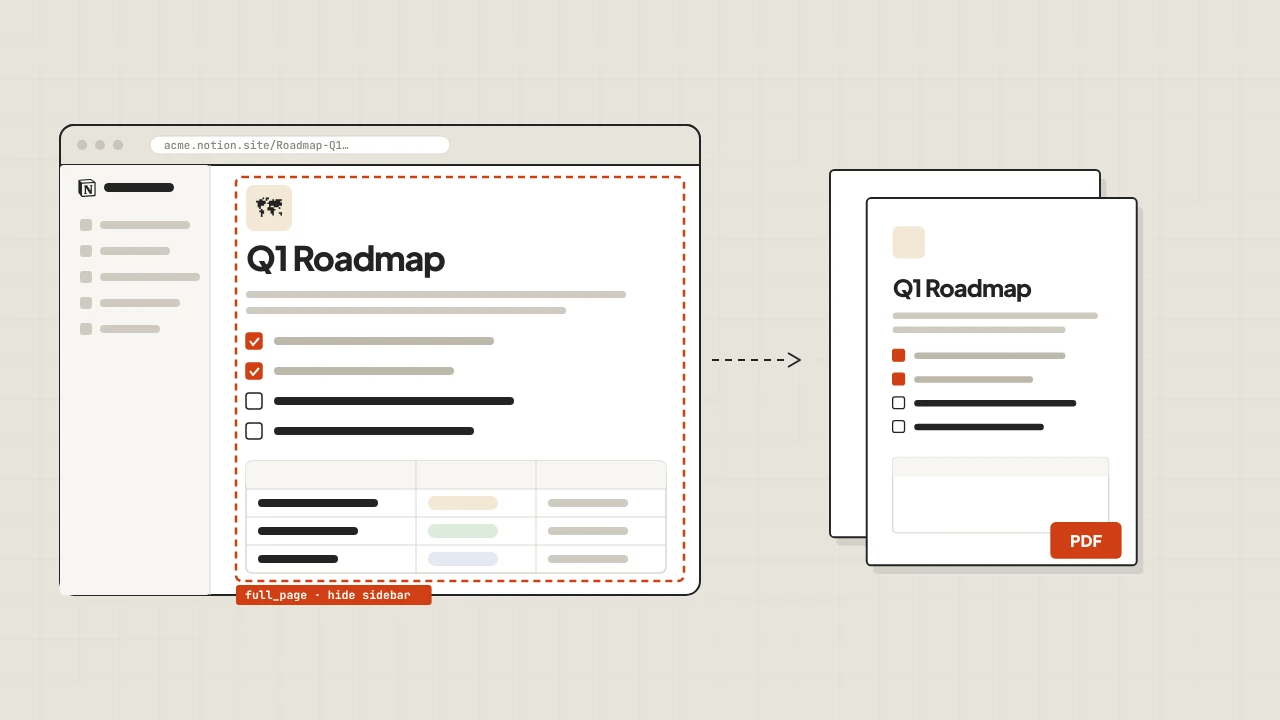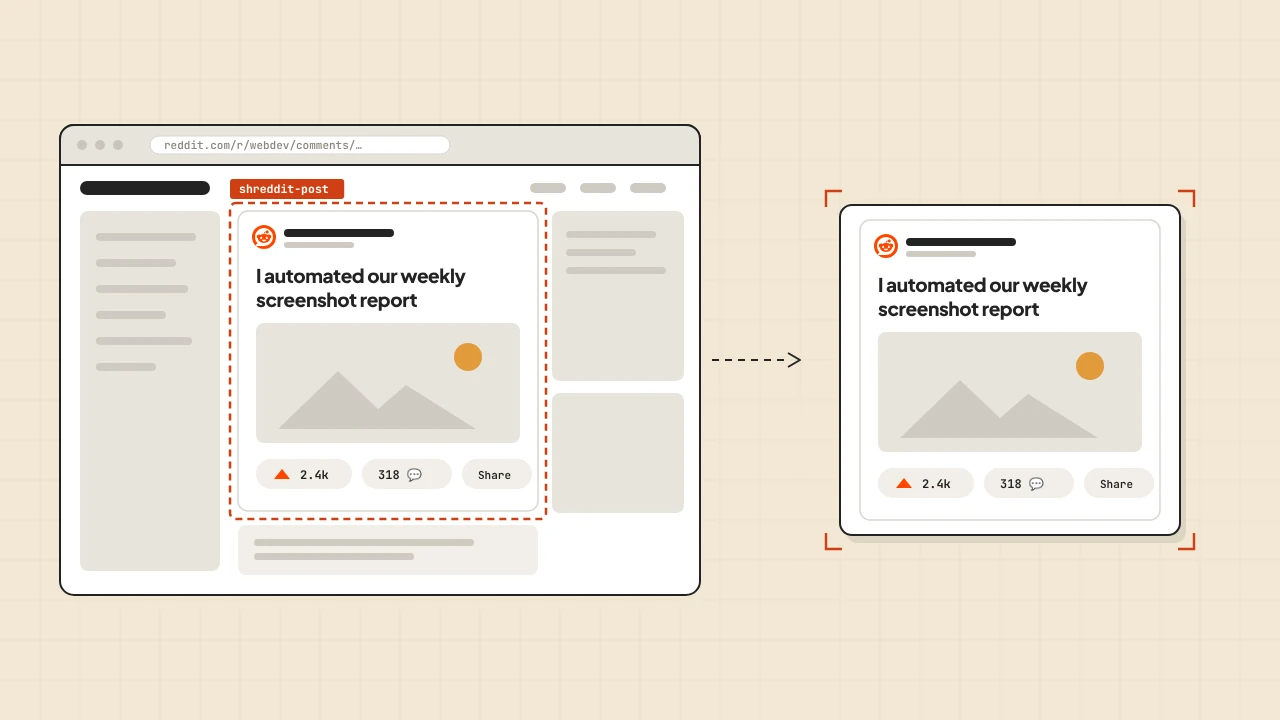
Internal tools handle URLs constantly — content audits, link databases, approval queues, competitor tracking dashboards. When those tools only show URLs, the person using them has to context-switch to a browser to see what's actually there. Adding a screenshot column changes that: the page renders right inside the Retool table or panel, without leaving the tool.
ScreenshotRun connects to Retool as a REST API resource. You configure it once, then any app in your Retool organization can use screenshot queries. Set up the resource, add a query, pipe the response into an Image component or a table image column.
Setting Up the REST API Resource
In Retool, go to Resources → Create a resource → REST API. Configure it as follows:
- Base URL:
https://api.screenshotrun.com - Headers: add
Authorizationwith valueBearer {{ secrets.SCREENSHOTRUN_API_KEY }}
Store the API key in Retool Secrets (Settings → Secrets) rather than pasting it directly into the resource configuration. The {{ secrets.KEY_NAME }} syntax injects it at query time without exposing the value in the UI.
Creating a Screenshot Query
Add a new query to your app using the ScreenshotRun resource. Set the method to GET and the path to /v1/screenshots/capture. In the URL parameters section, add:
| Parameter | Value |
|---|---|
url |
{{ urlInput.value }} |
format |
png |
width |
1280 |
height |
720 |
block_ads |
true |
{{ urlInput.value }} references a text input component on the canvas. When a user types a URL and triggers the query, that value gets passed to the API.
Displaying the Screenshot in an Image Component
Retool's Image component accepts a base64 data URI as its source. The screenshot API returns raw image bytes, so you need a transformer to convert the response before passing it to the component.
In the query's Transformer tab, add:
// Convert raw response bytes to a base64 data URI
const bytes = new Uint8Array(data);
const binary = bytes.reduce((acc, byte) => acc + String.fromCharCode(byte), "");
const base64 = btoa(binary);
return `data:image/png;base64,${base64}`;
Then set the Image component's Image source to:
{{ screenshotQuery.data }}The image renders immediately after the query completes. Connect the query to a Button component's onClick handler so it fires when the user clicks "Capture" — or enable Run when inputs change if you want it to update automatically as the URL changes.
Screenshot Preview Column in a Table
When your Retool app shows a table of URLs — a content audit list, a link database, a monitoring dashboard — adding a screenshot preview column gives reviewers immediate visual context. This requires fetching screenshots for each row.
Use a JavaScript query to fetch screenshots for all rows in parallel:
// JavaScript query: fetch_all_screenshots
const urls = urlTable.data.map(row => row.url);

const results = await Promise.allSettled(
  urls.map(async (url) => {
    const params = new URLSearchParams({
      url,
      format: "png",
      width: "400",
      height: "300",
      block_ads: "true",
    });

    const response = await fetch(
      `https://api.screenshotrun.com/v1/screenshots/capture?${params}`,
      {
        headers: {
          Authorization: `Bearer ${Retool.getEnv("SCREENSHOTRUN_API_KEY")}`,
        },
      }
    );

    if (!response.ok) return { url, src: null };

    const buffer = await response.arrayBuffer();
    const bytes = new Uint8Array(buffer);
    const binary = bytes.reduce((acc, b) => acc + String.fromCharCode(b), "");
    const base64 = btoa(binary);

    return { url, src: `data:image/png;base64,${base64}` };
  })
);

return results
  .filter(r => r.status === "fulfilled")
  .map(r => r.value);
In the table, add an Image column type and set its value to {{ fetch_all_screenshots.data.find(r => r.url === currentRow.url)?.src }}. Each row shows the screenshot of its URL inline.
For large tables, capture thumbnails at width=400, height=300 rather than full desktop size. Smaller images load faster and fit better in table cells.
Live URL inspector Panel
A common Retool pattern: a table on the left, a detail panel on the right. When a user clicks a row in the table, the panel shows details about that record. Add a screenshot preview to the panel and it becomes a URL inspector — click any row to see what the page looks like.
// Query: inspect_selected_url
// Runs on table row selection (Run when inputs change: enabled)
const url = urlTable.selectedRow.data.url;
if (!url) return null;

const params = new URLSearchParams({
  url,
  format: "webp",
  width: "1200",
  block_ads: "true",
});

const response = await fetch(
  `https://api.screenshotrun.com/v1/screenshots/capture?${params}`,
  {
    headers: {
      Authorization: `Bearer ${Retool.getEnv("SCREENSHOTRUN_API_KEY")}`,
    },
  }
);

if (!response.ok) return null;

const buffer = await response.arrayBuffer();
const bytes = new Uint8Array(buffer);
const binary = bytes.reduce((acc, b) => acc + String.fromCharCode(b), "");
return `data:image/webp;base64,${btoa(binary)}`;
Set the detail panel's Image component source to {{ inspect_selected_url.data }}. With Run when inputs change enabled on the query, selecting a row automatically fires the capture and updates the preview.
Caching Screenshots in Retool State
Capturing a fresh screenshot every time a user selects a row gets expensive quickly. Store results in a Retool state variable so each URL is only captured once per session:
// Query: get_or_fetch_screenshot
const url = urlTable.selectedRow.data.url;
if (!url) return null;

// Check in-session cache
const cache = screenshotCache.value || {};
if (cache[url]) return cache[url];

const params = new URLSearchParams({
  url,
  format: "webp",
  width: "1200",
  block_ads: "true",
});

const response = await fetch(
  `https://api.screenshotrun.com/v1/screenshots/capture?${params}`,
  {
    headers: {
      Authorization: `Bearer ${Retool.getEnv("SCREENSHOTRUN_API_KEY")}`,
    },
  }
);

if (!response.ok) return cache[url] || null;

const buffer = await response.arrayBuffer();
const bytes = new Uint8Array(buffer);
const binary = bytes.reduce((acc, b) => acc + String.fromCharCode(b), "");
const dataUri = `data:image/webp;base64,${btoa(binary)}`;

// Update session cache
await screenshotCache.setValue({ ...cache, [url]: dataUri });
return dataUri;
screenshotCache is a State component with an initial value of {}. Each URL gets captured once and stored for the duration of the session. Fast for repeat selections, without touching the API again.
Approval Queue with Visual Context
Moderation and approval workflows are among the most common Retool use cases — reviewing user-submitted content, approving marketing assets, signing off on SEO changes before they go live. When those items involve URLs, adding a screenshot to the approval queue removes the constant browser context switching that slows reviewers down.
The pattern: a table shows pending items. When a reviewer selects a row, the right panel loads a screenshot of the URL alongside metadata and action buttons:
// Query: screenshot_selected
// Runs on row selection — set "Run when inputs change" to ON
const url = pendingTable.selectedRow.data.url;
if (!url) return null;
// Session cache: each URL is only captured once per session
const cache = screenshotCache.value || {};
if (cache[url]) return cache[url];
const params = new URLSearchParams({
  url,
  format: "webp",
  width: "1200",
  block_ads: "true",
});
const response = await fetch(
  `https://api.screenshotrun.com/v1/screenshots/capture?${params}`,
  {
    headers: {
      Authorization: `Bearer ${Retool.getEnv("SCREENSHOTRUN_API_KEY")}`,
    },
  }
);
if (!response.ok) return null;
const buffer = await response.arrayBuffer();
const bytes = new Uint8Array(buffer);
const base64 = btoa(bytes.reduce((acc, b) => acc + String.fromCharCode(b), ""));
const dataUri = `data:image/webp;base64,${base64}`;
await screenshotCache.setValue({ ...cache, [url]: dataUri });
return dataUri;
Set the detail panel's Image component source to {{ screenshot_selected.data }}. Add Approve and Reject buttons that fire SQL update queries: UPDATE submissions SET status = 'approved' WHERE id = {{ pendingTable.selectedRow.data.id }}. Reviewers see the actual page render, make a decision, and move on without touching a browser.
For SEO audit workflows where dozens of pages need sign-off before a migration, this pattern cuts review time considerably. The reviewer never has to wonder whether a URL is broken or showing stale content — the screenshot is what the page looks like right now, rendered at a consistent 1200px viewport with ads blocked out.
Parameters for Retool Apps
| Parameter | Recommended for Retool | Notes |
|---|---|---|
format |
webp |
Smaller than PNG. Retool Image component handles WebP natively. |
width |
400 for table cells, 1200 for preview panels | Match the display size. Fetching 1280px to show in a 200px column wastes time. |
block_ads |
true | Cleaner previews without ad overlays cluttering the internal tool UI. |
full_page |
false | Viewport-only captures are faster. full-page-screenshot">full-page only makes sense for archival tools. |
quality |
80 | Reduces WebP size for table thumbnails where pixel-perfect rendering isn't needed. |