
 Vitalii Holben
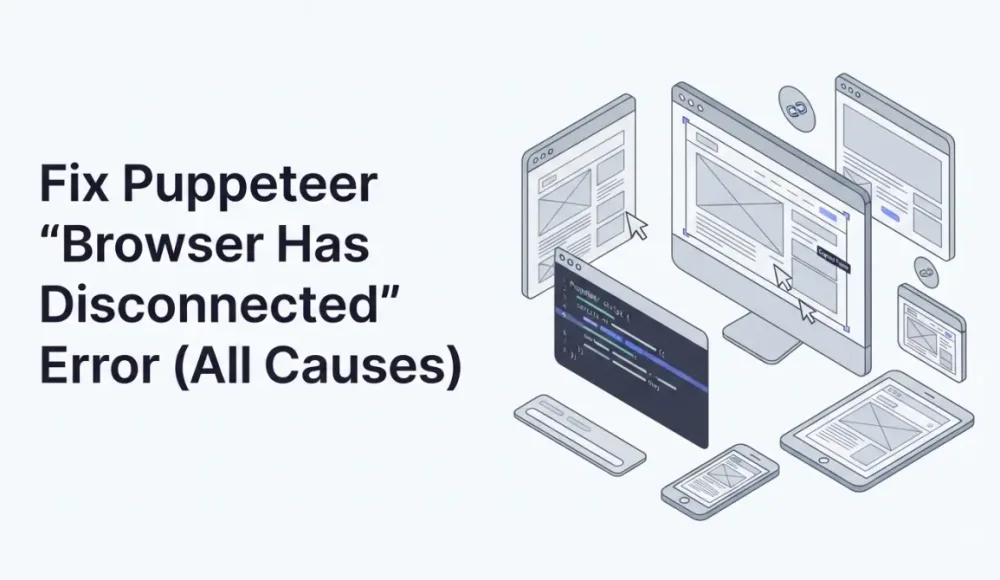
"Browser has disconnected" is not a Chrome bug. Almost every time, something outside the browser killed it. The Linux out-of-memory killer. A Docker container running out of RAM. A proxy that closed an idle connection. Your own code calling browser.close() too early. Chrome didn't choose to disconnect. It was killed.
The error shows up in two forms. During page.goto() you'll see "Navigation failed because browser has disconnected!" During anything else, it's "Protocol error: Connection closed. Most likely the browser was closed." Different wording, same problem: Puppeteer lost its link to Chrome and can't get it back.
How Puppeteer Talks to Chrome (and Why It Breaks)
Puppeteer controls Chrome through a single connection called a WebSocket. Think of it as a phone line between your script and the browser. Every command (opening a page, taking a screenshot, clicking a button) goes through that one line.
When the line drops, everything fails at once. Doesn't matter if Chrome was in the middle of loading a page or taking a screenshot. The connection is gone and there's no way to restore it. You have to start a new browser from scratch.
This is different from a "Page crashed!" error. A page crash kills one tab, but the browser keeps running and you can open a new tab. "Browser has disconnected" means the whole browser is dead. Every tab, every operation, all gone.
Linux Killed Your Chrome and Didn't Tell You
The most common cause by far. Chrome is a memory hog. A single Chrome window with one page open eats 150 to 300 MB of RAM on a server. Open a few tabs on complex sites and you're past a gigabyte easily.
Linux has a built-in safety mechanism called the OOM killer (Out Of Memory killer). When the server runs low on RAM, it picks the most memory-hungry process and kills it immediately. No warning, no chance to save state. Chrome just vanishes, and Puppeteer discovers the loss when its next command fails.
To check if this happened to you, run this on your server:
dmesg | grep -i "oom\|killed process"

# If you see something like this, Chrome was killed for using too much memory:
# Out of memory: Killed process 8291 (chrome) total-vm:2834560kB
# oom_reaper: reaped process 8291 (chrome)
Docker makes this problem worse (see also: Chrome ERR_CONNECTION_REFUSED in Docker). Containers usually have tighter memory limits than the host machine. If your container is limited to 512 MB, Chrome can get killed after loading just two or three pages:
# Check your container's memory limit
cat /sys/fs/cgroup/memory/memory.limit_in_bytes
# 536870912 = 512 MB — too tight for Chrome

# Give the container more room
docker run --memory=2g --shm-size=2g my-puppeteer-app
That --shm-size flag is important too. Chrome uses a shared memory folder called /dev/shm to pass data between its internal processes. Docker only gives this folder 64 MB by default, which isn't enough. Either add --disable-dev-shm-usage to your Chrome launch arguments (tells Chrome to use /tmp instead) or increase --shm-size to 2 GB. The page crash post covers this in more detail.
One more thing: the OOM killer sometimes kills a Chrome subprocess instead of the main process. The result looks the same: you get the disconnect error. But dmesg shows a child process was killed, not the main one. The cascade takes the whole browser down either way.
Your Code Is Closing the Browser Too Early
The second most common cause, and this one is entirely in your own code.
// BROKEN: browser closes while the page is still loading
const browser = await puppeteer.launch();
const page = await browser.newPage();

page.goto('https://example.com'); // missing await!
await browser.close(); // runs immediately, kills Chrome mid-navigation
See the missing await? Without it, page.goto() starts loading the page but doesn't wait for it to finish. The next line runs right away and closes the browser while Chrome is still working.
Subtler versions of the same bug show up in more complex code. I've debugged three of these in the past month, each with a different trigger. A try/finally block that closes the browser while a screenshot is still being taken. A timeout that fires and triggers cleanup while Chrome is still rendering. A signal handler that calls browser.close() during an active operation.
// BROKEN: timeout kills the browser while screenshot is still running
const browser = await puppeteer.launch();
try {
  const page = await browser.newPage();
  await page.goto('https://example.com');

  // If screenshot takes longer than 5 seconds, the timeout rejects
  // and finally runs immediately — while screenshot() is still working
  const screenshot = await Promise.race([
    page.screenshot({ fullPage: true }),
    new Promise((_, reject) =>
      setTimeout(() => reject(new Error('timeout')), 5000)
    )
  ]);
} finally {
  await browser.close();
}
The fix is simple in principle: make sure every page operation finishes (or fails) before you close the browser. Here's a pattern that handles this correctly:
async function captureScreenshot(url) {
  const browser = await puppeteer.launch();
  try {
    const page = await browser.newPage();
    await page.goto(url, { waitUntil: 'networkidle2', timeout: 30000 });
    const buffer = await page.screenshot({ fullPage: true });
    await page.close();
    return buffer;
  } catch (err) {
    console.error('Capture failed:', err.message);
    return null;
  } finally {
    await browser.close();
  }
}
In this pattern, catch absorbs any error from page operations. Only after that does finally close the browser. No race between page work and cleanup.
Remote Browsers and Dropped Connections
Sometimes you connect Puppeteer to a Chrome instance running on a different server. Instead of launching Chrome locally, you point Puppeteer at a remote browser using a WebSocket address:
const browser = await puppeteer.connect({
  browserWSEndpoint: 'ws://chrome-server:3000'
});
This adds a network layer between Puppeteer and Chrome. And networks fail.
Proxy timeouts cause most of these failures. If you have Nginx, HAProxy, or a cloud load balancer between Puppeteer and Chrome, it probably has a timeout for idle connections. Nginx defaults to 60 seconds. If your page takes longer than that to render and no data flows through the connection in the meantime, the proxy closes it. Puppeteer gets "browser has disconnected" and doesn't know why.
For Nginx, increase the timeout:
# nginx.conf
location /ws {
  proxy_pass http://chrome-backend;
  proxy_http_version 1.1;
  proxy_set_header Upgrade ;
  proxy_set_header Connection "upgrade";
  proxy_read_timeout 600s;  # 10 minutes instead of the default 60
  proxy_send_timeout 600s;
}
Regular network problems can cause disconnects too. A brief packet loss, a DNS hiccup, the cloud provider doing maintenance. The WebSocket drops and Puppeteer has no built-in reconnection. Once the connection is lost, that browser object is useless.
// When connecting to remote Chrome, handle disconnects with a fresh connection
async function getConnectedBrowser(endpoint) {
  try {
    const browser = await puppeteer.connect({ browserWSEndpoint: endpoint });
    browser.on('disconnected', () => {
      console.log('Browser disconnected — will reconnect on next job');
    });
    return browser;
  } catch (err) {
    console.error('Connection failed:', err.message);
    await new Promise(r => setTimeout(r, 2000));
    return getConnectedBrowser(endpoint);
  }
}
Never try to reuse a disconnected browser object. It's dead. Create a new connection.
Serverless Platforms That Kill Chrome Mid-Work
Serverless functions (AWS Lambda, Google Cloud Run, Vercel) have strict time limits. Lambda gives you up to 15 minutes. Cloud Run defaults to 5 minutes. Vercel's free tier gives you 10 seconds.
When time runs out, the platform kills your function immediately along with everything running inside it, including Chrome. No cleanup code runs. The process just stops. Any Puppeteer operation in progress fails with the disconnect error.
What makes this tricky: it works fine on fast pages. A page that loads in 3 seconds finishes well within the time limit. But one slow page with heavy JavaScript that takes 45 seconds to render, and your function hits the wall. Same code, different URL, completely different result.
// Lambda: always check how much time is left before doing expensive work
exports.handler = async (event, context) => {
  const remainingMs = context.getRemainingTimeInMillis();

  if (remainingMs < 15000) {
    return { statusCode: 408, body: 'Not enough time remaining' };
  }

  const browser = await puppeteer.launch({
    args: ['--no-sandbox', '--disable-dev-shm-usage'],
  });

  try {
    const page = await browser.newPage();
    // Leave a 5-second buffer for Chrome to shut down cleanly
    await page.goto(event.url, {
      timeout: Math.min(30000, remainingMs - 5000)
    });
    const screenshot = await page.screenshot();
    return { statusCode: 200, body: screenshot.toString('base64') };
  } finally {
    await browser.close();
  }
};
That 5-second buffer (remainingMs - 5000) gives Chrome time to shut down before Lambda forcefully terminates everything. Without it, pages that barely exceed the timeout will crash with a disconnect error.
Vercel and Cloudflare Workers have such short time limits that running a real browser inside them is unrealistic. Even on Lambda, just starting Chrome takes 2-4 seconds. On platforms that measure in milliseconds, Chrome won't even finish booting.
Mismatched Puppeteer and Chrome Versions
Version mismatches can also cause Chrome to not be found at all. If Puppeteer expects one revision but finds a different one (or nothing), you get a "could not find expected browser" error instead of a disconnect.
Every Puppeteer version is built to work with a specific Chrome version. When you run npm install puppeteer, it automatically downloads the matching Chrome. Problems start when you skip this and point Puppeteer at a different Chrome installation.
// Telling Puppeteer to use a Chrome you installed separately
const browser = await puppeteer.launch({
  executablePath: '/usr/bin/google-chrome-stable'
});
If the versions don't match, commands can fail in unexpected ways. Chrome might drop the connection entirely. This happens most often in Docker images where Chrome is installed through apt-get separately from Puppeteer. Over time the system Chrome gets updated but Puppeteer stays on the old version, and the two stop speaking the same language.
Simplest fix: let Puppeteer download its own Chrome. If you must use a system Chrome, pin it to a specific version so it doesn't drift.
Catching Disconnects and Recovering Automatically
You can't prevent every disconnect. SPAs with client-side rendering are especially unpredictable, and some pages just spike memory no matter what you do. The realistic goal is to detect the problem and recover without crashing your whole application.
class BrowserPool {
  constructor(launchOptions) {
    this.launchOptions = launchOptions;
    this.browser = null;
  }

  async getBrowser() {
    if (!this.browser || !this.browser.isConnected()) {
      if (this.browser) {
        try { await this.browser.close(); } catch (_) {}
      }
      this.browser = await puppeteer.launch(this.launchOptions);
      this.browser.on('disconnected', () => {
        console.log('Browser disconnected at', new Date().toISOString());
        this.browser = null;
      });
    }
    return this.browser;
  }

  async screenshot(url, retries = 2) {
    for (let attempt = 0; attempt <= retries; attempt++) {
      try {
        const browser = await this.getBrowser();
        const page = await browser.newPage();
        try {
          await page.goto(url, { waitUntil: 'networkidle2', timeout: 30000 });
          const buffer = await page.screenshot({ fullPage: true });
          await page.close();
          return buffer;
        } catch (err) {
          await page.close().catch(() => {});
          throw err;
        }
      } catch (err) {
        if (err.message.includes('disconnected') ||
            err.message.includes('Browser closed') ||
            err.message.includes('Connection closed')) {
          this.browser = null;
          if (attempt < retries) {
            console.log();
            continue;
          }
        }
        throw err;
      }
    }
  }
}

const pool = new BrowserPool({
  headless: 'new',
  args: ['--no-sandbox', '--disable-dev-shm-usage', '--disable-gpu']
});

// Usage: automatically retries on disconnect
const screenshot = await pool.screenshot('https://example.com');
Notice browser.isConnected(). It tells you whether Chrome is still alive. If it returns false, you know the browser died and you need to launch a new one. Without this check, you'd try to use a dead browser and get a confusing error about targets or contexts.
If you're processing hundreds of URLs in a batch, restart the browser every 30 to 50 pages as a precaution. Chrome gradually uses more memory over time. A planned restart at a reasonable interval is much better than debugging an unexpected crash in the middle of the night.
Quick Diagnostic: Find Your Cause
Before you start fixing anything, figure out which type of disconnect you're dealing with.
- Crashes after processing many pages: Memory problem. Check
dmesgfor OOM entries. Add more RAM to your server or container, or restart the browser every few dozen pages. - Crashes right after launching Chrome: The browser didn't start correctly. See the failed to launch guide instead.
- Crashes only on heavy pages: A single page is using too much memory. Limit viewport height, block images or fonts you don't need.
- Crashes after the browser sits idle: A proxy or load balancer is closing the connection after a timeout. Increase
proxy_read_timeout. - Crashes randomly on any page: Your container might be getting killed by its orchestrator (Kubernetes, ECS). Check container-level metrics and events.
- Only crashes in CI or serverless: Function timeout. Make sure your page timeout is shorter than the function timeout.
If none of these fit, turn on Puppeteer's built-in debug logging to see exactly what was happening when Chrome died:
DEBUG=puppeteer:* node your-script.js 2>&1 | tee puppeteer-debug.logLook at the last few messages before the disconnect. That's what Chrome was doing when it went down.
When Managing Chrome Yourself Stops Being Worth It
Every fix in this article is about keeping a browser process alive and healthy. Memory limits, Docker settings, WebSocket monitoring, reconnection logic, version management, timeout calculations. That's a lot of work that has nothing to do with the actual screenshots you want.
A screenshot API handles all of that for you. Chrome lifecycle, memory, crashes, retries — the provider deals with it. Your code becomes one HTTP request:
const response = await fetch(
  'https://api.screenshotrun.com/v1/screenshots/capture?url=https://example.com&format=png&full_page=true',
  { headers: { Authorization: 'Bearer YOUR_API_KEY' } }
);

const screenshot = await response.arrayBuffer();
No browser process to babysit. No WebSocket to monitor. If something fails on the API side, it retries automatically before returning an error to you. Puppeteer is still the right choice if you need full browser automation — filling forms, clicking through flows, extracting data. But if all you need is screenshots, the time spent on Chrome infrastructure adds up fast.
Frequently Asked Questions
The Chrome process that Puppeteer was controlling has either crashed, been killed by the operating system, or lost its WebSocket connection. Unlike a "Page crashed" error where only one tab dies, this means the entire browser process is gone and all pending operations fail. You need to launch a new browser instance to continue.
Two things to check: memory limit and shared memory. Run your container with --memory=2g --shm-size=2g, or add --disable-dev-shm-usage to Chrome launch args. Also check dmesg for OOM killer entries — if Linux is killing Chrome for exceeding the container memory limit, you need to either increase the limit or reduce concurrent pages.
Chrome leaks memory over time. After 50-100 pages, memory usage can exceed your server or container limit, triggering the Linux OOM killer. Fix: close pages immediately after use with page.close(), restart the browser every 30-50 pages as prevention, and monitor RSS memory of the Chrome process.
Set your page.goto() timeout lower than your Lambda function timeout, with at least a 5-second buffer for cleanup. Use context.getRemainingTimeInMillis() to check remaining time before starting expensive operations. Lambda needs at least 1536 MB of function memory for reliable Puppeteer screenshots.
No. Once the browser disconnects, the browser object is dead and cannot be reused. You must call puppeteer.launch() to start a fresh instance or puppeteer.connect() to attach to a new remote browser. Use browser.isConnected() to detect disconnects, and implement retry logic that launches a new browser on failure.
Usually a proxy or load balancer timeout. Nginx defaults to 60 seconds for WebSocket connections. If your page render takes longer than the proxy timeout and no messages travel the socket, the proxy closes it. Increase proxy_read_timeout to at least 600 seconds. Network blips and DNS hiccups can also drop the WebSocket connection.
Fix "Could Not Find Expected Browser (Chrome) Locally" in Puppeteer
Puppeteer cannot find Chrome? Fix the "could not find expected browser locally" error in Docker, CI/CD, serverless, monorepos, and local development.
Read more →
Why Instagram Breaks Your Screenshots (And How to Fix It with Playwright)
Instagram shows two login popups, triggers React re-renders when you hide them wrong, and locks scrollHeight to the viewport. Three problems, three fixes for Playwright and Puppeteer.
Read more →
Fix Failed to Launch the Browser Process in Puppeteer
Every cause of Puppeteer browser launch failures with tested fixes for each environment.
Read more →