
 Vitalii Holben
Fix "Page Crashed!" in Puppeteer — Memory, Docker, /dev/shm
Puppeteer throwing "Page crashed!" errors? Trace it to /dev/shm limits, OOM kills, or heavy pages. Concrete fixes for Docker and bare-metal.
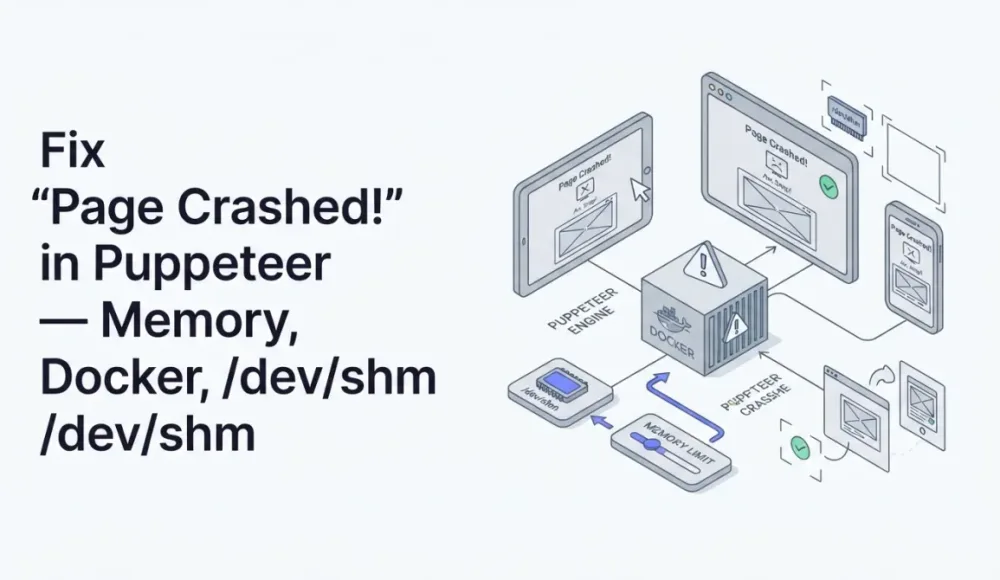
Your Puppeteer script dies with "Page crashed!" and that's it. No stack trace, no line number, no URL that caused it. I wasted most of a Saturday on this the first time because I kept looking for a bug in my code. There wasn't one.
Why the Puppeteer Page Crashed Error Gives You Nothing
Most Puppeteer errors at least point you somewhere. Timeout errors tell you which navigation took too long. Protocol errors name the method that failed. Even ERR_ABORTED gives you the URL that got canceled.
"Page crashed!" gives you nothing. I've spent entire afternoons staring at this in production logs, trying to guess which of 200 URLs broke the script.
And you can't just retry. The page object is dead. The Chrome process behind that tab is gone. You have to close the page, open a fresh one, and start over. If you skip that step, the next call on that page throws a completely different error, and now you're debugging two problems instead of one.
Where the Crash Actually Happens
Chrome doesn't run as one program. It splits itself into separate processes: one main "browser" process that manages everything, and a separate "renderer" process for each tab. When Puppeteer opens a page, that page gets its own renderer.
"Page crashed!" means that renderer process died. If the entire browser process dies instead of just one tab, you'll see a different error: "browser has disconnected" — that's worse because every page goes down at once. Maybe the operating system killed it for using too much memory. Maybe it hit an internal error. Either way, the tab is gone. The browser itself keeps running, other tabs survive, but this one page is dead and can't come back.
Playwright throws a similar error for the same reasons — both tools run on Chromium under the hood.
You can catch the crash in code, but the message won't help you find the cause:
page.on('error', (err) => {
  console.log('Page crashed:', err.message);
  // err.message is literally "Page crashed!" — that's all you get
});

// Don't confuse with pageerror, which catches JavaScript exceptions
page.on('pageerror', (err) => {
  console.log('JS error on page:', err.message);
});
The actual cause is always outside your JavaScript. It's a memory limit, a Docker configuration, or a Chrome flag problem. That's where you need to look.
The /dev/shm Problem That Crashes Puppeteer in Docker
If you're running Puppeteer inside Docker, start here. This is the most common cause I've run into.
Chrome uses a special shared memory folder called /dev/shm to pass data between its processes. Docker gives this folder only 64 MB by default. That's not enough. Chrome can burn through 64 MB rendering a single complex page, and when the space runs out, the renderer crashes.
If Chrome isn't crashing but refusing to start at all, that's a different Docker issue.
Check how much shared memory your container has:
docker exec my-container df -h /dev/shm
# Filesystem  Size  Used  Avail  Use%
# shm          64M   32M    32M   50%
64M? That's the problem. Three fixes, pick whichever fits your setup:
# Fix 1: give the container more shared memory
docker run --shm-size=2g my-puppeteer-image

# Fix 2: tell Chrome to skip /dev/shm entirely and use /tmp instead
# (slightly slower, but no container config changes needed)
const browser = await puppeteer.launch({
  args: ['--disable-dev-shm-usage']
});
For Docker Compose, add shm_size: "2g" to your service. For Kubernetes, mount an emptyDir volume with medium: Memory at /dev/shm:
volumes:
  - name: shm
    emptyDir:
      medium: Memory
      sizeLimit: 2Gi

volumeMounts:
  - mountPath: /dev/shm
    name: shm
I've seen teams debug this for days before finding it. Everything works on macOS locally (it doesn't have this limitation), and only breaks in CI or production. That's what makes it so frustrating.
Heavy Pages That Eat All Your RAM
Even outside Docker, a page can crash the renderer by simply using too much memory. A single Chrome tab can quietly consume half a gigabyte on a heavy SPA. I've watched htop show individual Chrome processes at 600+ MB on pages with lots of iframes and images.
On a 2 GB server, you might get away with 3-4 pages open at once. On a 1 GB instance, two heavy pages can be enough. When your server runs out of memory, Linux kills the hungriest process. No warning, no graceful shutdown. Chrome's renderer just disappears.
You can confirm this happened by checking system logs:
dmesg | grep -i "oom\\|killed process"

# You'll see something like:
# Out of memory: Killed process 12345 (chrome) total-vm:2048000kB
The fix is straightforward: add more RAM, run fewer pages at the same time, or close pages as soon as you're done with them instead of keeping them around.
Screenshots and PDFs as Crash Triggers
A detail most developers miss: taking a screenshot is the most memory-hungry thing you can ask Chrome to do. Chrome has to hold the entire page image in memory as a raw bitmap. A full-page screenshot of a page that's 1280 pixels wide and 15,000 pixels tall? That's about 73 MB just for the image buffer, on top of whatever the page itself is already using.
Retina screenshots make it worse. A 2x retina capture doubles both width and height, so the memory cost is 4x, not 2x. That same page at retina resolution needs 290+ MB for the bitmap alone.
I had a customer capturing product catalog pages with 200+ high-res images each. Every third screenshot crashed. Capping the viewport height to 10,000 pixels fixed it.
There's a hard limit in Chromium: 16,384 pixels on any side. Go past that and the screenshot either fails silently or crashes the renderer. PDF generation through page.pdf() hits the same ceiling.
// Dangerous: no height limit
await page.screenshot({ fullPage: true });

// Safer: cap the height
await page.setViewport({ width: 1280, height: 10000 });
await page.screenshot({
  clip: { x: 0, y: 0, width: 1280, height: 10000 }
});
If you're also getting blank white screenshots, the memory pressure from full-page captures is often the shared root cause. And the lazy loading fix that scrolls the page before capture adds even more memory pressure on top.
Running Multiple Pages Without Cleanup
Every time you call browser.newPage(), Chrome spins up a new process. If you don't close pages when you're done, those processes pile up. After 50 pages without cleanup, you've got 50 Chrome processes fighting over RAM. Eventually one loses.
The other trap is zombie processes. If your script crashes before browser.close() runs, Chrome processes stick around. Next time your script starts, it launches more. In Docker this gets ugly fast because containers don't clean up orphaned processes by default.
// Always close pages when you're done
const page = await browser.newPage();
try {
  await page.goto(url);
  await page.screenshot({ path: 'output.png' });
} finally {
  await page.close();
}

// Restart the browser every 50 jobs to prevent memory buildup
let jobCount = 0;

async function takeScreenshot(url) {
  if (jobCount >= 50) {
    await browser.close();
    browser = await puppeteer.launch(launchOptions);
    jobCount = 0;
  }
  jobCount++;
  // ... screenshot logic
}
For Docker, add --init to your run command. This adds a tiny init process (tini) that cleans up zombie processes automatically:
docker run --init --shm-size=2g my-puppeteer-imageI don't have a clean solution for catching memory leaks before they cause crashes. Restarting the browser after a fixed number of jobs is the most reliable prevention I've found.
Flags That Actually Prevent Crashes
Some Chrome launch flags cause crashes. Others prevent them. Here's a production-safe configuration:
const browser = await puppeteer.launch({
  headless: 'new',
  args: [
    '--no-sandbox',            // required in Docker
    '--disable-setuid-sandbox', // required in Docker
    '--disable-dev-shm-usage',  // use /tmp instead of /dev/shm
    '--disable-gpu',            // no GPU on servers
    '--no-zygote',              // less memory overhead
  ]
});
Look, never use --single-process. It forces everything into one process and Chrome crashes on anything non-trivial. I've seen this recommended in old Docker tutorials. Ignore that advice.
--no-sandbox is required in Docker unless you've configured user namespaces (most people haven't). Without it, Chrome either crashes with "No usable sandbox!" or silently fails. --disable-gpu matters because GPU acceleration isn't available in most server environments, and Chrome trying to use it can cause crashes.
Catching Puppeteer Page Crashes Before They Kill Your Pipeline
You can't prevent every crash. Some pages are just too heavy, some containers run low on memory at the wrong moment. Detection and recovery are the realistic goals.
async function screenshotWithRecovery(browser, url, retries = 2) {
  for (let attempt = 0; attempt <= retries; attempt++) {
    const page = await browser.newPage();
    let crashed = false;

    page.on('error', () => { crashed = true; });

    try {
      await page.goto(url, { waitUntil: 'networkidle2', timeout: 30000 });
      if (crashed) throw new Error('Page crashed during navigation');

      const screenshot = await page.screenshot({ fullPage: true });
      await page.close();
      return screenshot;
    } catch (err) {
      try { await page.close(); } catch (_) {}
      if (attempt === retries) throw err;
      console.log(`Attempt ${attempt + 1} failed, retrying...`);
    }
  }
}
If you have monitoring on your containers, set an alert at 80% RAM and trigger a browser restart. Won't catch everything, but it helps.
The thing is, for AWS Lambda you need at least 1536 MB of function memory. Anything less and full-page screenshots of complex pages will crash before finishing. On a regular VPS, 10-20 concurrent screenshots is a realistic ceiling on a 2 GB instance.
If Chrome crashes before it even starts ("could not find expected browser" or "failed to launch"), those are different errors with different fixes. See our guides on browser not found and failed to launch.
When the Infrastructure Work Isn't Worth It
Page crashes are infrastructure problems. Chrome needs more shared memory than your container provides, more RAM than your server has, or more pixels than it can handle. Every fix above is about reshaping your infrastructure to fit Chrome's requirements.
An API won't help if you need browser interaction beyond screenshots — clicking through flows, filling forms, that kind of thing. You still need Puppeteer for that. But for capture-only workloads, the infrastructure fight stops making sense pretty quickly.
ScreenshotRun runs Chrome on servers built specifically for screenshot workloads, with shared memory, RAM, and process isolation handled from the start. Your code sends a URL and gets an image back. No renderer crashes to debug, no zombie processes to reap, and no shared memory to configure:
curl "https://api.screenshotrun.com/v1/screenshots/capture?url=https://example.com&format=png&full_page=true" \
  -H "Authorization: Bearer YOUR_API_KEY"
For simple full-page screenshots, that's the whole thing. For teams doing hundreds of captures a day, the engineering hours spent on crash recovery and Docker tuning add up faster than an API subscription.
Frequently Asked Questions
The Chrome renderer process ran out of memory or hit a resource limit. Common triggers: insufficient /dev/shm in Docker (64 MB default), full-page screenshots of very tall pages, opening too many pages without closing them, or running on a server with too little RAM.
Either increase shared memory with --shm-size=2g in your Docker run command, or launch Chrome with the --disable-dev-shm-usage flag so it uses /tmp instead. Both fix the shared memory bottleneck that causes most Docker-specific crashes.
No. Once the renderer process crashes, the page object is dead. You must call page.close(), open a new page with browser.newPage(), and retry. Any further calls on the crashed page will throw additional errors.
No. Only the individual tab renderer process crashes. The browser process survives and other open pages may continue working. However, if your server is low on memory overall, multiple pages may crash in sequence.
Key flags: --disable-dev-shm-usage (avoids shared memory issues), --disable-gpu (prevents GPU initialization crashes on servers), --no-sandbox and --disable-setuid-sandbox (required in Docker), --no-zygote (reduces memory overhead). Never use --single-process.
Listen for the page.on("error") event, which fires when the renderer crashes. This lets you log the crash, close the dead page, and retry with a fresh one instead of discovering the failure on the next CDP call.
Fix "Could Not Find Expected Browser (Chrome) Locally" in Puppeteer
Puppeteer cannot find Chrome? Fix the "could not find expected browser locally" error in Docker, CI/CD, serverless, monorepos, and local development.
Read more →
Fix Puppeteer "Browser Has Disconnected" Error (All Causes)
Read more →
Why Instagram Breaks Your Screenshots (And How to Fix It with Playwright)
Instagram shows two login popups, triggers React re-renders when you hide them wrong, and locks scrollHeight to the viewport. Three problems, three fixes for Playwright and Puppeteer.
Read more →