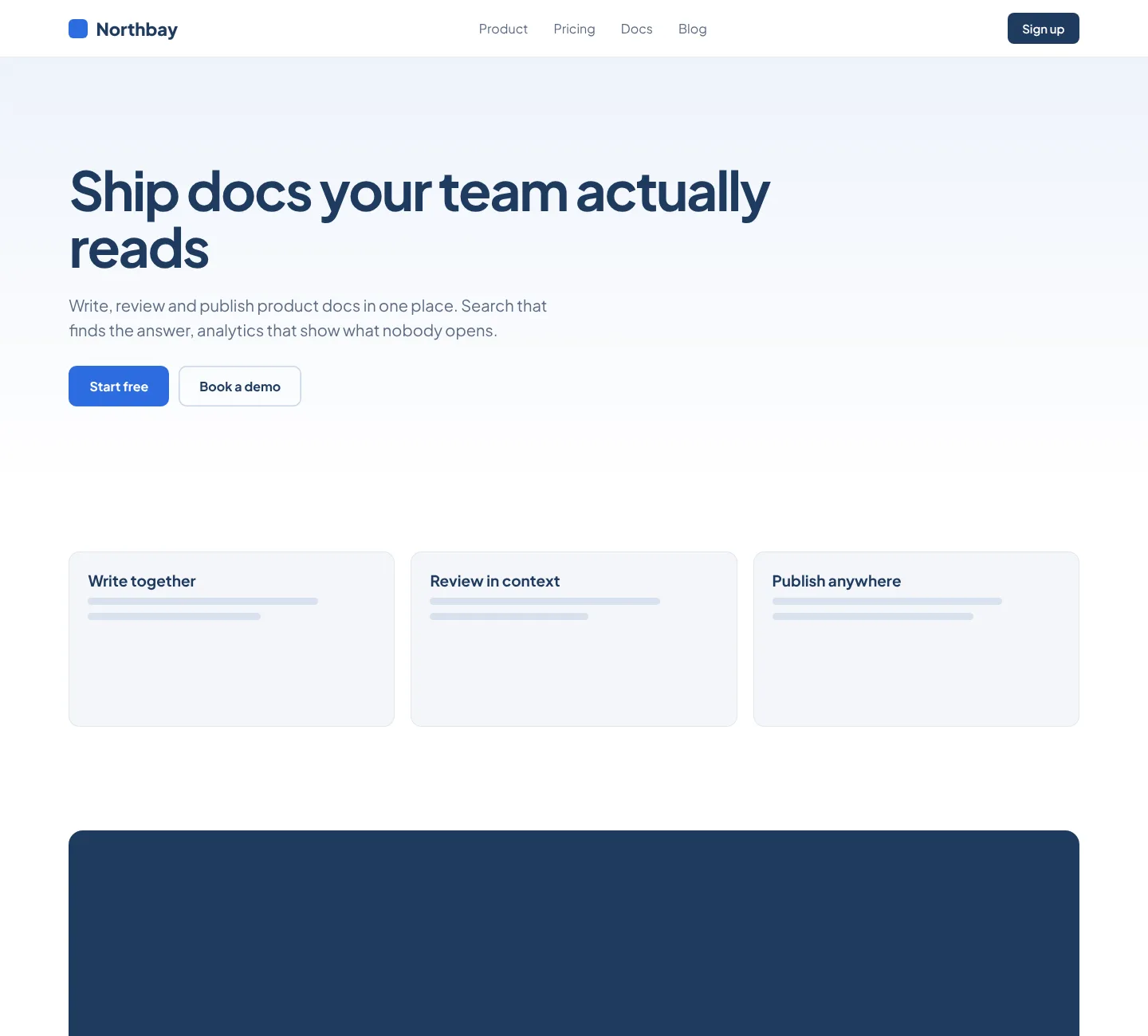
What is above the fold?
The fold is the bottom edge of the visible browser window before a visitor scrolls. Everything above it is what every single person sees on first load. Everything below requires an action from them. Nielsen Norman Group research puts 57% of all page-viewing time above the fold, with 74% concentrated in the first two screenfuls. That first viewport is expensive real estate.
What viewport sizes does the checker use?
Three device categories, three real viewport dimensions — not approximations.
Desktop captures use 1440 × 900 px, the most common laptop and external monitor combination in current analytics data. The browser chrome (tabs, address bar, bookmarks) eats roughly 130–160px of vertical space, putting the effective fold line around 740–900px into the page. Tablet captures use 820 × 1180 px — iPad Air and similar Android tablets in portrait orientation. Tablet traffic runs 7–10% for most B2B products and significantly higher for editorial and e-commerce sites. It's the device class designers skip most often when reviewing layouts.
Mobile captures use 390 × 844 px, corresponding to iPhone 14 logical pixels — the dominant premium-phone viewport in Western markets. On mobile, the fold line sits around 720px of page content once the browser UI is accounted for, which is much lower than most desktop-first layouts assume. All three captures happen in real Chrome, with the fold line marking the exact bottom edge of the viewport.
Where the fold line sits and why it moves
The fold isn't a fixed pixel value. It shifts based on four things: screen physical resolution, OS display scaling, browser chrome height, and whether the user has the window fullscreened. A 1920×1080 monitor at 125% scaling has an effective viewport height of ~864px. The same monitor at 100% scaling gives you 930px.
This checker uses the viewport dimensions above with no additional OS scaling applied. The fold line shown in the screenshot corresponds to those CSS pixels exactly — the most accurate representation you'll get without pulling real user browser data from your analytics.
One thing worth checking specifically: sticky navigation bars. A fixed header at 80px height reduces usable above-the-fold space by 80px on every page, not just the homepage. If that nav is opaque and covers your hero content on mobile, the screenshot will show you immediately.
What to look for in your screenshot
Start with the headline. Is it visible and unobstructed — not partially cropped, not covered by a chat widget or cookie banner? Then check your primary CTA button. On landing pages, a button that requires scrolling to reach converts measurably worse than one that doesn't.
Look at the fold line itself. Does anything important sit right at it, partially cut off, visible on one device and hidden on another? That's a layout to fix. Also check whether a large image is consuming most of the fold space without communicating anything. Hero images that push headlines down are common on mobile.
Cookie banners and GDPR consent dialogs deserve a separate check. If your consent layer overlays the full viewport, your hero content is entirely hidden on first load for first-time visitors — a UX problem and, depending on implementation, a potential Core Web Vitals issue. (Plenty of sites miss this because designers test with banners already dismissed.)
On mobile specifically: does your font size drop to where the headline is no longer readable without zooming? The three-device comparison answers this directly, without guesswork.
Why real Chrome rendering matters here
Some above-the-fold checkers work from CSS calculations or scale HTML in an iframe. That approach misses web fonts (which don't load until the browser fetches them from their CDN), JavaScript-injected elements like chat widgets and cookie banners, lazy-loaded images below the initial viewport, and CSS animations that affect layout on first paint.
This tool renders the page in a full headless Chromium browser — the same engine behind Google Chrome — with scripts enabled, fonts loaded, and layout fully settled. What you see is what a visitor on that device and viewport actually sees. Not an approximation.
Above the fold and Core Web Vitals
Google's Largest Contentful Paint (LCP) measures the time to render the largest visible element above the fold on first load. On most marketing pages, that element is a hero image or an H1 heading. If your LCP element is an unoptimized image sitting above the fold line, your LCP score directly depends on how fast that image loads — and the fold checker shows you exactly which element Chrome is measuring.
A common discovery: the hero image looks fine on desktop because it loads fast on a fast connection. On mobile, that same image at 400px wide is still downloading the full 2MB original because responsive images aren't set up correctly (srcset missing, or the server ignores the Accept header). The fold check often surfaces this — you'll notice the image is blank or partially loaded in the result, which happens when the renderer captures the page before a slow asset completes.
If your fold check shows a missing or blank image above the fold, that's almost certainly hurting your LCP on real mobile connections.
FAQ
There is no single standard — it depends on screen resolution, OS scaling, and browser chrome height. On a typical 1440×900 desktop viewport, the fold line sits between 740px and 900px into the page, depending on whether the browser toolbar is visible. On mobile (390×844), the effective fold is around 720px of page content. This tool uses fixed viewport dimensions for each device type so your results are consistent and comparable.
Yes, for a specific reason: first impressions. Around 85% of users do scroll past the fold — but they decide whether to scroll based on what they see above it. Nielsen Norman Group found that 57% of total viewing time is spent above the fold. If your headline, CTA, or value proposition isn't clear in that first viewport, scroll rates drop and bounce rates rise regardless of what's below.
At minimum: your headline (what you do or offer), a subheading or supporting line that makes it specific, and your primary call to action. For transactional pages, a trust signal (customer count, review score, or a recognizable logo) above the fold measurably increases conversion. What to keep out: autoplay video without a mute button, large decorative images that push copy down, and cookie banners that block the entire viewport.
Significantly. Desktop at 1440×900 gives you roughly 740–900px of content before the fold, in a wide 1440px column. Mobile at 390×844 gives you around 720px of content in a 390px-wide column, which causes most desktop layouts to reflow dramatically — multiple columns become stacked sections, and content that sat side-by-side on desktop now requires scrolling on mobile. Check both with the device selector in this tool.
Yes. A fixed navigation bar of 80px height reduces your usable above-the-fold space by exactly 80px on every page. If you have an 80px sticky nav and a cookie banner that appears at the same time, you can lose 200px or more of fold space on first load. This tool renders the page as a first-time visitor sees it, including cookie banners that appear on initial visit, so you'll see exactly how much of your hero section survives.
Two connections. First, Google's Largest Contentful Paint (LCP) measures the largest element visible above the fold on first load — usually your hero image or H1. A slow or missing LCP element hurts Core Web Vitals, which is a ranking signal. Second, Google's Page Experience guidelines include a "no intrusive interstitials" check — full-screen popups and cookie banners that block content on load can trigger a penalty. The above-the-fold screenshot shows both issues immediately.
Several ways. Browser resizing uses your machine's fonts, extensions, and cached assets — results vary between developers. This tool uses a clean headless Chrome instance with no extensions, no cached state, and standard system fonts, giving you a consistent result that reflects what a real first-time visitor sees. It also draws the fold line precisely and lets you save the screenshot, which is useful for documenting issues in design reviews or tickets.